Initial setup
You are not limited to using the EduTools plugin when creating tests for a project (you can just create a regular PyCharm project), but with the EduTools plugin, it may be more convenient.
To create a project with the EduTools plugin, you need to download PyCharm Edu. This version already contains the installed version of the EduTools plugin. If you already have a regular installation of PyCharm installed, you can download the plugin from Marketplace.

After that, make sure you have enabled EduTools' project creating features:
- Click
Help -> Enable Course Creator Features - Click
Ctrl + Shift + A -> Experimental features, check the box next toedu.course.hyperskill
To create a project, you need to click File -> Learn and Teach -> Create New Hyperskill Course

Set the title and click Create

This is how your project should look like for now.

Next, you need to delete lesson1 and test_helper.py. You should end up with an empty project. Please, don't touch .yaml files - they are internal for the EduTools plugin.
Then, you should create a so-called Framework Lesson and give it a name like a project name. For this, you need to create a new Lesson and choose Framework lesson in the dialog.


Then, you should create a new Task inside this Framework Lesson and give it the name stage1.
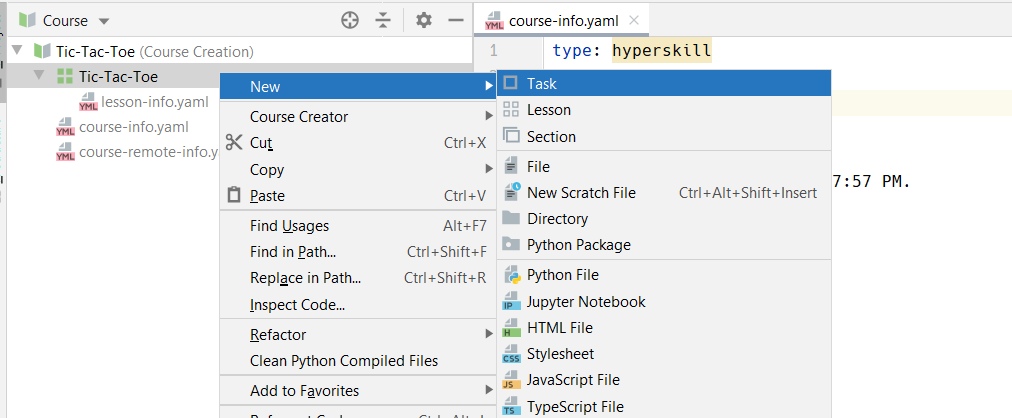
The task type should be Edu.

You should end up with the following:

Then remove task.py remove folder hstest. Create tests.py file inside this stage. Create a tictactoe folder - this folder will contain the user's solution. Create a user file inside a tictactoe folder. Notice, that you need to name folder and file appropriately your project theme, don't stick to Tic-Tac-Toe. This is just an example. You should end up with the following configuration:

Paste into tests.py initial example from above. Then press Check button. You can see that your solution in tictactoe/game.py passes tests.
To create tests for the second stage, click on Framework Lesson named Tic-Tac-Toe and add new Task. Name it stage2. Your result should look like the following. You may need to add or delete several files, like in stage1.

You created an initial setup and ready to write tests!
After you finished creating your project, you need to upload it to Stepik. To do this, please click on a project name (the one with 4 squares, not to the one with a book), and click Course Creator -> Upload Hyperskill Lesson to Stepik.

You can install the latest version using command pip install https://github.com/hyperskill/hs-test-python/archive/release.tar.gz. Another way to install this library is to use requirements.txt with the following line (don't be confused, it works for every platform, macOS, Linux, and Windows since pip uses its inner tools to unzip .tar.gz files):
https://github.com/hyperskill/hs-test-python/archive/release.tar.gz
This dependency points to the latest commit of the release branch so the EduTools plugin will download relevant version of the library every time a user starts a project. Please, use virtual environment rather than install the library right into the interpreter, since the library is updated frequently.
If your project requires the installation of additional libraries (requests, numpy, etc) you should add them to the requirements.txt file.
A typical project with several stages with Python tests looks like this:
PyCharm_project_folder
    .idea
        --PyCharm internal files--
    Project_name
    |   stage1
    |   |   --user files--
    |   |   tests.py
    |   stage2
    |   |   --user files--
    |   |   tests.py
    |   ...
    |   stageN
    |   |   --user files--
    |   |   tests.py
    requirements.txt
As you can see, the project is divided into stages. Each stage is a separate module and does not overlap with other stages in any way. The module_name folder is intended for the user to write his code to the project. The tests.py file is intended for writing tests to the project stage.
So, the initial setup for writing tests for a Python project is as follows (let's say you're writing tests for the Tic-Tac-Toe project):
PyCharm_project
    Tic-Tac-Toe
    |   stage1
    |   |   tictactoe.py
    |   |   tests.py
    requirements.txt
The file tictactoe.py can contain some initial code for the student. They'll see it the first time they open the project. Usually, this file looks like this for a student when opening a project for the first time:
Or like this:
print('Hello World!')You shall implement the project stage in this file. Since you will have to check whether your tests work or not.
Below is an initial example of the tests.py file. Noice, that you don't need the user's file location at all - the library will find the main file across all user's files automatically.
from hstest import CheckResult, StageTest, dynamic_test


class TicTacToeTest(StageTest):
    @dynamic_test
    def test(self):
        return CheckResult.correct()


if __name__ == '__main__':
    TicTacToeTest().run_tests()
As you can see, there's a class here inherited from the StageTest class. You need to implement two methods marked with @dynamic_test. We will discuss how to do this in the following sections. The tests are started by creating an instance of the class and calling the run_tests method. If you run the tests.py file, the library will test your tictactoe.py file on the written tests.