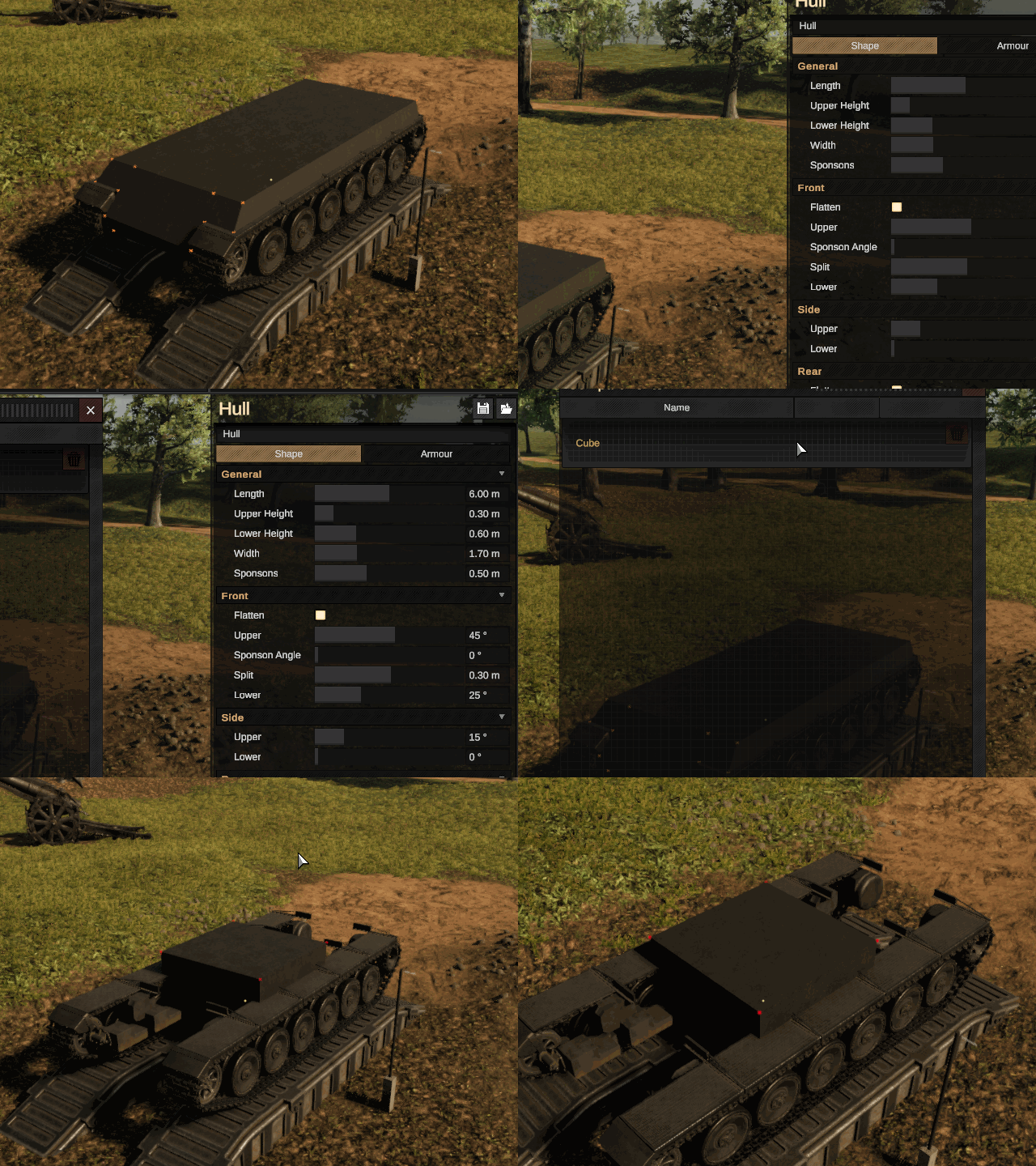
Importing Tutorial
In this tutorial we'll go through the basic steps of how to import a 3d model into Sprocket.
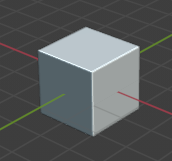
The first step is to have a model. You can make one yourself in a program like Blender or download one online. For this tutorial i will be using the default blender cube.
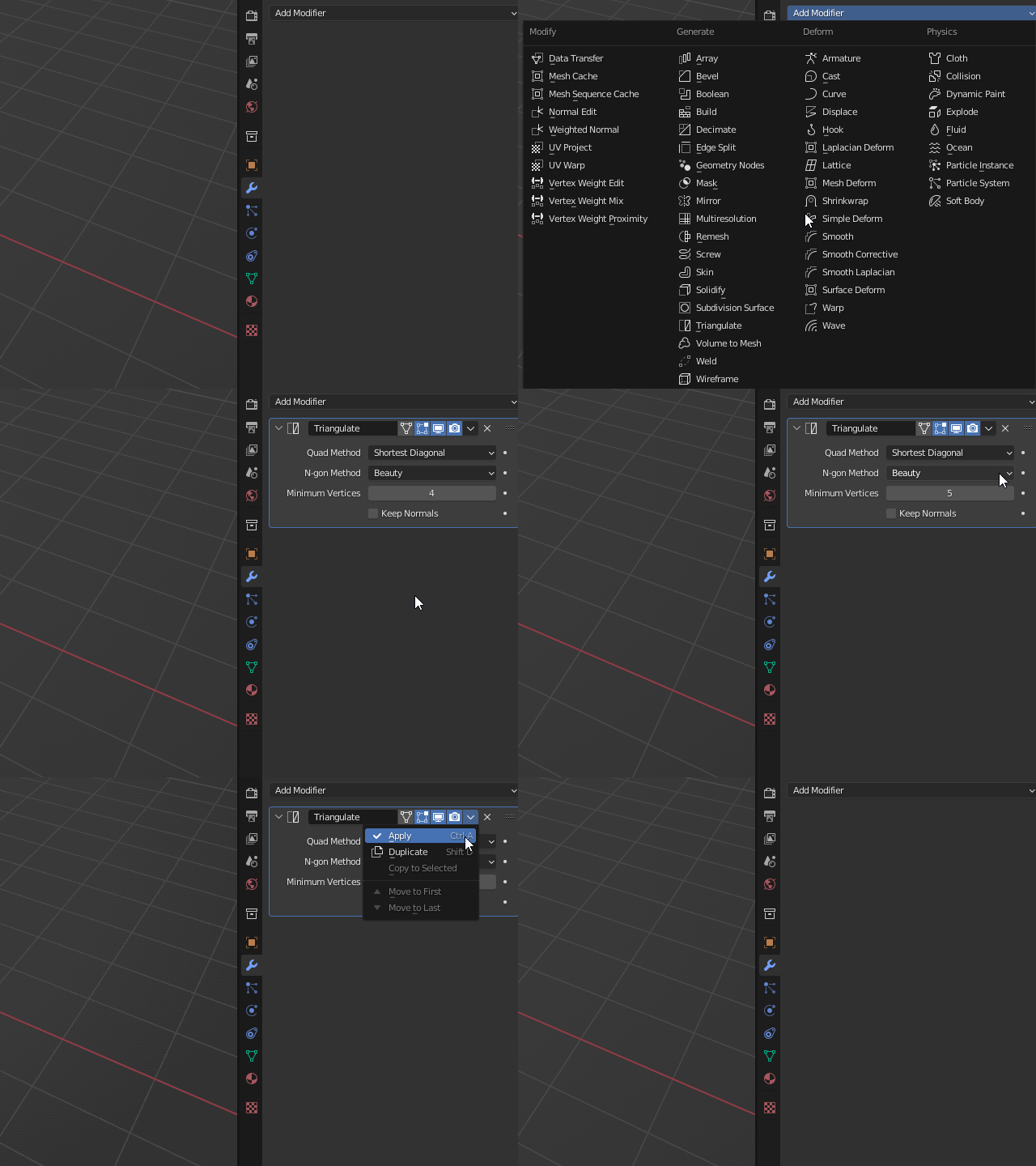
For more complex shapes, such as a tank hull, it is recommended to tesselate the model before exporting. In blender this can be done by using a Triangulate modifier. For best result, set Minimum Vertices to 5. Then press Apply.
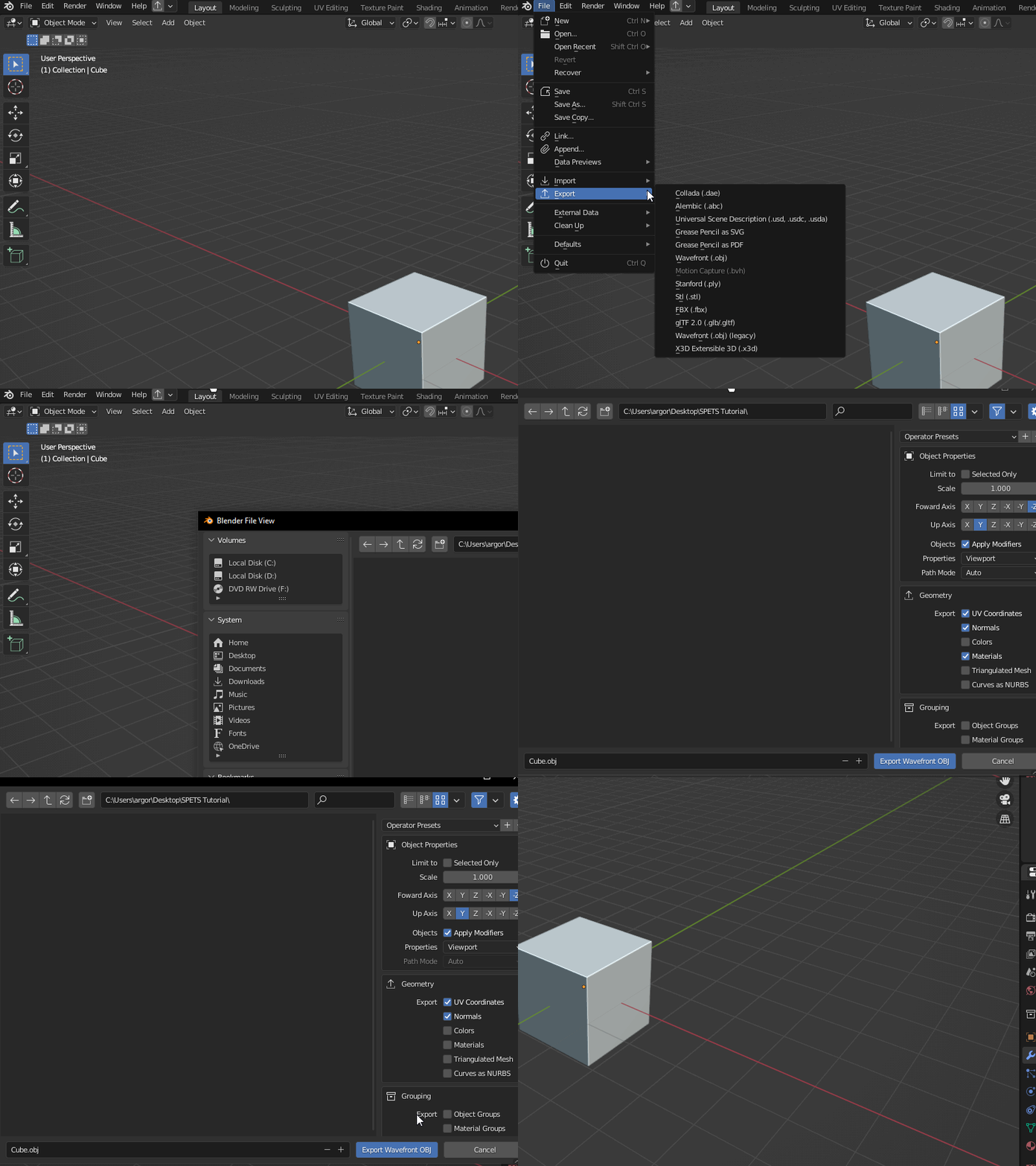
Now export the model as a Wavefront(.obj) file. You can uncheck "Materials" as we won't be needing that.
Now if you haven't already, download SPETS.
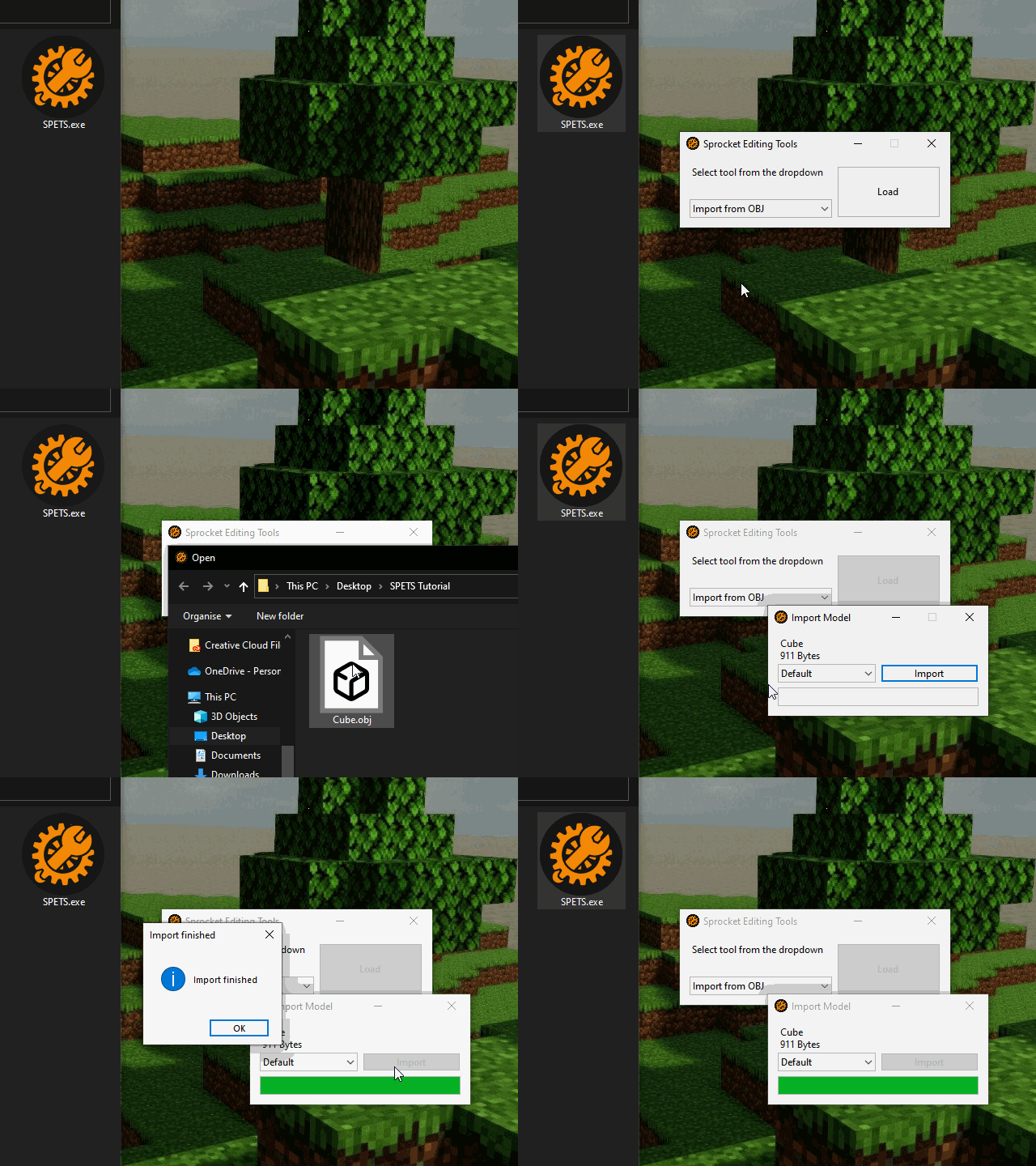
Open SPETS.exe and select "Import from OBJ" from the dropdown. Click Load and select your exported .obj file.
A new window should now have popped up. Select the faction you want to model in, if you're uncertain choose Default. Press Import and wait for it to finish loading. Your model might take longer to import depending on the file size.
Now it's time to fire up Sprocket. Make sure you're in the correct faction and load the compartment. The model should now have appeared in game, wohoo!
You can now manipulate it as you would any other Freeform tank.