this library is the best free way to customize your MessageBox, every single part, option and propreties.
CREATE YOUR CUSTOM CODE HERE: (CODE GENERATOR)
- this Library works with MaterialDesign, so you need to install THIS package from NuGet
- download the .dll file from the releases (direct download)
- open your project in VisualStudio and add it as a reference (how to do that)
using CustomMessageBox;
//style setter for MessageBox
public static MessageBoxStyle Style;

//for a custom message
public static MessageBoxResult Show(string messageBoxText);

//for a custom message and custom title
public static MessageBoxResult Show(string messageBoxText, string caption);

//for a custom message, title and MaterialDesign button
public static MessageBoxResult Show(string messageBoxText, string caption, MessageBoxButton button);

//for a custom message, title, MaterialDesign button and a custom icons
public static MessageBoxResult Show(string messageBoxText, string caption, MessageBoxButton button, MessageBoxImage icon);

//for a custom message, title, MaterialDesign button, custom icons and default result when you close the Box
public static MessageBoxResult Show(string messageBoxText, string caption, MessageBoxButton button, MessageBoxImage icon, MessageBoxResult defaultResult);
MessageBoxButton
all supported buttons type:
MessageBoxButton.OK;MessageBoxButton.OKCancel;MessageBoxButton.YesNo;MessageBoxButton.YesNoCancel;
MessageBoxIcon
all supported Icons type:
MessageBoxImage.Error;MessageBoxImage.Information;MessageBoxImage.Question;MessageBoxImage.Warning;MessageBoxImage.None;
MessageBoxResult
all supported Result type:
MessageBoxResult.OK;MessageBoxResult.Cancel;MessageBoxResult.Yes;MessageBoxResult.No;MessageBoxResult.None;
How use it
MaterialMessageBox will use the same Theme you chosed in App.xaml
<Application.Resources>
        <ResourceDictionary>
            <ResourceDictionary.MergedDictionaries>
                <ResourceDictionary Source="pack://application:,,,/MaterialDesignThemes.Wpf;component/Themes/MaterialDesignTheme.**dark**.xaml" />
                <ResourceDictionary Source="pack://application:,,,/MaterialDesignThemes.Wpf;component/Themes/MaterialDesignTheme.Defaults.xaml" />
                <ResourceDictionary Source="pack://application:,,,/MaterialDesignColors;component/Themes/Recommended/Primary/MaterialDesignColor.DeepPurple.xaml" />
                <ResourceDictionary Source="pack://application:,,,/MaterialDesignColors;component/Themes/Recommended/Accent/MaterialDesignColor.Lime.xaml" />
            </ResourceDictionary.MergedDictionaries>
        </ResourceDictionary>
    </Application.Resources>
MaterialMessageBox .Show() method
some exaples
MaterialMessageBox.Show("Some Text", "Costum Title", MessageBoxButton.YesNoCancel, MessageBoxImage.Information);

MaterialMessageBox.Show("Other text", "my title", MessageBoxButton.OKCancel, MessageBoxImage.Warning);

if(MaterialMessageBox.Show(obj.ToString(), "Question", MessageBoxButton.YesNo, MessageBoxImage.Question) == MessageBoxResult.Yes)
{
	MaterialMessageBox.Show(man.name, "ERROR!", MessageBoxButton.OK, MessageBoxImage.Error);
}

MaterialMessageBox.Show(e.message, "Message", MessageBoxButton.OK, MessageBoxImage.None, MessageBoxResult.OK);MessageBoxStyle properties
//for change the Box background color
public static Color backgroundColor;

//for change the Box text color
public static Color foregroundColor;

//for change the background color of any different buttons
public static Color OKButtonColor;
public static Color CancelButtonColor;
public static Color NoButtonColor;
public static Color YesButtonColor;

//for change the text color of any different buttons
public static Color OKButtonForegroundColor;
public static Color CancelButtonForegroundColor;
public static Color NoButtonForegroundColor;
public static Color YesButtonForegroundColor;

//for change the icon of any different buttons
public PackIconKind OKButtonIcon;
public PackIconKind CancelButtonIcon;
public PackIconKind NoButtonIcon;
public PackIconKind YesButtonIcon;

//for change the color of the visible icon
public static Color iconColor;

//for change the buttons position
public HorizontalAlignment buttonsAlignment;
MessageBoxStyle methods
//empty constructor
public MessageBoxStyle();

//contractor with default style
public MessageBoxStyle(DefaultBoxStyle style);

//constractor with code style from website (at the top of doc)
public MessageBoxStyle(string code);

//for set the default value for that component
MaterialMessageBox.OKButtonColor = new Color();
DefaultBoxStyle enum
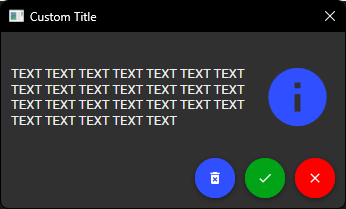
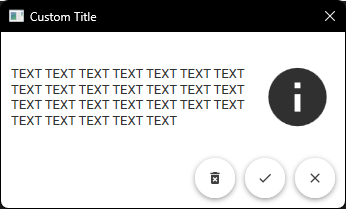
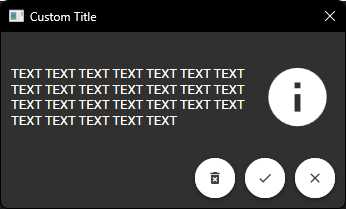
DefaultlightDarkallWhite
public enum DefaultBoxStyle
{
	Default,
	lightDark,
	allWhite
}
how to use it
MessageBoxStyle myStyle = new MessageBoxStyle();
//or
MessageBoxStyle myDefaultStyle = new MessageBoxStyle(DefaultBoxStyle.Default);
//or
MessageBoxStyle myCodeStyle("ff2e2effffffffffff9e0000ff5900ffbb00000000000000000000000000");

//from Hex Value
myStyle.YesButtonColor = (Color)ColorConverter.ConvertFromString(string HexCode);

//from red green and blue value
myStyle.NoButtonColor = Color.fromRgb(byte r, byte g, byte b);

//for set the buttons icon
myStyle.NoButtonIcon = PackIconKind.Close;

//for set the button alignment
myStyle.buttonsAlignment = HorizontalAlignment.Right;

//for set the MessageBox Style
MaterialMessageBox.Style = myStyle;
examples
MessageBoxStyle myStyle = new MessageBoxStyle();

myStyle.backgroundColor = Color.fromRgb(255, 255, 255);
myStyle.foregroundColor = Color.fromRgb(0, 0, 0);

myStyle.OKButtonColor = (Color)ColorConverter.ConvertFromString("#00CE52");
myStyle.YesButtonColor = (Color)ColorConverter.ConvertFromString("#00CE52");
myStyle.NoButtonColor = (Color)ColorConverter.ConvertFromString("#00CE52");
myStyle.CancelButtonColor = (Color)ColorConverter.ConvertFromString("#00CE52");

myStyle.OKButtonForegroundColor = (Color)ColorConverter.ConvertFromString("#ffffff");
myStyle.YesButtonForegroundColor = (Color)ColorConverter.ConvertFromString("#ffffff");
myStyle.NoButtonForegroundColor = (Color)ColorConverter.ConvertFromString("#ffffff");
myStyle.CancelButtonForegroundColor = (Color)ColorConverter.ConvertFromString("#ffffff");

myStyle .iconColor = (Color)ColorConverter.ConvertFromString("#00AB44");

myStyle.YesButtonIcon = PackIconKind.Cat;
myStyle.NoButtonIcon = PackIconKind.Dog;
myStyle.CancelButtonIcon = PackIconKind.Fish;

myStyle.buttonsAlignment = HorizontalAlignment.Right;

MaterialMessageBox.Style = myStyle;- Material Design
DefaultBoxStyle.Defaultlight Style
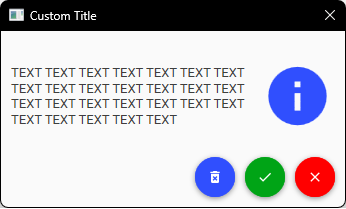
- Material Design
DefaultBoxStyle.Defaultdark Style
- DefaultBoxStyle.allWhite
- DefaultBoxStyle.lightDark
- custom example
MessageBoxStyle Style = new MessageBoxStyle(DefaultBoxStyle.allWhite);

Style.YesButtonColor = (Color)ColorConverter.ConvertFromString("#D9D9D9");
Style.NoButtonColor = (Color)ColorConverter.ConvertFromString("#A7A7A7");
Style.CancelButtonColor = (Color)ColorConverter.ConvertFromString("#FFFFFF");

Style.YesButtonIcon = MaterialDesignThemes.Wpf.PackIconKind.Cat;
Style.NoButtonIcon = MaterialDesignThemes.Wpf.PackIconKind.Dog;
Style.CancelButtonIcon = MaterialDesignThemes.Wpf.PackIconKind.Fish;

Style.buttonsAlignment = HorizontalAlignment.Left;

MaterialMessageBox.Style = Style;
MaterialMessageBox.Show("TEXT TEXT TEXT TEXT TEXT TEXT TEXT TEXT TEXT TEXT TEXT TEXT TEXT TEXT TEXT TEXT TEXT TEXT TEXT TEXT TEXT TEXT TEXT TEXT TEXT TEXT ", "Custom Title", MessageBoxButton.YesNoCancel, MessageBoxImage.Information);