This codebase has now been archived and will soon be deleted as we start working on a complete rewrite of the project. https://github.com/Panelium/Panelium
This software has not yet been extensively tested for security and is therefore not recommended for production use.
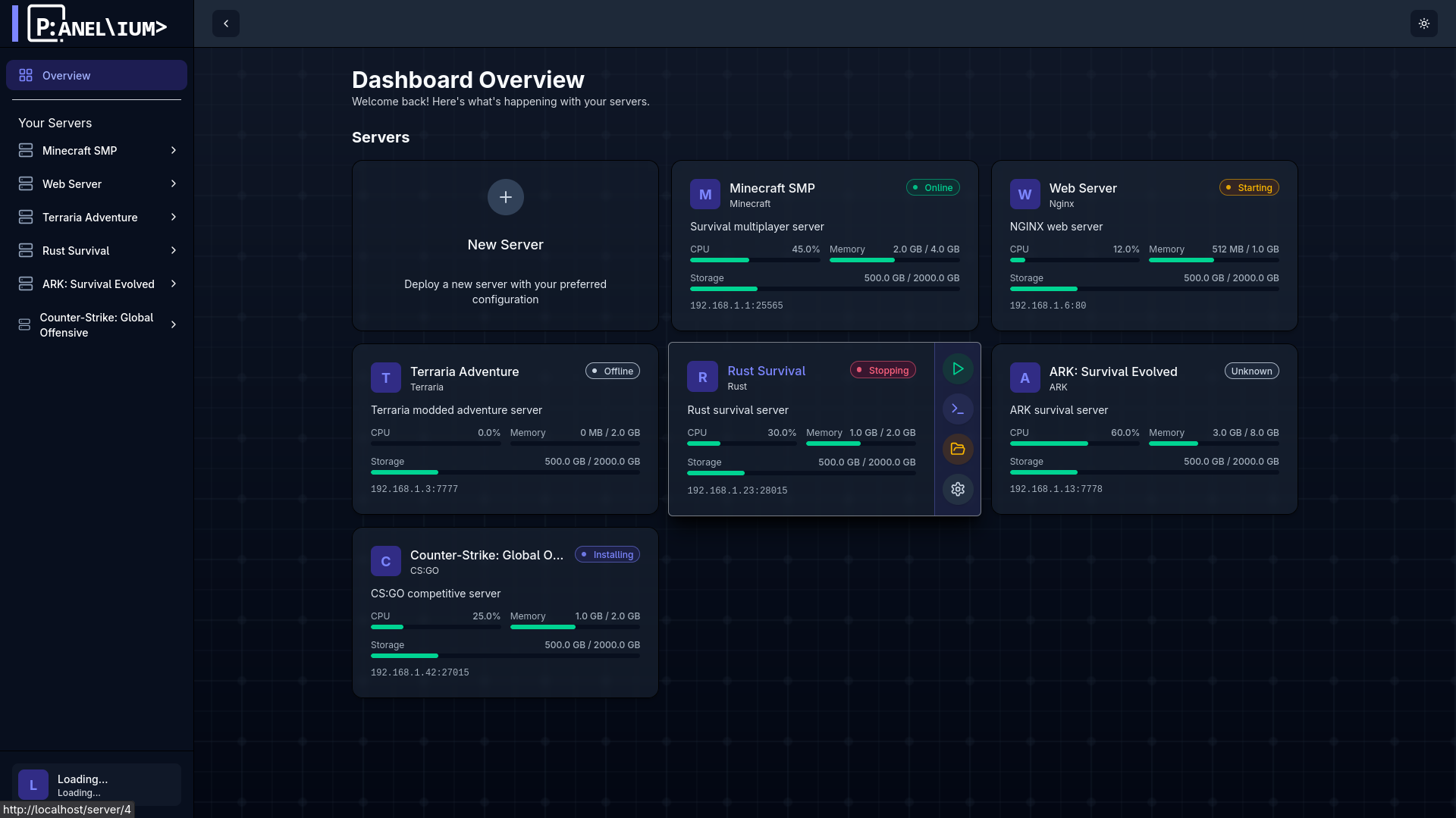
Panelium is an all-in-one server hosting solution that provides a web-based control panel for managing games, servers, applications, and services.
- Unix-like operating system (Linux, macOS, etc.), Windows is currently not supported.
- Docker
- Docker Compose
- Nginx
- Certbot
- jq
You can install Panelium using the automated setup script. This script will:
- Check for required dependencies
- Download and configure Docker Compose and systemd units (Linux) or helper scripts (macOS)
- Set up Nginx and SSL certificates with Certbot
- Prompt you for your dashboard, backend, and daemon domains
To run the setup script:
bash <(curl -s https://raw.githubusercontent.com/panelium/panelium/main/assets/panelium-setup.sh)Follow the prompts to enter your domain names (e.g., dashboard.example.com, backend.example.com, daemon.example.com). The script will handle the rest.
After installation, you can register your account at the dashboard URL you provided during setup and make yourself an admin with this command:
docker compose -f /var/lib/panelium/docker-compose.yml exec backend /app/backend --make-admin <your-username/email>To set up a daemon, you will have to go to the admin panel and create a Location and a Node. After that, you can click
the T button in the Nodes table to generate a backend token for the daemon (it will be copied to your clipboard).
You will then have to put this token into the daemon's secrets file, which is located at
/etc/panelium/daemon/secrets.json.
You can then start the daemon with the command:
systemctl restart paneliumdYou should now be able to create Node Allocations and Servers in the dashboard, and they will be managed by the daemon you just started.
All of the Panelium configuration files are located in /etc/panelium/ with sub-directories for each service.
You can adjust these files as needed after installation.
Note: backend and daemon(s) have to be on the same second-level domain (third- and lower level domains, aka subdomains, can be different) for the CORS and cookies to work properly.
Blueprints are available at https://github.com/Panelium/Blueprints (a website with a list of blueprints is currently in the works and will be available at https://blueprints.ndmh.xyz/).
- Make a user an admin:
docker compose -f /var/lib/panelium/docker-compose.yml exec backend /app/backend --make-admin <username/email>
To completely remove Panelium, including all configuration, data, and nginx configs, run the uninstall script:
bash <(curl -s https://raw.githubusercontent.com/panelium/panelium/main/assets/panelium-uninstall.sh)You will be prompted for confirmation before any files are deleted.
To set up a development environment for Panelium, follow these steps:
- Go (v1.24+)
- Node.js (v22+) and npm
- Docker & Docker Compose
- buf (for protobuf)
On Arch Linux:
- Note: You will need the AUR helper
yayinstalled for this.
yay -Syu
yay -S go nodejs npm docker docker-compose buf
On Debian and Ubuntu or other derivatives:
sudo apt update
sudo apt install golang nodejs npm docker.io docker-compose buf
On Fedora:
sudo dnf install golang nodejs npm docker docker-compose bufOn macOS (with Homebrew):
brew install go node docker bufbuild/buf/buf
brew install --cask docker # for Docker Desktop
On Alpine:
apk add go nodejs npm docker docker-compose bufFor Windows, WSL2 is recommended. We don't currently support native Windows installations.
go install github.com/sudorandom/protoc-gen-connect-openapi@mainNote: Make sure your Go bin directory (usually
$HOME/go/bin) is in yourPATHso installed Go tools are available.
git clone https://github.com/Panelium/Panelium.git
cd PaneliumFor development, you can use the provided docker-compose.yml in the root directory:
docker compose up --buildYou can use the provided Makefile for common development tasks:
- Start the dashboard in dev mode (with live reload):
make dev-dashboard
- Start the backend in dev mode (with live reload):
make dev-backend
- Start the daemon in dev mode (with live reload):
make dev-daemon
- Regenerate protobuf code:
make gen-proto
If you make changes to protobuf files, regenerate code with:
cd shared/proto
buf generate- Configuration files are in
/etc/panelium/for each service. - For local development, you may want to adjust ports and hosts in the configs and docker-compose files.
- Rebuild containers:
docker compose build - Stop containers:
docker compose down - View logs:
docker compose logs -f