Examples
Here follow some examples of how to use Mob Attack Tool, along with screenshots.
Note: The screenshots in this article are rather outdated, since they were made using Mob Attack Tool v0.1.18.
- Basic use case
- Module Settings
- Without Better Rolls for 5e
- Without Better Rolls for 5e or Midi-QOL
- Skipping Mob Turns
- Export to macro
In order to use Mob Attack Tool, you first need to target an enemy and then select the tokens that make up the mob, as shown below.
Show image
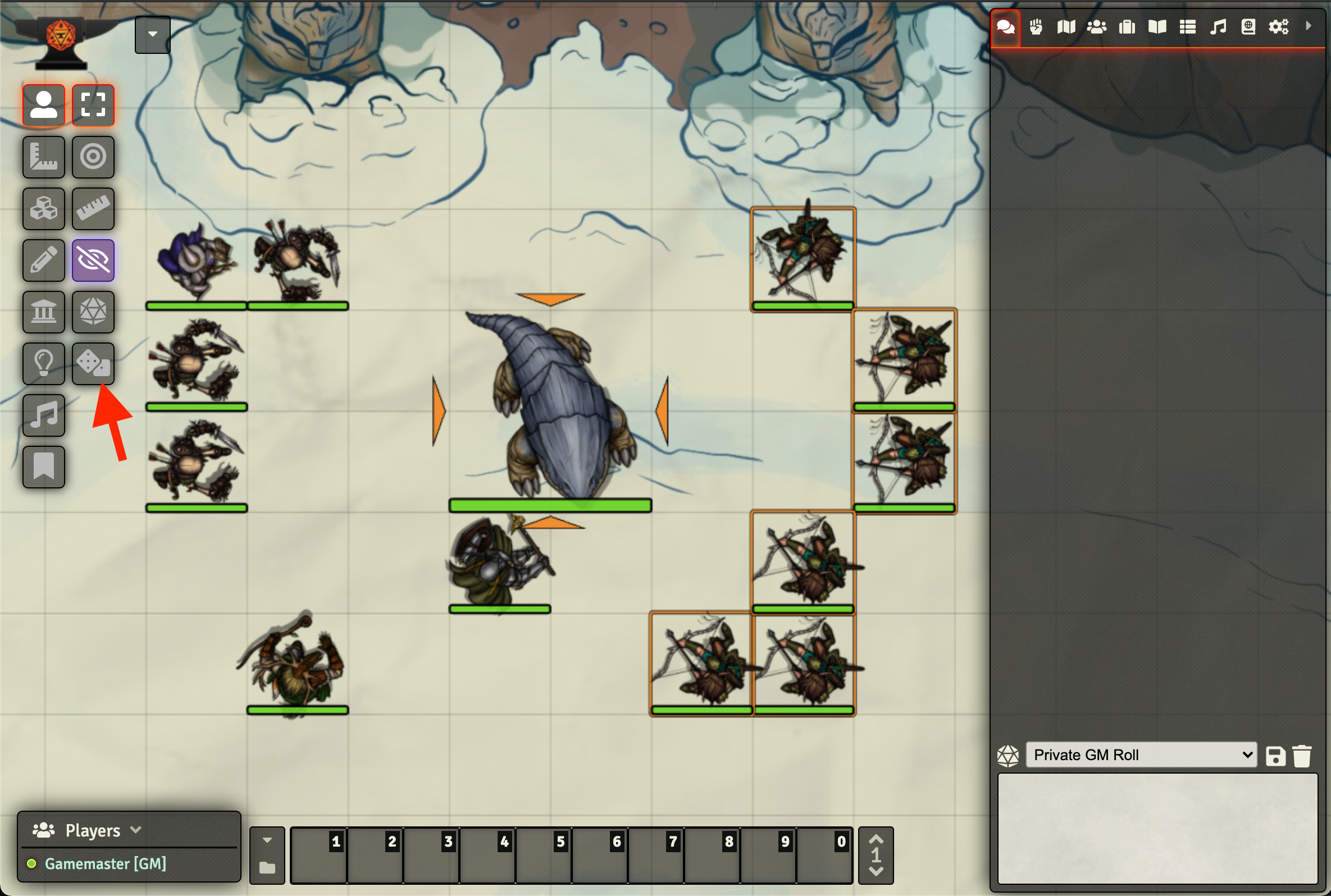
Next, you click the "Mob Attack" button, indicated by the red arrow in the picture above, to display the Mob Attack dialog. This is where you can select which weapons to use in the mob attack. After clicking the checkboxes to the right of each weapon you want to use, it should look like this:
Show image
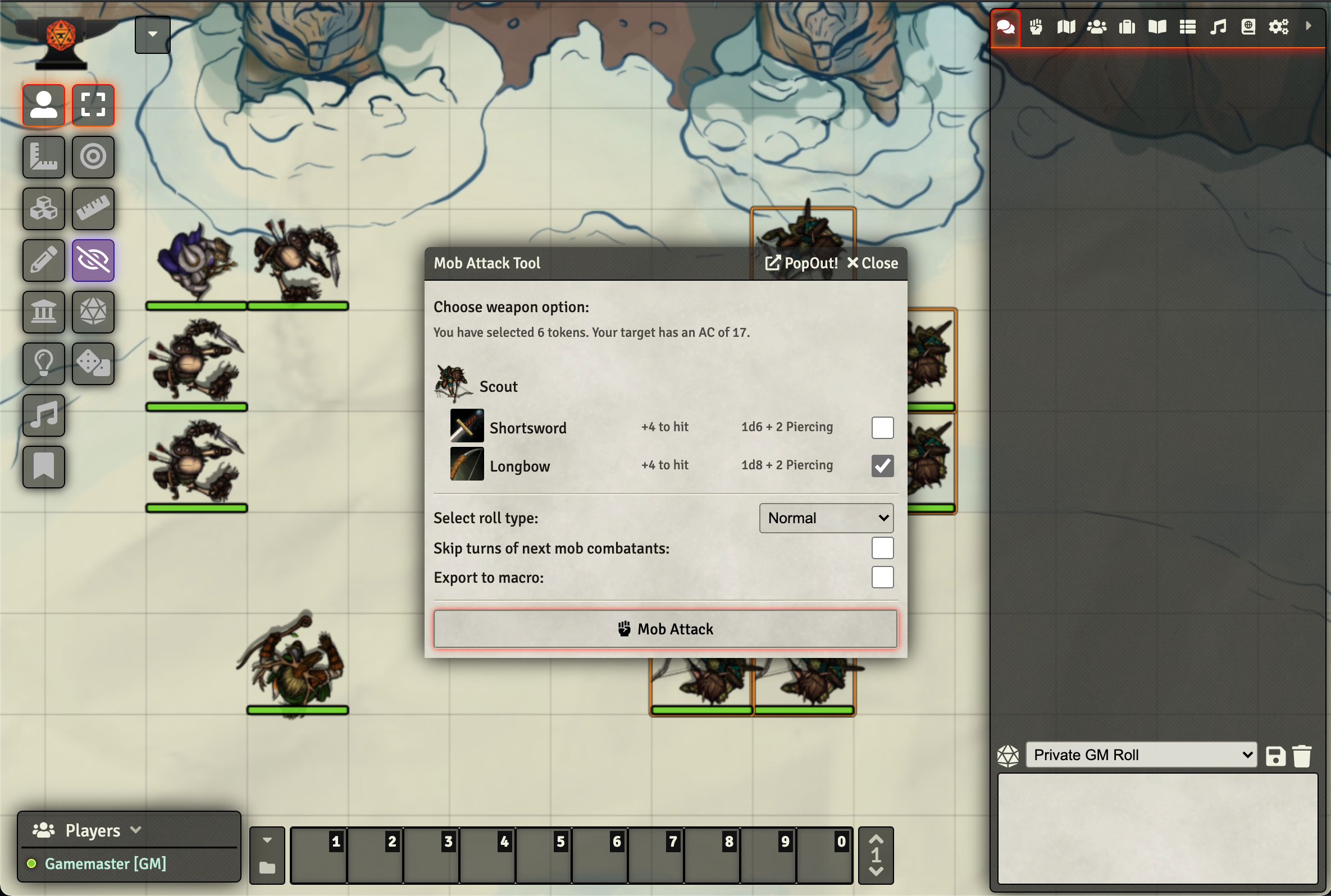
Now you can hit Enter or click the "Mob Attack" button at the bottom of the dialog window to execute the mob attack. The way mob attacks are executed depends on which module settings are used, and whether you use the Better Rolls for 5e and/or Midi-QOL modules.
Mob Attack Tool's settings of version 0.1.18 should look like this:
Show image
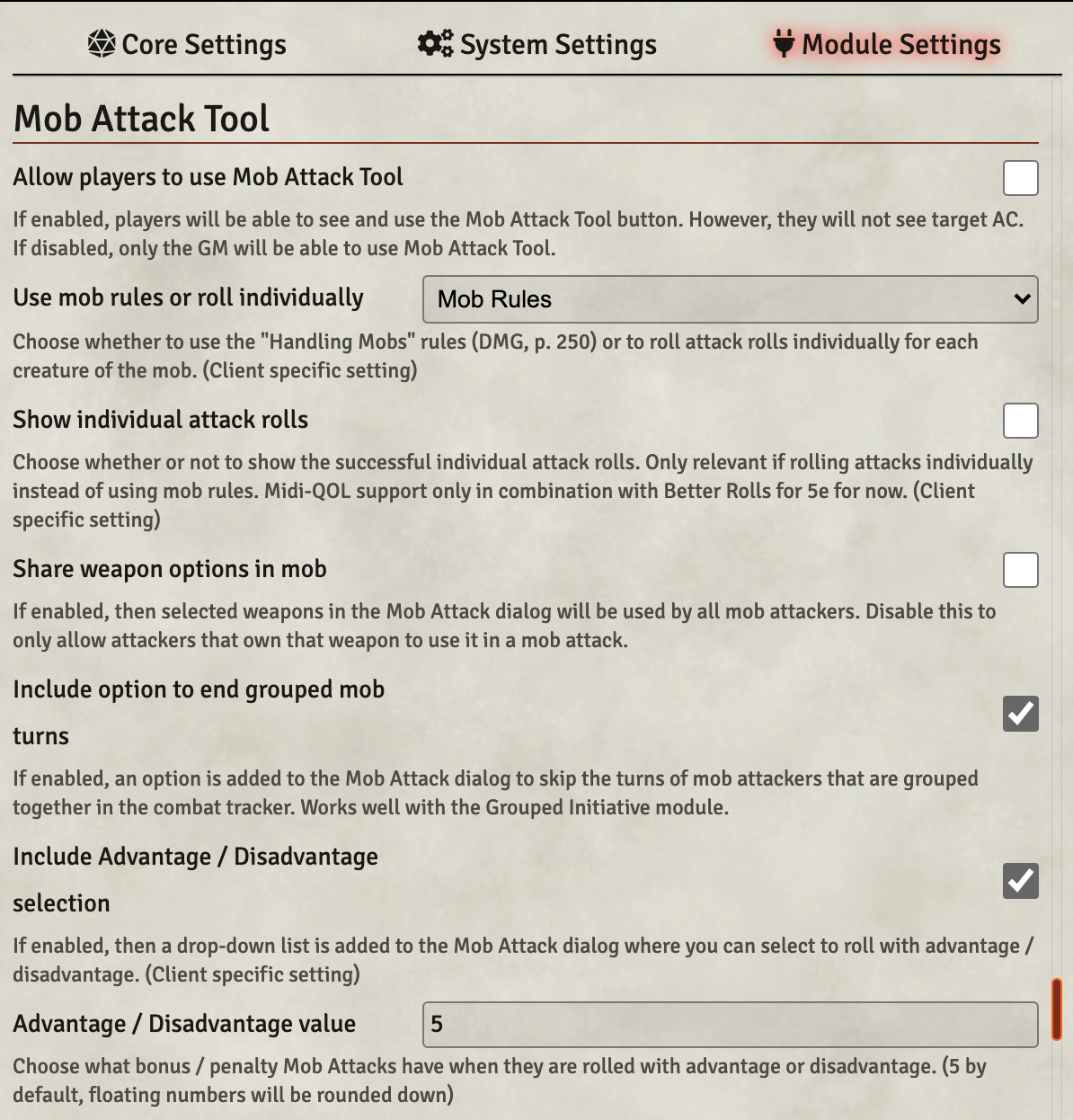
Most settings have descriptions that speak for themselves, but the two settings that have the largest impact on Mob Attack Tool's behavior are Use mob rules or roll individually and Show individual attack rolls.
If you set this to mob rules, then Mob Attack Tool will evaluate how many attacks hit the target based on the "Handling Mobs" rules on page 250 of the Dungeon Master's Guide. If it is set to "Individual Attack Rolls", then Mob Attack Tool will roll individual attack rolls for each mob attacker.
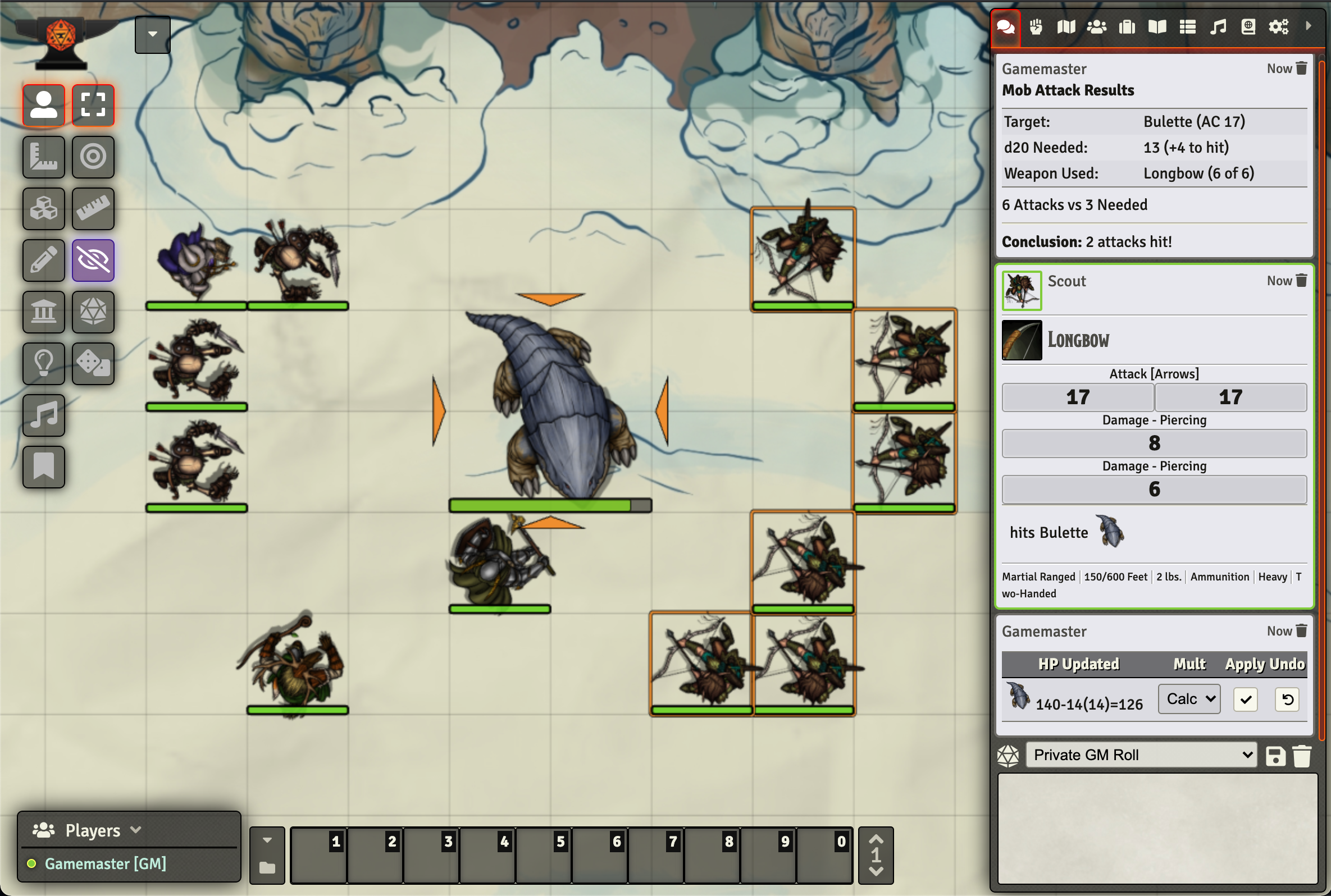
Below you can see what a mob attack looks like when using the "Mob Rules", with both Better Rolls for 5e and Midi-QOL active.
Show image
Likewise in the image below you can see what it looks like when using "Individual Attack Rolls" with both Better Rolls for 5e and Midi-QOL active. You'll notice that one attack roll was a critical hit, nice!
Show image
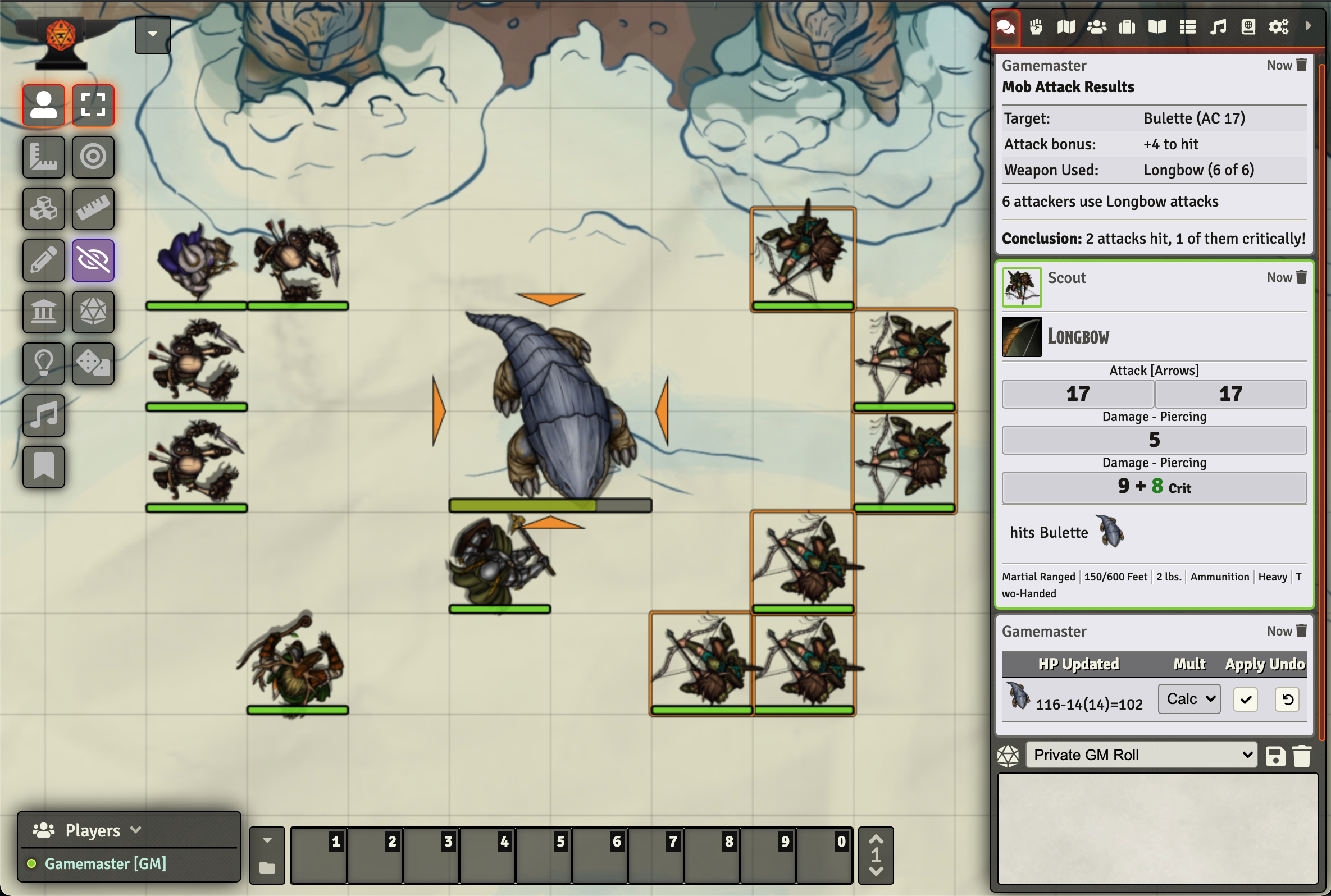
If the previous setting is set to "Individual Attack Rolls", then Mob Attack Tool will only show these attack rolls if this setting is enabled. To save some chat log space, only attack rolls that would hit the target are shown. And even if this setting is disabled, then at least a single attack roll matching the target's AC is shown when using Better Rolls for 5e. This is currently necessary in order to trigger Midi-QOL's damage automation.
When using Better Rolls for 5e, the attack rolls have strange dice formula such as "0d0 + 17". This is also part of a workaround. Natural 20s and natural 1s are detected as usual. Support for crit thresholds lower than 20 is an upcoming feature.
Below you can see how individual attack rolls are displayed when this setting is enabled with both Better Rolls for 5e and Midi-QOL active.
Show image
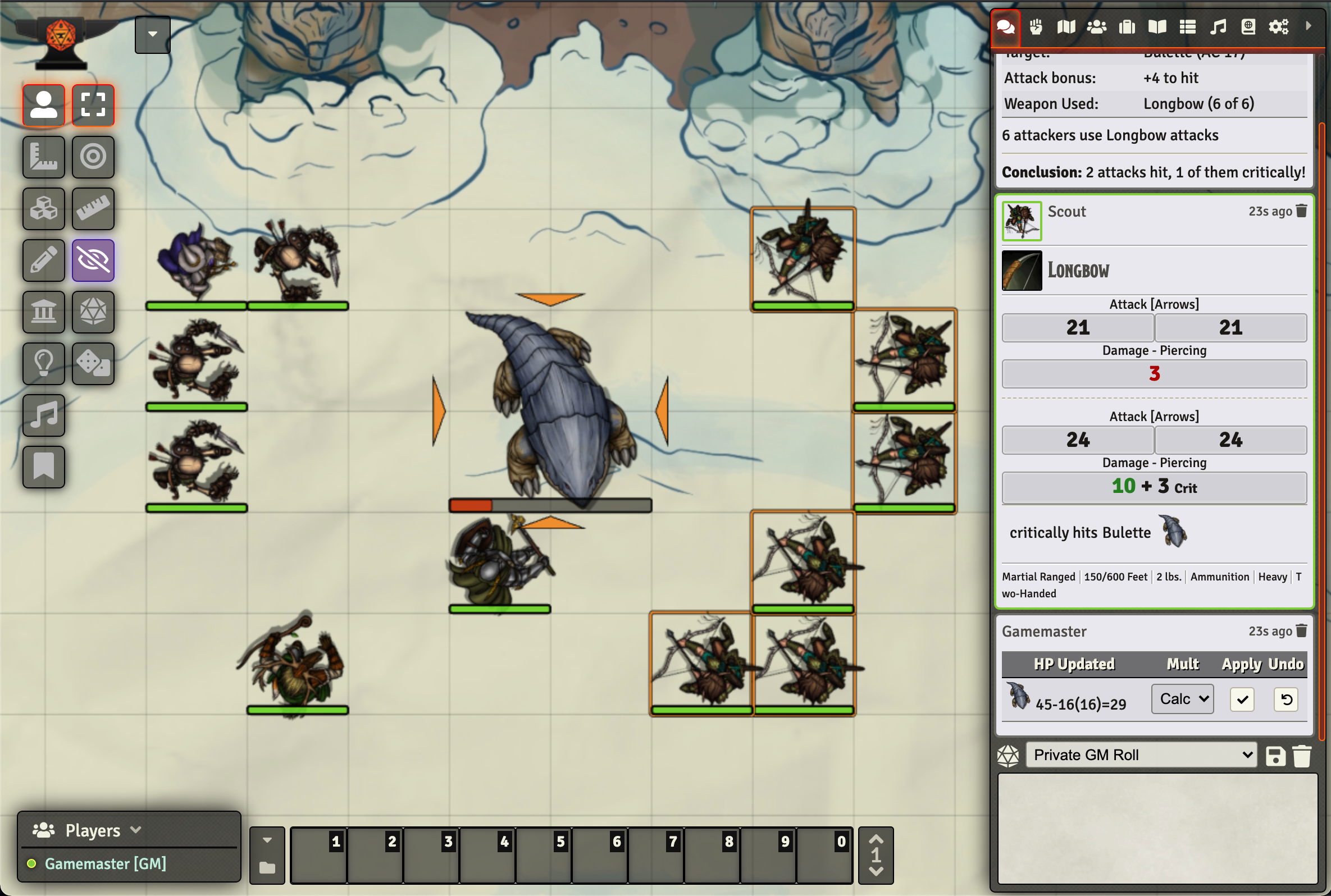
I'm aware that Better Rolls for 5e and Midi-QOL don't always work perfectly together, and thus there are people who only use one of either. If only Better Rolls for 5e is active, then the results look identical minus the "HP Updated" chat message.
If only Midi-QOL is active and you're using the "Individual Attack Rolls" setting, then a mob attack would look like what is shown below.
Show image
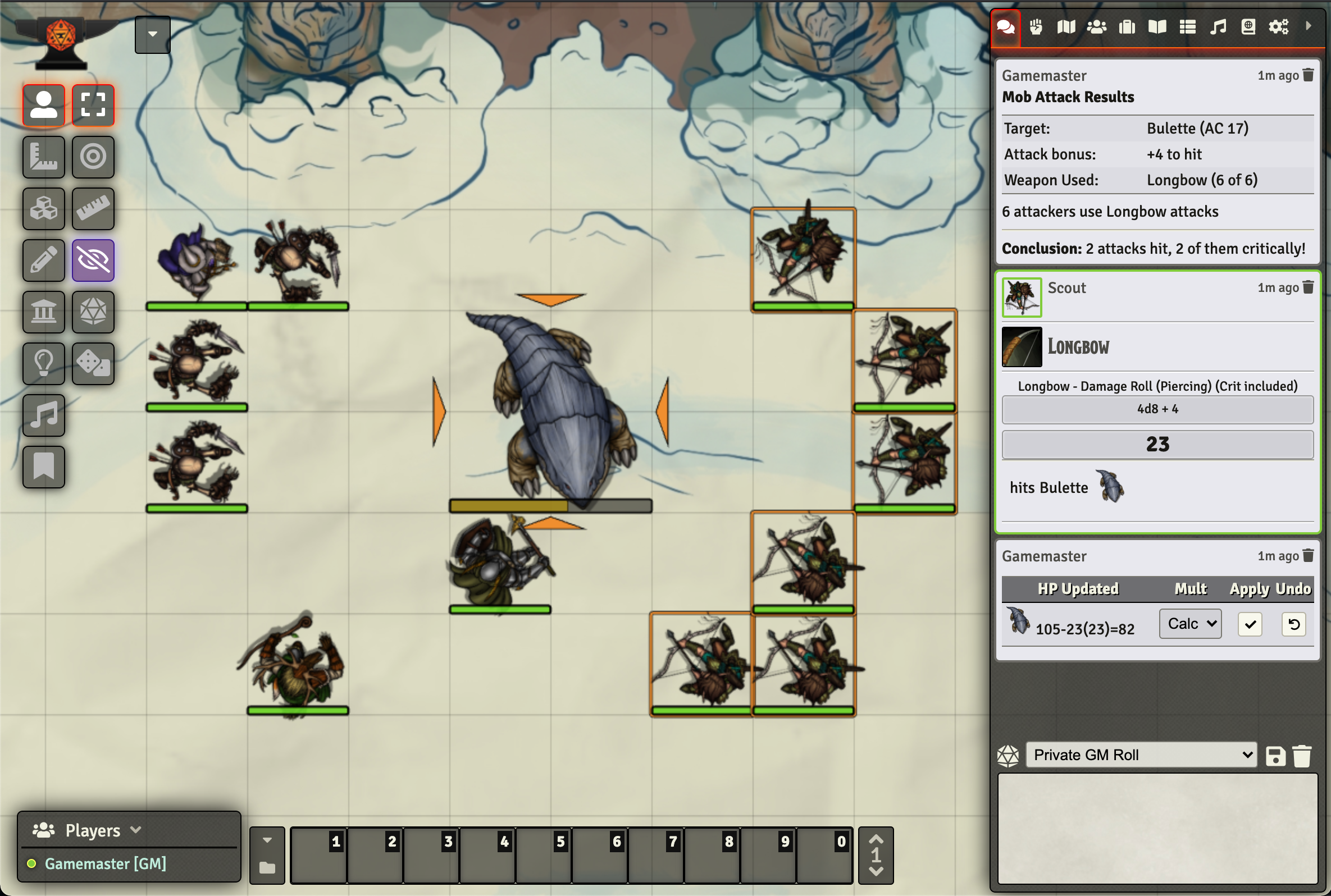
In the image above you can see that both attack rolls were critical hits, but all damage formulas were condensed into a single formula. This saves quite a lot of chat log space. Unfortunately, as of now Mob Attack Tool does not support showing individual attack rolls when only Midi-QOL is active. I'll try to include it in a later release.
Of course, you can also use Mob Attack Tool without either of these modules. If "Show individual attack rolls" is disabled, then a mob attack that uses "Individual Attack Rolls" would appear as shown in the image below.
Show image
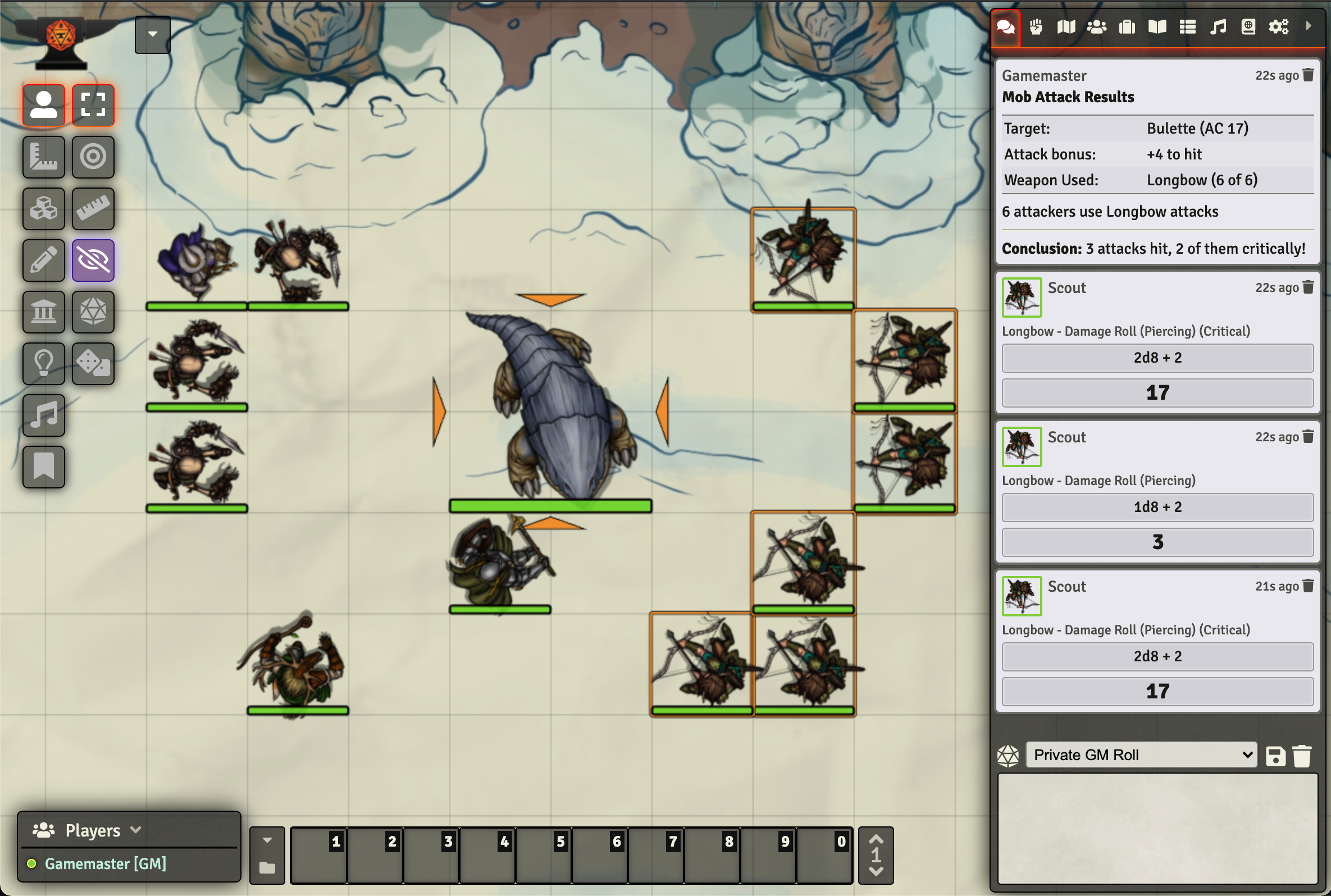
In the image below you can see what a mob attack would look like if "Show individual attack rolls" was enabled instead.
Show image
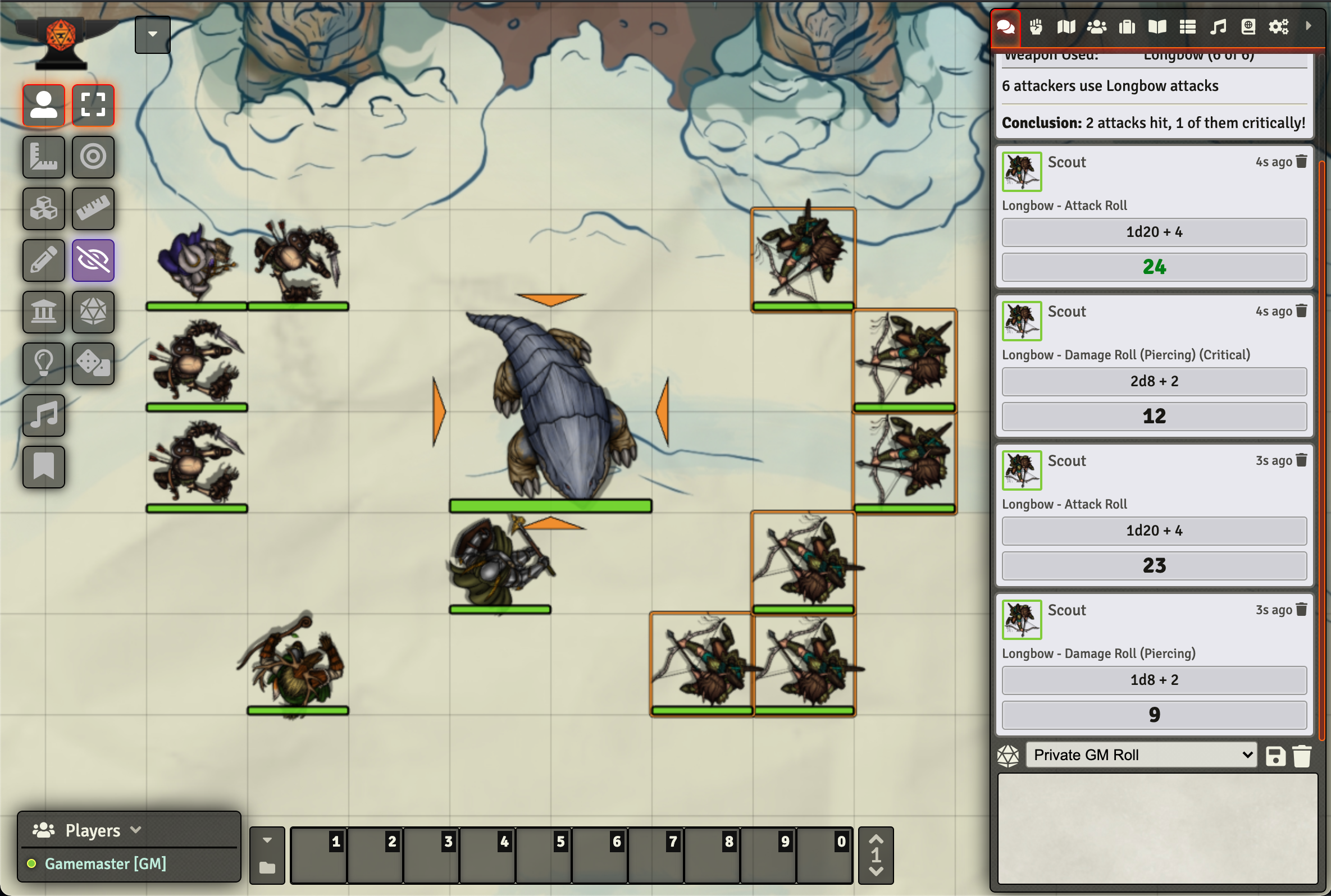
To save DMs an abundance of clicking "Next Turn" in the combat tracker, the Mob Attack dialog shows a checkbox that, if checked, executes the mob attack and then skips the turns of the current mob combatant and the turns of subsequent mob attackers if they are grouped together.
As an example, let's look at this group of 3 skeletons and their necromantic master, the wizard Zanna. They happen to be grouped together in initiative, partly due to the Grouped Initiative module. See below.
Show image
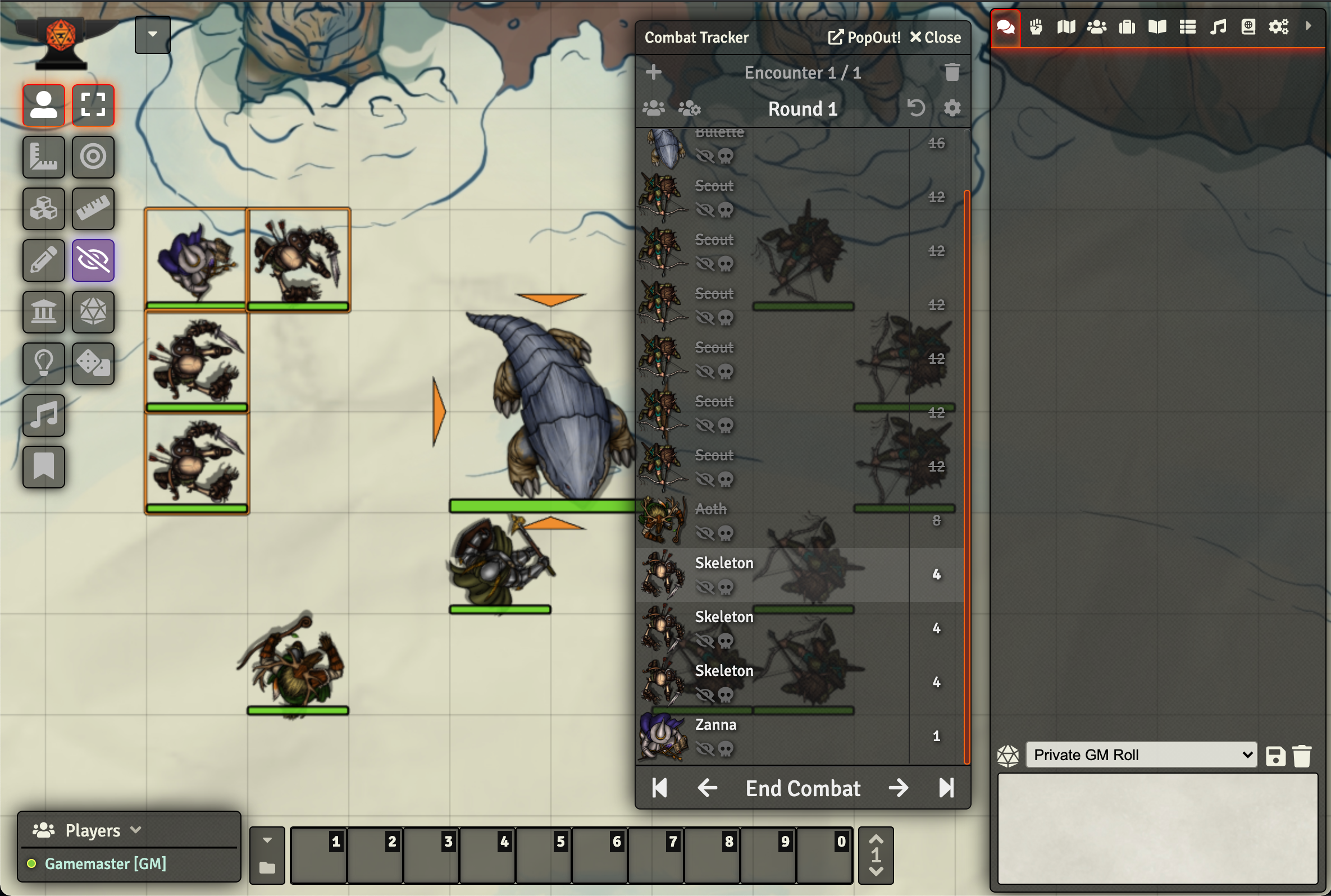
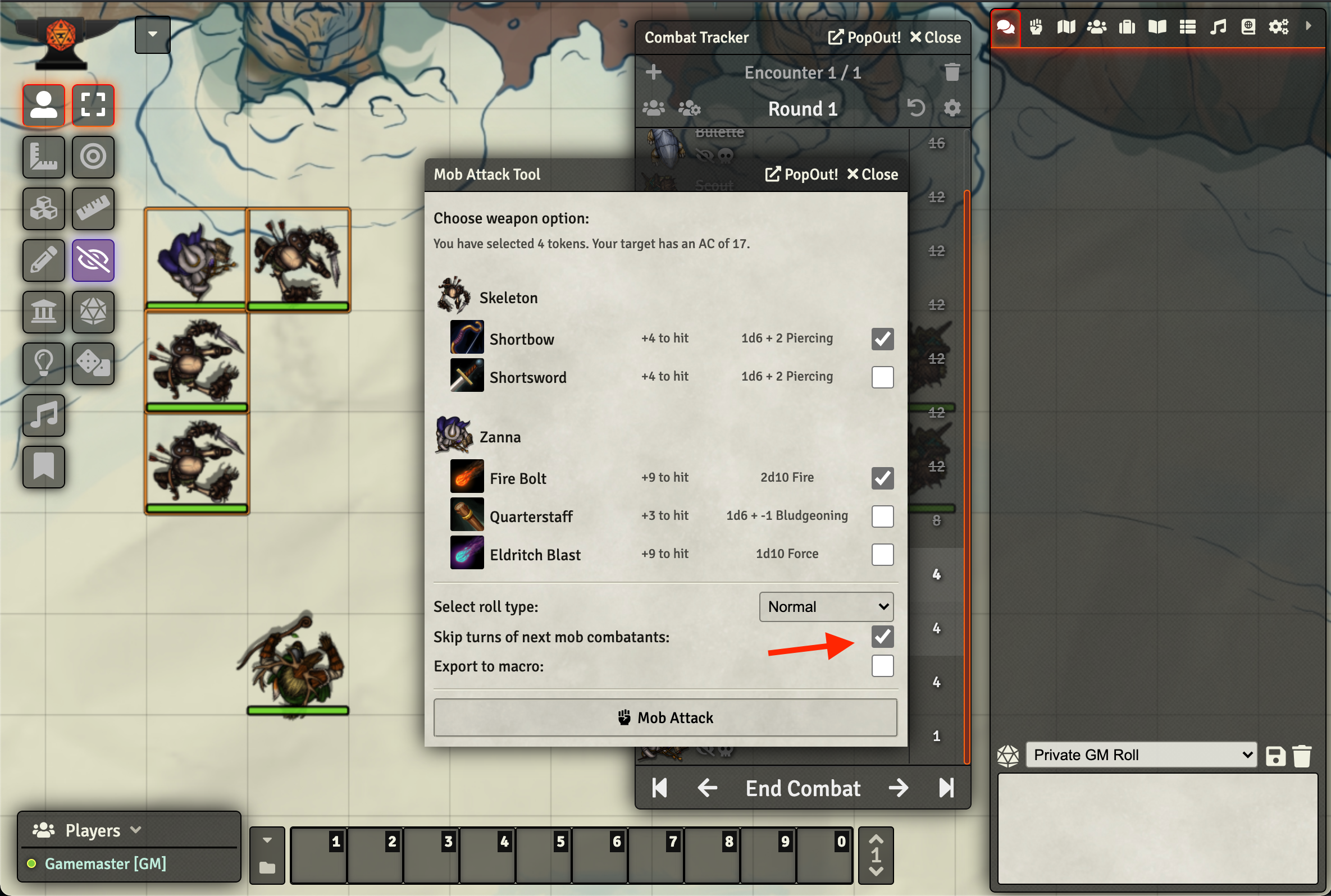
Let's say the skeletons attack with their bows and Zanna with a Fire Bolt cantrip. To prevent having to click "Next Turn" four times after this mob attack, you check the "Skip turns of next mob combatants" option in the Mob Attack dialog as shown below.
Show image
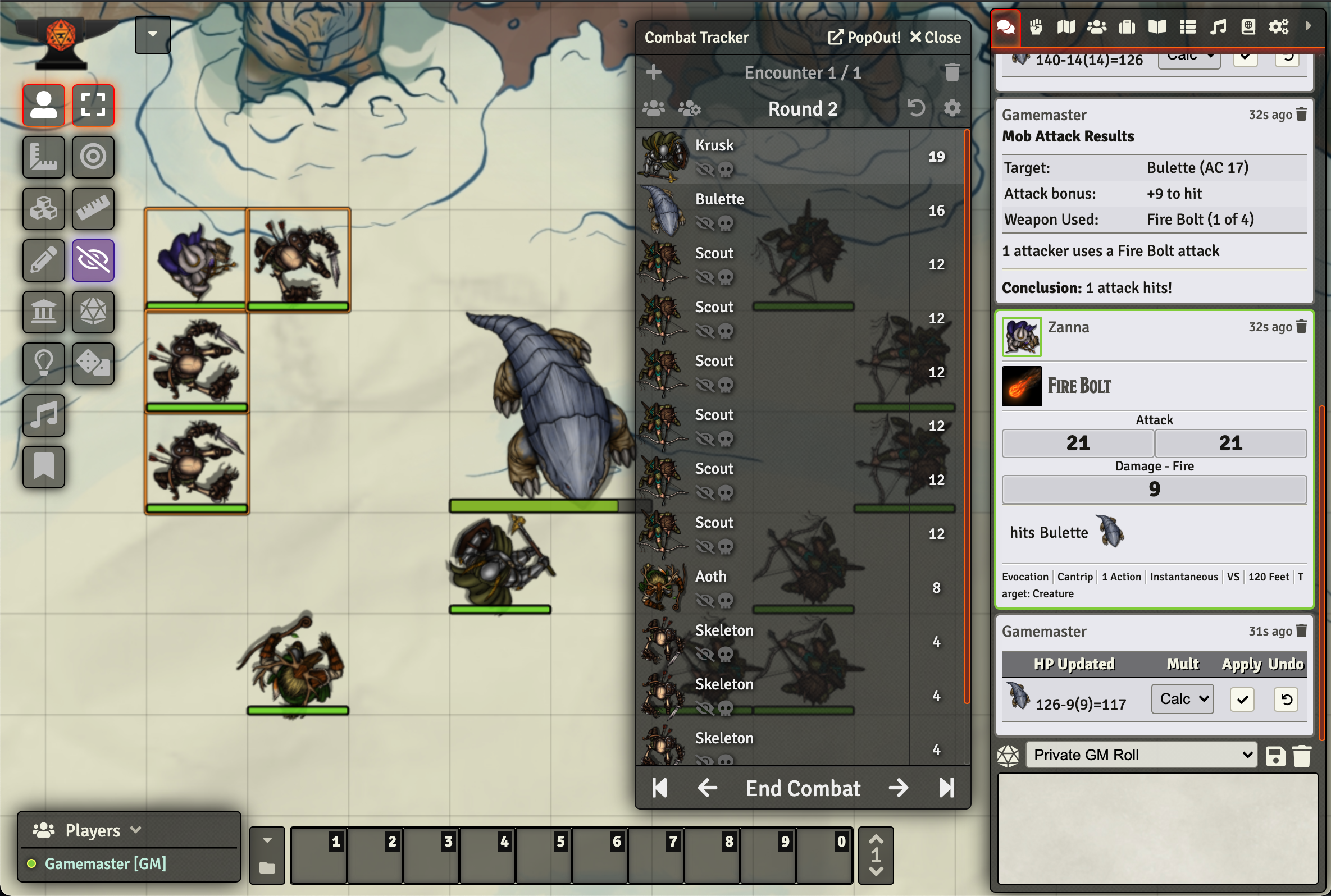
Next you hit "Mob Attack" and the attacks are rolled, first the skeleton's and then Zanna's, after which their turns are skipped automatically. In this case, that means that the next round has started, as shown below.
Show image
Please note that Mob Attack Tool currently only looks at the actor id when skipping turns. If you have a complicated combat encounter where there are friendly and enemy mobs of archers, then make sure that friendly and enemy archer tokens are linked to different actors in order for this function not to accidentally skip their turns as well.
Selecting tokens can be cumbersome, especially if you need to select many of them and they sometimes have moved individually. Furthermore, some mobs will always do the same attacks, so why go through the entire dialog every time?
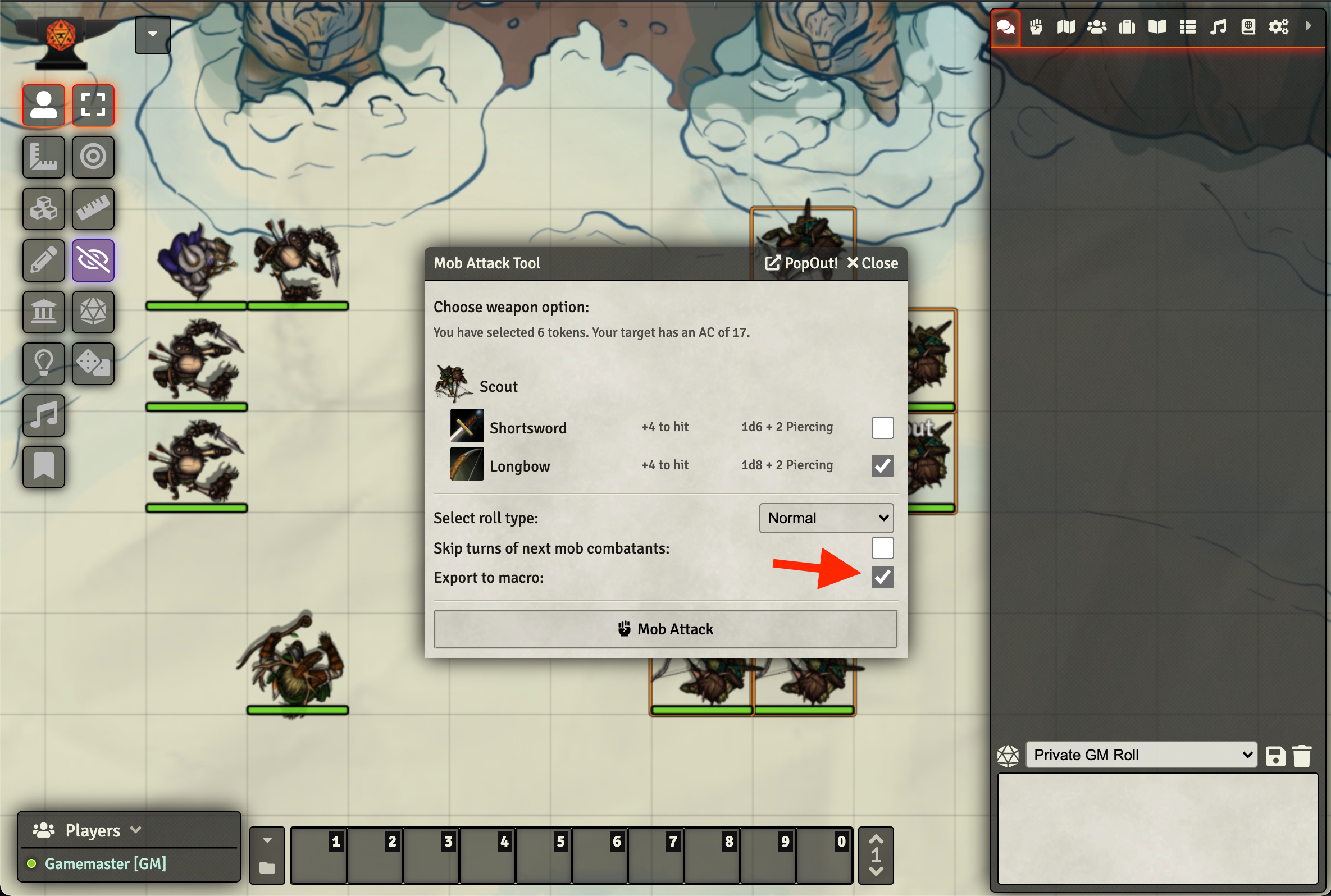
Well, Mob Attack Tool makes life easier by allowing you to export mob attacks to macros. To do so, you need to check the "Export to Macro" option in the Mob Attack Dialog, as shown below.
Show image
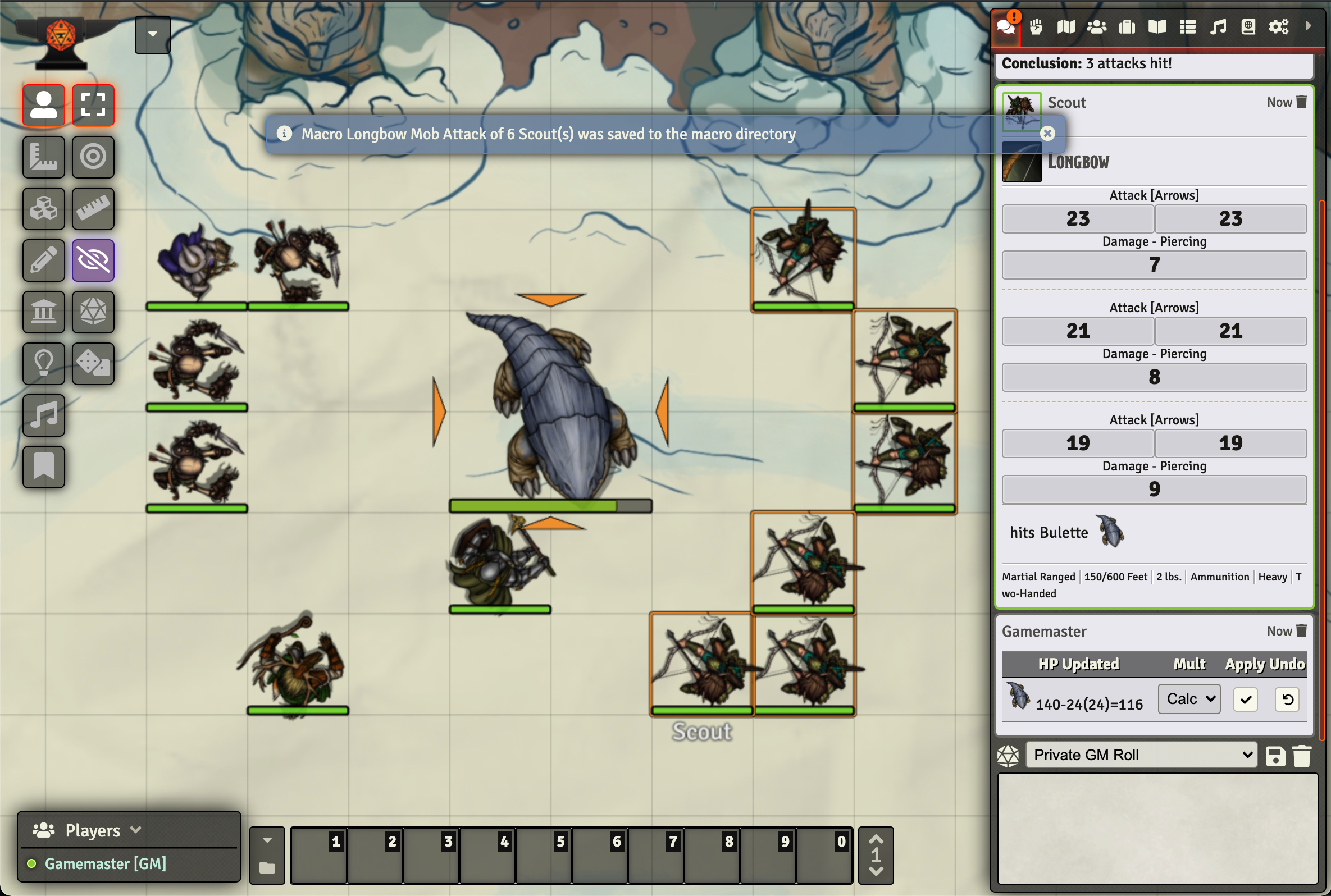
Next, you'll see a notification with the name of the newly created macro:
Show image
Head on over to your macro directory, and you'll find it at the very bottom. If you edit it, it'll look something like the example shown below.
Show image
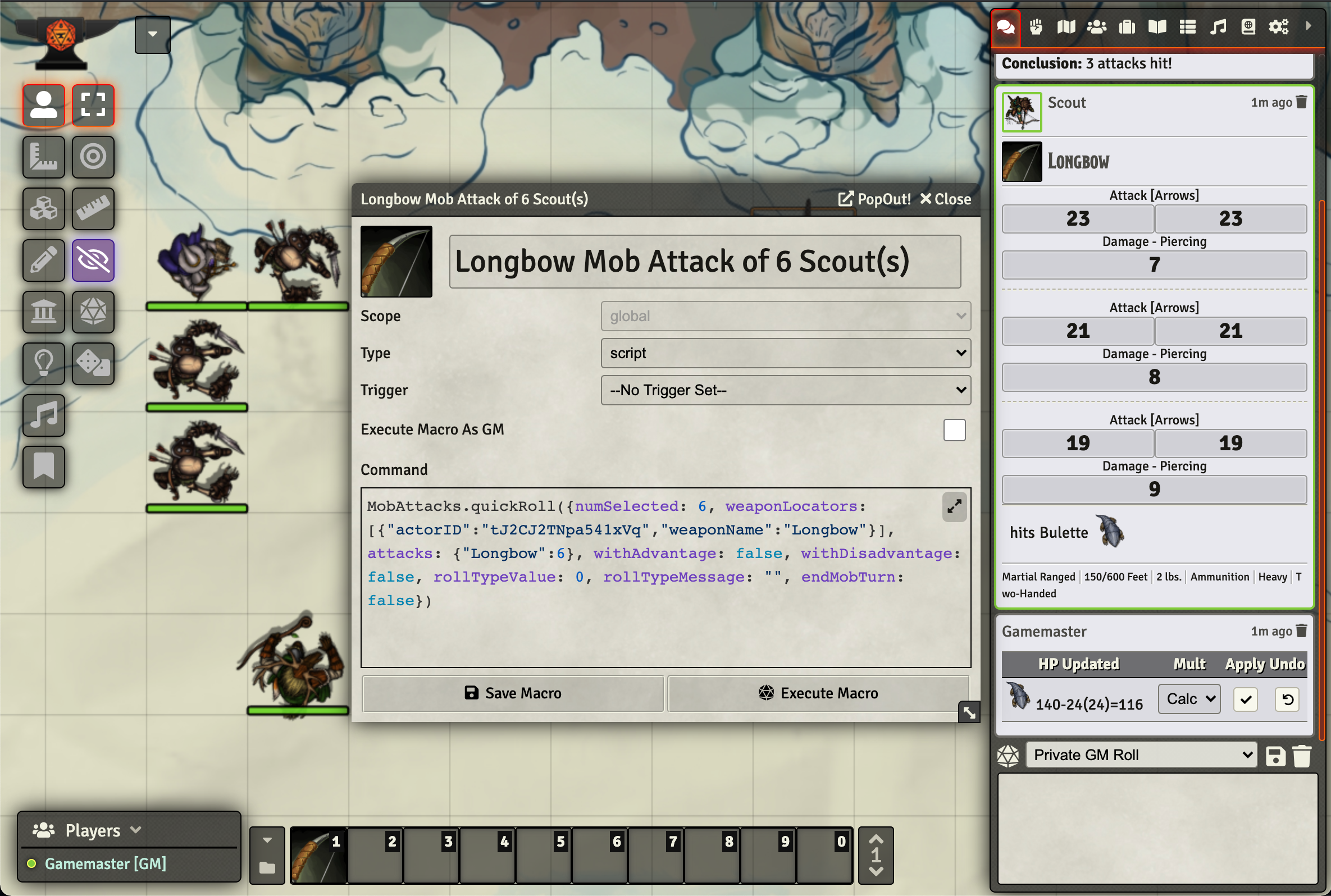
To use this macro, you only need to target a token and then you can run the macro.