Helper tool for Yu-Gi-Oh! Legacy of the Duelist. Allows for custom duels to be configured including features not available in the regular game such as tag / speed / rush duels. The save file can also be modified to 100% the content, reset parts and unlock all cards.
It supports "Yu-Gi-Oh! Legacy of the Duelist" (2016, steam) and "Yu-Gi-Oh! Legacy of the Duelist : Link Evolution" (2020, steam).
This tool is now built using an SDK-style project file, making it easier to compile with the latest .NET SDK (while targeting .NET Framework 4.5 for compatibility with the original LOTD games). No Visual Studio is required—use the command line or VS Code.
- .NET SDK 8.0+ (includes support for .NET Framework via NuGet packages).
- For x64 builds (recommended): Ensure your system has x64 tools (default on modern Windows).
- Clone the repo:
git clone https://github.com/Tibbee/Lotd.git && cd Lotd - Restore packages:
dotnet restore - Build:
- Debug (x64):
dotnet build -c Debug -f net45 -p:Platform=x64 - Release (x64):
dotnet build -c Release -f net45 -p:Platform=x64
- Debug (x64):
- Output: Binaries in
Lotd/bin/[Debug|Release]/x64/net45/
Notes:
- x86 builds are supported but untested—use
-p:Platform=x86if needed. - The project uses unsafe code (
AllowUnsafeBlocks=true) for memory tools; ensure your environment allows it. - For VS integration: Open
Lotd.slnin Visual Studio 2022+ (updated for VS 17).
Use a simple config.ini file (placed in the tool's executable directory) to override default paths for game installs and save files. This is useful for non-Steam installs, custom directories, or testing.
; Comments start with ';'
; Paths can be absolute or relative to the tool's directory
; Use quotes for paths with spaces: "C:\My Game Folder"

InstallDirectory=C:\Program Files (x86)\Steam\steamapps\common\Yu-Gi-Oh! Legacy of the Duelist Link Evolution
SaveFilePath=%APPDATA%\Yu-Gi-Oh! Legacy of the Duelist\save.sav
If the tool cannot automatically detect your game installation on startup, a configuration window will appear. This window allows you to manually set the paths for the game.
- Install Directory: Browse to and select the root folder of your "Yu-Gi-Oh! Legacy of the Duelist" or "Link Evolution" installation. This is the folder that contains the game's data files (e.g.,
YGO_DATA.datorYGO_2020.dat). - Save File Path: Specify a direct path to your save file (
save.dat).
These settings are saved to the config.ini file. The application will need to be restarted for the new settings to take effect.
- InstallDirectory: Overrides auto-detection for the game's install path (per game version). Leave empty to use Steam/SteamAPI detection.
- SaveFilePath: Overrides the derived save location (e.g., for backups or custom saves). Supports environment variables like
%APPDATA%. - Changes take effect on tool restart. Invalid paths are ignored with a warning.
Detection Fallback: Without config, the tool scans Steam directories and verifies versions by checking core files (YGO_DATA.dat/.toc for LOTD, YGO_2020.dat/.toc for LOTD:LE).
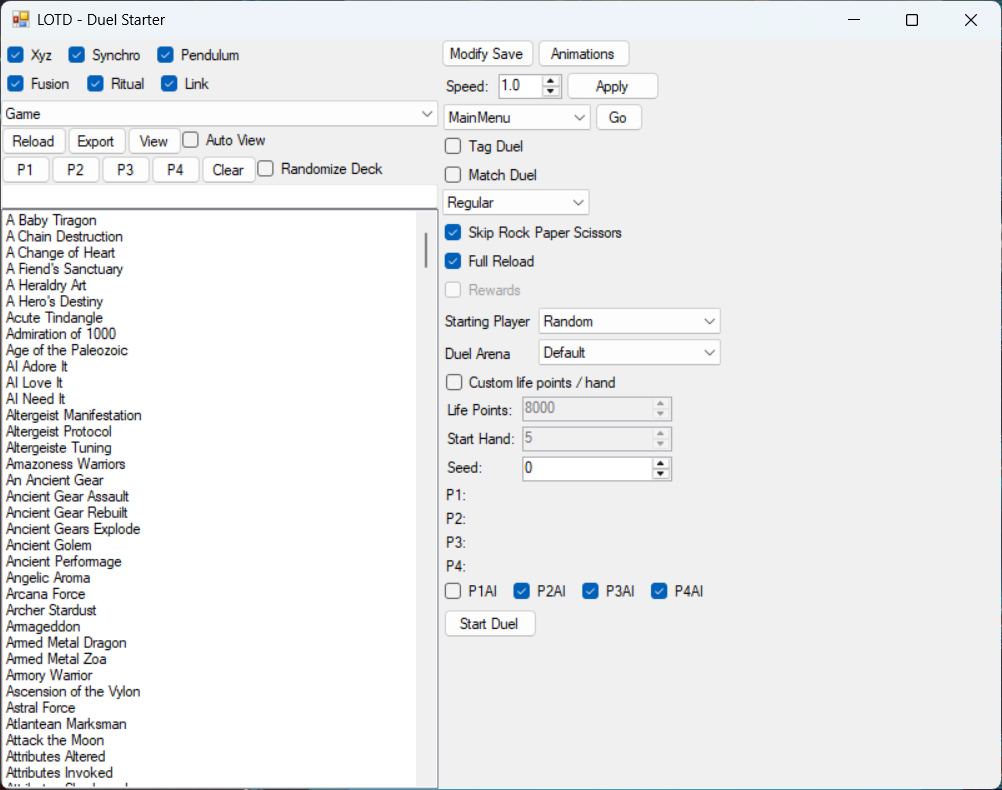
The left side displays a list of available decks in the game. Use the dropdown to select between user decks / game decks / exported decks / folder decks. The export button exports the selected deck to a file. View will view the selected deck in the deck editor (cannot use this whilst in a duel). P1/P2/P3/P4 buttons sets the given player index to the selected deck. (P1 = player, P2 = AI). Additionally, when the tool is closed, it will automatically attempt to return the game to the main menu, preventing potential menu lockups.
- Folder Decks (New): Load decks from a custom folder containing
.ydl(binary) or.ydk(text) files. Click "Change Folder" to select/browse. Supports subfolders? No—scans root only. Invalid files are skipped with errors logged. - Randomize Deck (New): When checked, auto-assigns a random valid deck to any cleared or previously randomized player slot (P1-P4) at duel start. Manual assignments (via Set buttons) are respected and skipped. Requires 2+ decks available.
- Fallback: If randomization fails (e.g., no complete decks), picks the first valid one.
- Tip: Clear slots first, then enable—re-randomizes on each duel start.
Clear resets all slots and enables re-randomization.
Speed: Used for speeding up the game. This may cause crashes at higher values. May cause issues if this tool is reopened and a different speed is applied.
Tag Duel: A tag duel consisting of four total players (all four players must have a deck assigned)
Match Duel: A best of three duel.
Regular/Speed/Rush: The type of duel format (regular duel / speed duel / rush duel).
Skip Rock Paper Scissors: This will skip the rock paper scissors screen.
Full Reload: This will go to the main menu before loading which reduces rendering issues but can increase loading times. Generally this should always be enabled to avoid issues.
Rewards: Rewards will be given for this duel (win cards / duel points).
Master Rules 5: Use master rules 5. If this isn't enabled then it will use master rules 4 (unless you're running the original LOTD which only has master rules 3).
Starting Player: Who starts the duel.
Duel Arena: The duel arena to play on.
Custom life points / hand: Use customized starting hand count / life points.
Life Points: The number of starting life points for this duel.
Start Hand: The number of starting hand cards.
P1/P2/P3/P4: The name of the deck assigned to each player.
PXAI: If checked that player will be controlled by the AI.
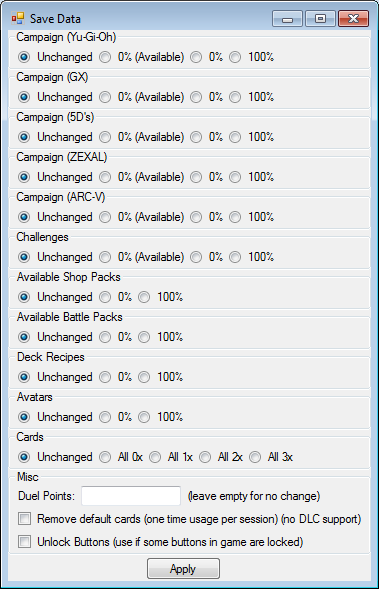
Campaign: Sets the completion percentage of each part of the campaign. Setting everything to 0% available means all content will be playable not complete. 0% regular means some content will be locked and must be completed sequentially.
Challenges: Sets the completion percentate of challenges.
Available Shop Packs: Sets the availability of packs in the "Card Shop" menu.
Available Battle Packs: Sets the availability of the battle packs in the "Battle Pack" menu.
Deck Recipes: Sets the unlocked deck recipes to be used in the "Deck Edit" menu.
Avatars: Sets the unlocked avatars to be used in the "Deck Edit" menu.
Cards: Sets the card count for every card (All 3x = unlock all cards with 3 available for each).
Duel Points: Sets the number of duel points.
Remove default cards: Removes the cards given to you by default when you first start the game (reset when the game is reopened).
Unlock buttons: Unlocks all menu buttons such as "Card Shop" / "Deck Edit" / "Duelist Challenges".
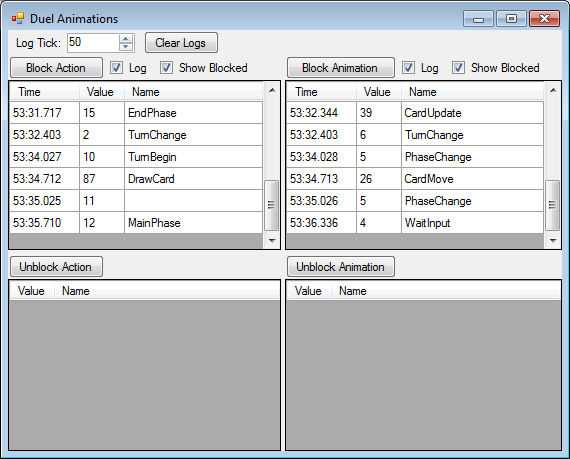
This can be used to block many animations / actions which are played during a duel. This is useful for animations which take a long time to complete and make things less fun. Blocking some animations / actions will softlock the duel or cause side effects so be careful.
Use the log checkbox to log animations. Click an animation and click block / unblock to block the selected animation.
TODO: Create a list of animations which are useful to block.
https://github.com/Arefu/Wolf
https://github.com/thomasneff/YGOLOTDPatchDraft
https://github.com/MoonlitDeath/Link-Evolution-Editing-Guide/wiki
https://github.com/nzxth2 (various repos)