a library that wraps the SharpDX (Direct3D 11) library to be used like compute shaders in Unity. For examples you can check ComputeShaders Examples
Before explaining, this does not contain the full details, but the important information. We first need to create a CSDevice class.
CSDevice device = new CSDevice();
After that create a new ComputeShader class using the device either by having the byte array of the compiled shader or the path to the shader. You can get the byte array for a compiled shader through the static function ComputeShader.CompileComputeShader(string shaderName, string entryPoint = "CSMain", string targetProfile = "cs_5_0") where shaderName is the path to the shader file, entryPoint is the main kernel function name in the said shader, and targetProfile is the type and version of the shader (cs is for Compute shader and 5_0 is for shader model 5.0).
//as example
string path = @"C:\Users\....\shadersFile\shader.hlsl";
byte[] compiledArray = ComputeShader.CompileComputeShader(path);

// if your main kernel function name is "CSMain" there is no need to input it
ComputeShader csMethod1 = device.CreateComputeShader(path);

ComputeShader csMethod2 = device.CreateComputeShader(compiledArray);
You can create multiple shaders, but when dispatching only a selected compute shader will run. To select a shader you call:
ComputeShader s1 = device.CreateComputeShader(s1ByteArray);
ComputeShader s2 = device.CreateComputeShader(s2ByteArray);
ComputeShader s3 = device.CreateComputeShader(s3ByteArray);

device.SetComputeShader(s2); //now s2 is the selected shader, and on dispatching only s2 will run
After creating the compute shader we need to create its resources which are Textures, Texture Arrays, Structured Buffers, Constant Buffers. Every resource is created using a device.
//as example
ComputeShader shader = new ComputeShader(compiledArray);

CSTexture2D texture = shader.CreateTexture2D(...);
CSTexture2DArray textureArray = device.CreateTexture2DArray(...);
CSCBuffer<...> sBuffer = device.CreateStructuredBuffer<...>(...);
CSStructuredBuffer<...> cBuffer = device.CreateBuffer<...>(...);
Textures: you can create either an empty texture or a texture with data stored in it.
CSTexture2D texture = device.CreateTexture2D(width, height, textureFormat); //create an empty texture
CSTexture2D texture2 = device.CreateTexture2D(bitmap); //create a texture with the data from the bitmap

string imagePath = @"C:\Users\....\Images\image.png";
CSTexture2D texture3 = device.CreateTexture2D(path); //create a texture with the data from the image in the path
CSTexture2D texture4 = device.CreateTexture2D(width, height, textureFormat, pointer); //create a texture with the data from the pointer
Texture Arrays: Creating it is very similar to creating a texture.
CSTexture2D texture = device.CreateTexture2D(width, height, numberOfTextures, textureFormat); //create an empty texture
CSTexture2D texture2 = device.CreateTexture2D(bitmaps); //create a texture with the data from the bitmaps array
CSTexture2D texture3 = device.CreateTexture2D(width, height, textureFormat, pointers); //create a texture with the data from the pointers array, where is every pointer refers to a texture raw data
Structured Buffers: To create it you need the array (or list) of data and the size of each element in bytes. Data type can only be struct.
//as example
struct Arrow
{
  float positionX;
  float positionY;
  float directionX;
  float directionY;
}

Arrow[] arrows = new Arrow[100];
CSStructuredBuffer<Arrow> arrowsBuffer = device.CreateStructuredBuffer<Arrow>(arrows, sizeof(float) * 4);
Constant Buffer: To create it you need the data and its size in bytes. It is important to make sure the size of the data is a multiple of 16 (16, 32, 48...). In Structured Buffers this is not required.
struct Point
{
  float positionX;
  float positionY;

  //this is to make the size of the struct a multiple of 16
  //the size of a float number is 4 bytes so the total size of this struct is 16 (which is a multiple of 16)
  float DummyVar1;
  float DummyVar2;
}

Point p = new Point();
CSCBuffer<Point> pointBuffer = device.CreateBuffer<Point>(p, sizeof(float) * 4);
Now we need to connect the resources to the shader. We do that using the device they were create from. To connect a resource to a resource in the shader, the resource from the shader must have a uav register (in cbuffer it will be a buffer register), for example RWTexture2D<float4> Input : register(u0); and input that register index to the device.
device.SetRWTexture2D(texture, 0); //in shader the variable is (example) RWTexture2D<float4> Input : register(u0);
device.SetRWTexture2DArray(textureArray, 1); //in shader the variable is (example) RWTexture2DArray<float4> Input2 : register(u1);
device.SetRWStructuredBuffer(sBuffer, 2); //in shader the variable is (example) RWStructuredBuffer<float> floats : register(u2);
device.SetBuffer(cBuffer, 0); //in shader the variable is (example) cbuffer Info : register(b0) { ... }
After connecting a resource there is no need to connect it again even if the selected shader is changed, unless the uav register index of the resource in the old shader is different than the one in the new shader then you must call connect it again with the new uav register index.
After that, and after selecting a shader, the selected shader can be run now in the same way as unity (using the device)
//as example
device.Dispatch(width / 8f, 1, 1);
Resources are created through a device which means they are connected to that device and they can be ONLY used on that device. This means that if we have 2 textures (example) from 2 different devices, we can not transfer data between the textures using the GPU.
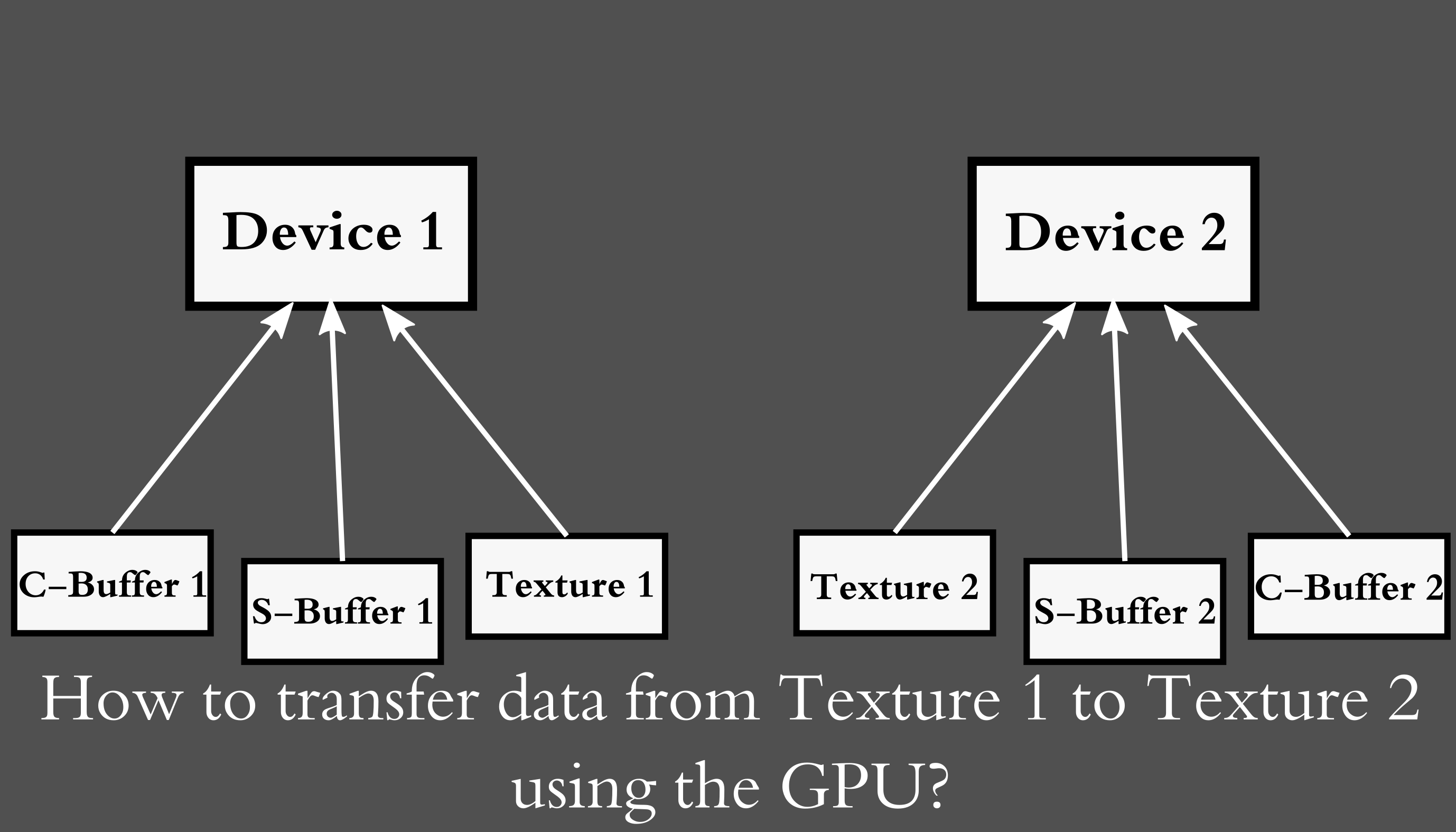
While it is not required to transfer data using the GPU, it is a lot faster than using the CPU. To transfer data using the GPU you need to use the Share function. It is a function in every resource class that creates a resource clone that is connect to a different device and to the original resource. To use this function the resource must have 'allow sharing' true, which can be set when creating the resource
CSTexture2D texture1 = device1.CreateTexture2D(512, 512, R8G8B8A8_UNorm); //'allow sharing' is by default false
CSTexture2D texture1 = device1.CreateTexture2D(512, 512, R8G8B8A8_UNorm, true); //'allow sharing' is true
.
.
.
CSTexture2D sharedResource = texture1.Share(device2);

The shared texture in this example is now connected to device2, so now we can transfer data from texture 1 to texture 2 using that shared texture. First we transfer the data from texture 1 to the shared texture using the Flush Function. When changing the data of a resource in order to update the change to all shared versions of this resource Flush() must be called, so that after calling Flush() all the resources will have the same data.

This also applies to the original resource if the Flush function is called from a shared resouce.
