A developer friendly library for creating debug UI in Godot 4 (The UI for the debug menu below is created with nothing but 28 lines of easy code).
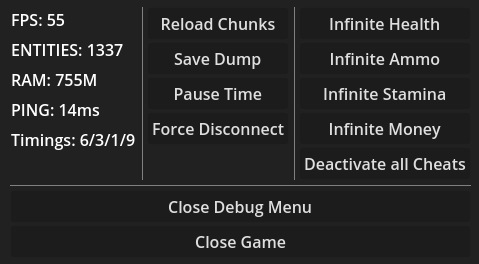
You propably where there: You need a debug menu, maybe a few buttons, some number outputs in a simple layout. You start clicking it together in Godot, but it just takes far too much time for something you just need to do some testing and quick visualisations. GuiScript aims to solve this exact problem (but may also be used to prototype actual Game UI, even to build Game UI with the addition of some styling).
MIT License.
For now, there are no releases (I'll eventually come around to set up CI/CD to build it properly), but building this from scratch is not that hard.
This project makes heavy use of the example provided by the awesome people working on godot, so I'll link to the documentation: GDExtension C++ Example.
The specific steps you shall follow are:
- Clone this repo AND it's submodules
- "Building the C++ bindings" in the documentation linked above
- (In the root dir of this repo) execute:
scons platform=<platform>(addtarget=template_releaseif building for release; add-jX, but replacing X with the number of threads to use for building, e.g. -j6 for 6 threads). Build for debug and release for all platforms you plan on using. See here for proper instructions on how to compile for each platform.
After that, copy the 'bin'-folder (demo/bin) and guiscript.gdextension of the demo-project into your own project, and you are golden.
Open your project and check if you are able to see the class "GuiScript", deriving from Control in the "Add new node"-Screen.
Layout GuiScript like any other Container. Any UI it will generate will live inside it. It's size will limit the UI's size. You may put it into a scroll container to allow for additional space.
Add a new script deriving from GuiScript and add it as script to your GuiScript-Node.
What you want to do exactly now depends on your goals. Look at the examples below to see all available UI-Elements in action. Alternatively, take a look into the demo project.
In general you shall follow these rules three:
- Whenever drawing a new frame, call begin_ui() first. This signals to guiscript, that a new frame has begun. Failing to do so will mean that new UI-Calls will add additional UI instead of updating it.
- For each *_box() you open, you shall call end_box() once. This signals where the box should be closed and is essential for proper layouting. Imagine it as a closing tag in html.
- Have fun and report bugs.
In general, contributions are 100% welcome. As this project is maintained by a pretty busy student, expect some time to pass from PR to feedback. This project is intended to be simple and minimalistic, so I'll only accept PRs with features that would be of use for the main use case of GUIScript.
That being said, feel free to develop own flavours of this, to use this as a base for something bigger. As long as you honor the license I'll honor your project :D

func _process(_delta):
	begin_ui()

    begin_hbox() # this creates a horizontal box

    vseparator() # vertical line separator
    label("Hello") # simple text label
    label("World!") # simple text label
    vseparator() # vertical line separator

    end_box() # this closes the horizontal box we previously opened

    hseparator() # horizontal line separator

    if button("Click Me!"):
print("Button was clicked!")Procedural UI Generation ftw!
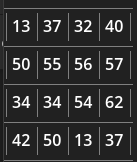
var table_data = [
	[13, 37, 32, 40],
	[50, 55, 56, 57],
	[34, 34, 54, 62],
	[42, 50, 13, 37],
	]

func _process(_delta):
	begin_ui()

    begin_vbox()

	for row in table_data:
		hseparator()
		begin_hbox()

		for e in row:
			vseparator()
			label(str(e))

		vseparator()
		end_box()

	hseparator()
	end_box()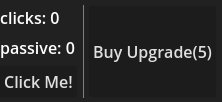
var clicks = 0.0
var upgrade_cost = 5
var passive = 0.0

func _process(delta_time):
	begin_ui()

	clicks += passive * delta_time

	begin_hbox()

	begin_vbox()
	label("clicks: " + str(floor(clicks)))
	label("passive: " + str(passive))

	if button("Click Me!"):
		clicks += 1

	end_box()

	vseparator()
	var upgrade_cost_string = str(ceil(upgrade_cost))
	var upgrade_possible = clicks >= upgrade_cost

	if button("Buy Upgrade(" + upgrade_cost_string + ")") && upgrade_possible:
		passive += 0.5
		clicks -= upgrade_cost
		upgrade_cost *= 1.5

	end_box()
	end_box()
hseparator()GuiScript is based on a virtual DOM. The elements of the virtual DOM manage their counterpart in the real Godot UI and encapsulate it's capabilities. If they are invalidated, they will remove the real UI-Node from the tree in godot.
By using this system, the UI will only be rebuilt if a disruptive update is sent (one, that suddenly requires a completly different node at the same position, invalidating the old one), and will only rebuild the parts that are actually required to be rebuilt. If an update can be represented by simply updating an existing component, exactly that will be done. This makes GuiScript reasonably performant to be used for temporary, developement or debug UI.
GuiScript is an almost 1:1-Port of an Godot3 Engine Module with proper code coverage. The tests are yet to be ported. For testing this port, mostly practical testing was done. GuiScript is used in some game projects of mine to build extensive debug-ui-stuff, so bugs usually will be fixed very quickly.