


Disclaimer: The TI-84 Plus Monochrome version is a bit buggy due to some weird quirks. It still functions, but be wary it may be a bit more buggy and less aesthetically pleasing than the TI-84 Plus CE version.
Disclaimer: If you are trying to install this on a TI-83 Plus, please visit this link.
2. Download the TI-Connect CE Software here.
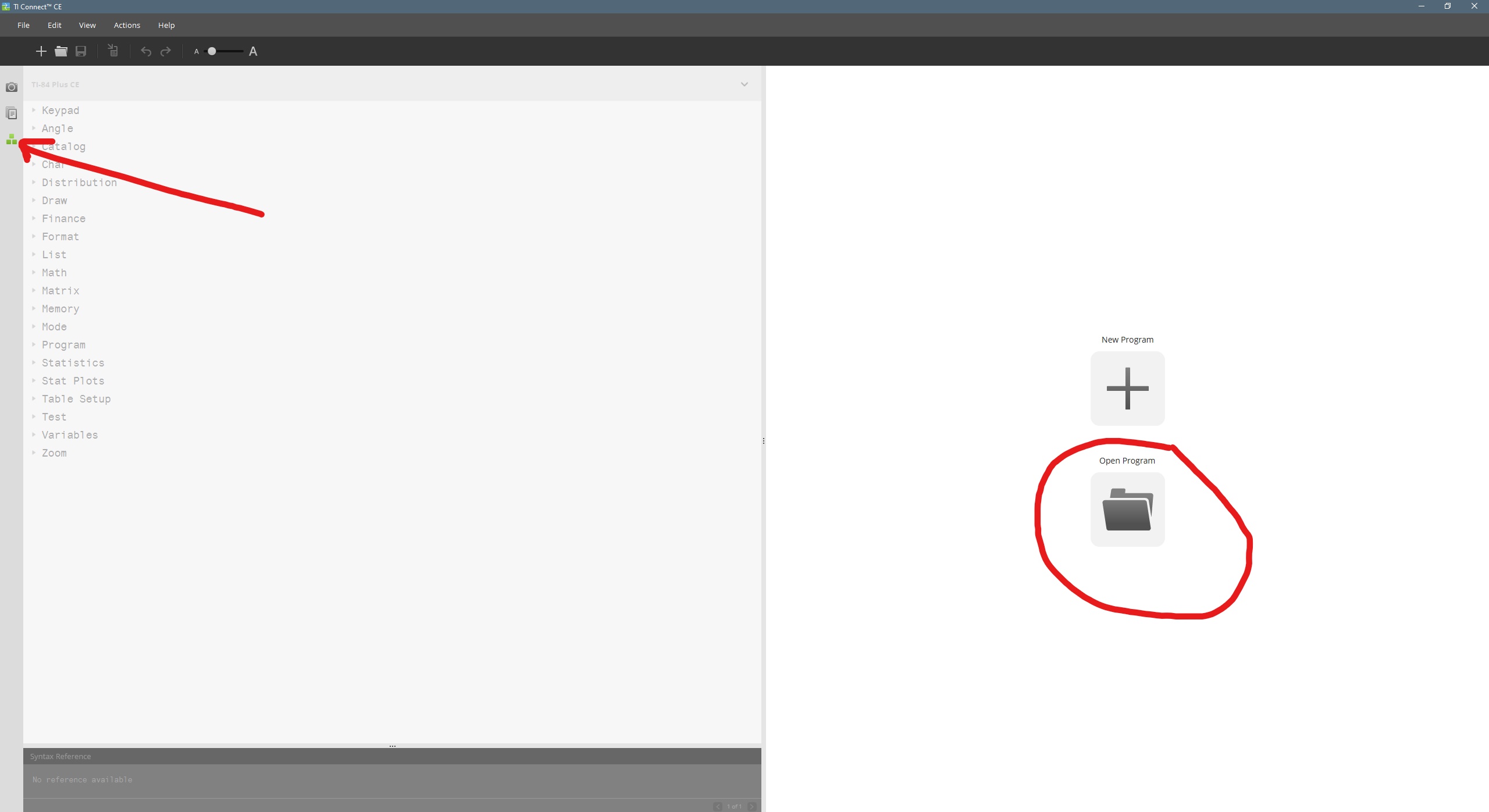
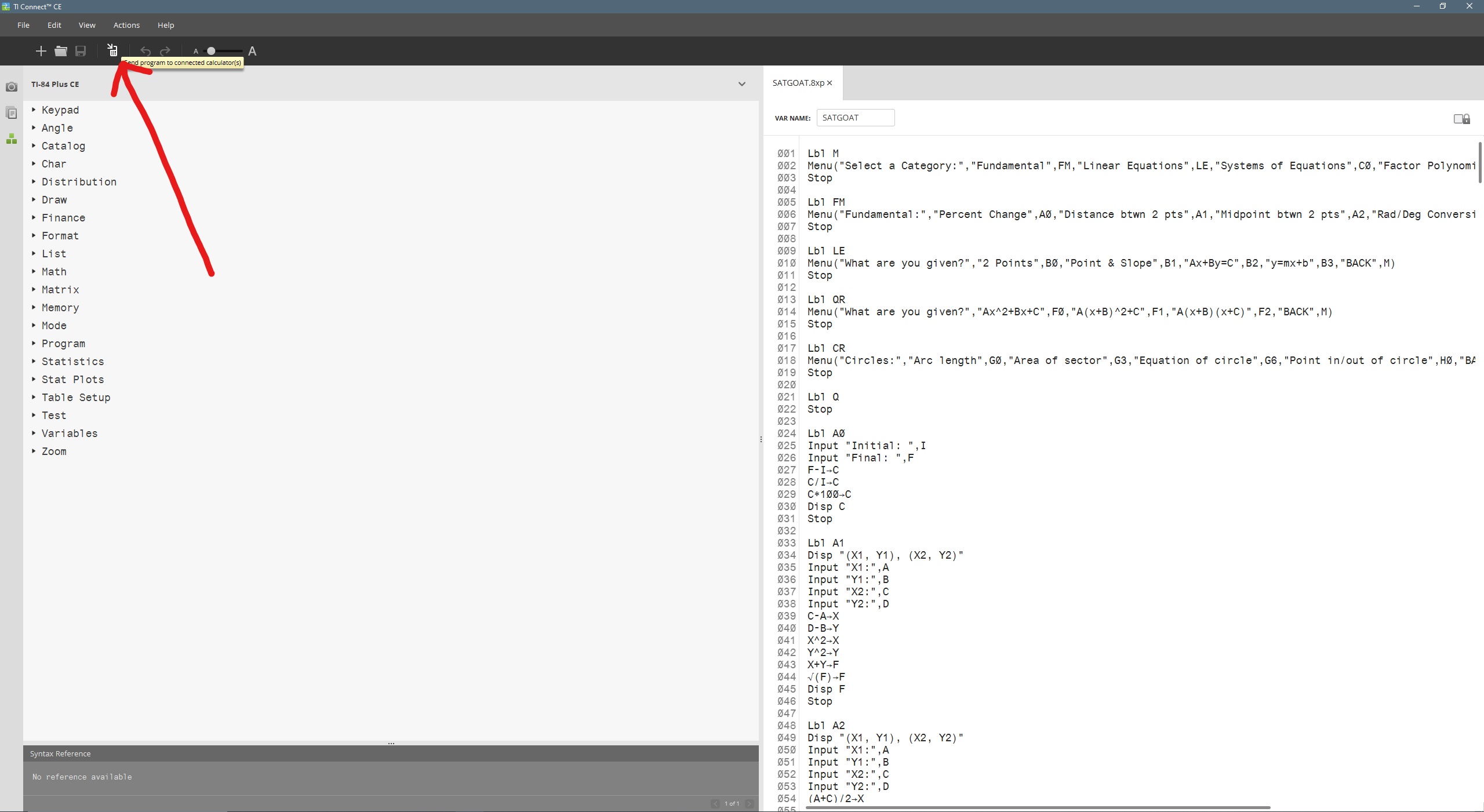
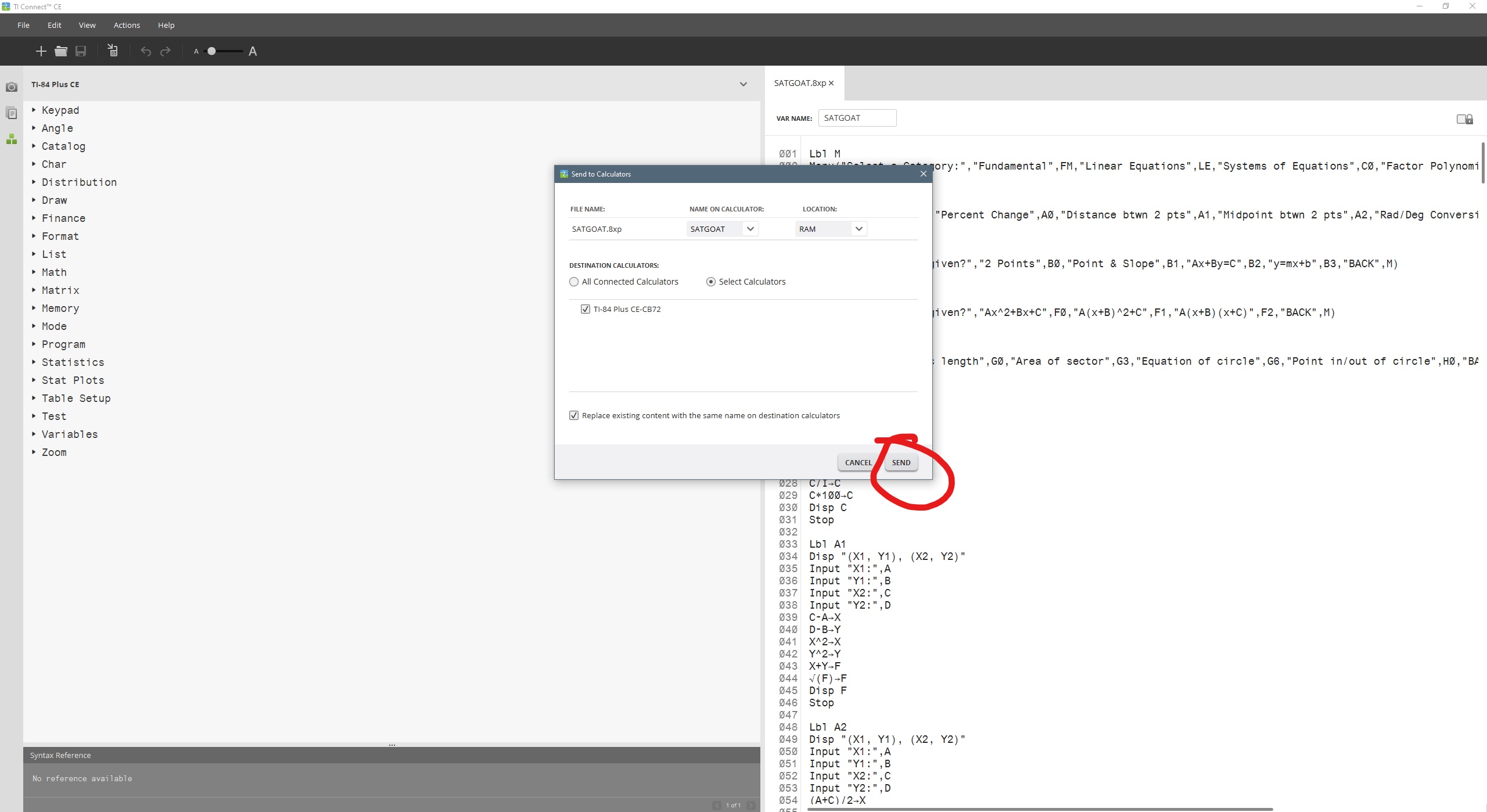
3. Once TI-Connect CE is downloaded, launch the program and follow the on-screen steps to install it.
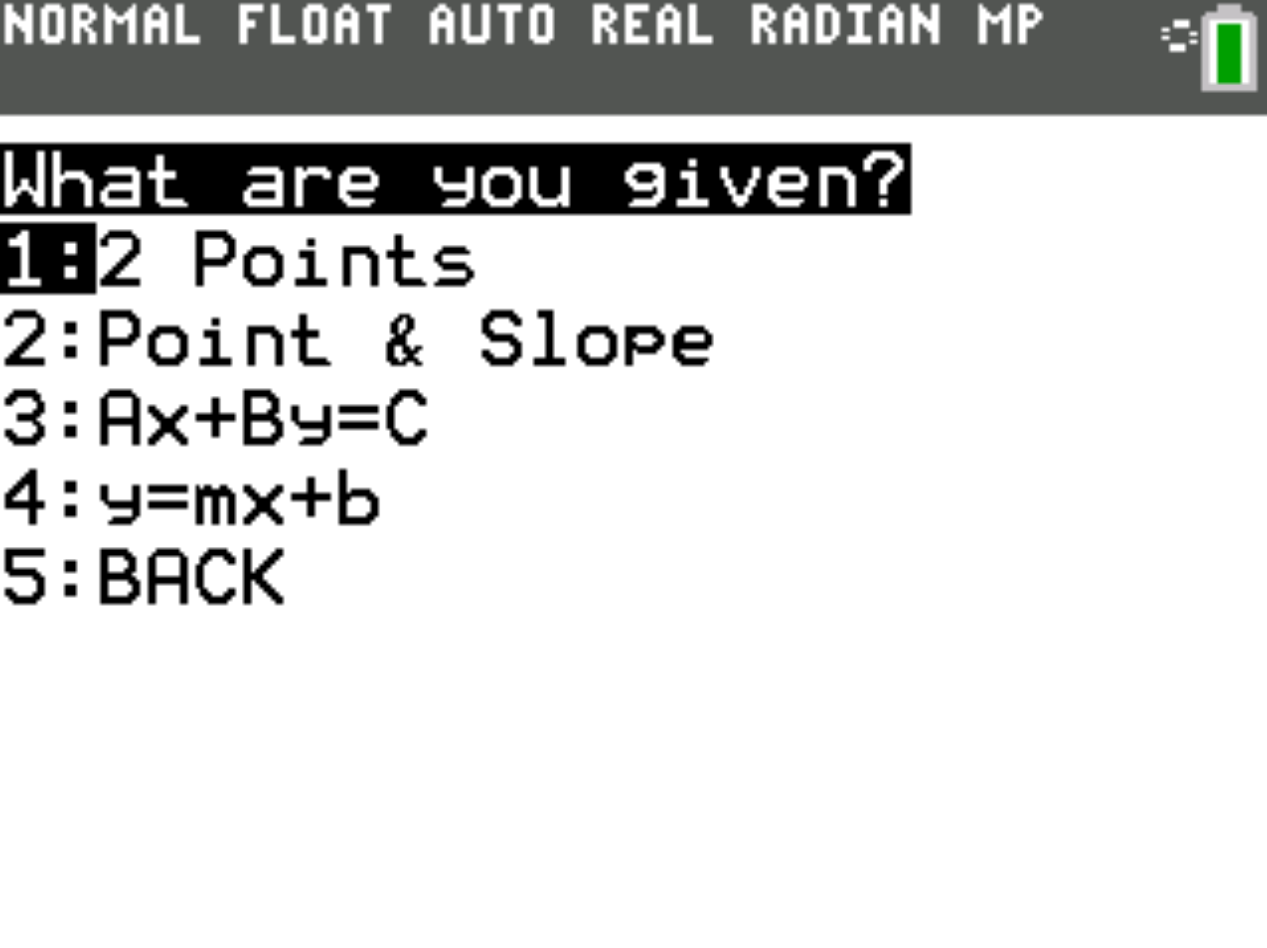
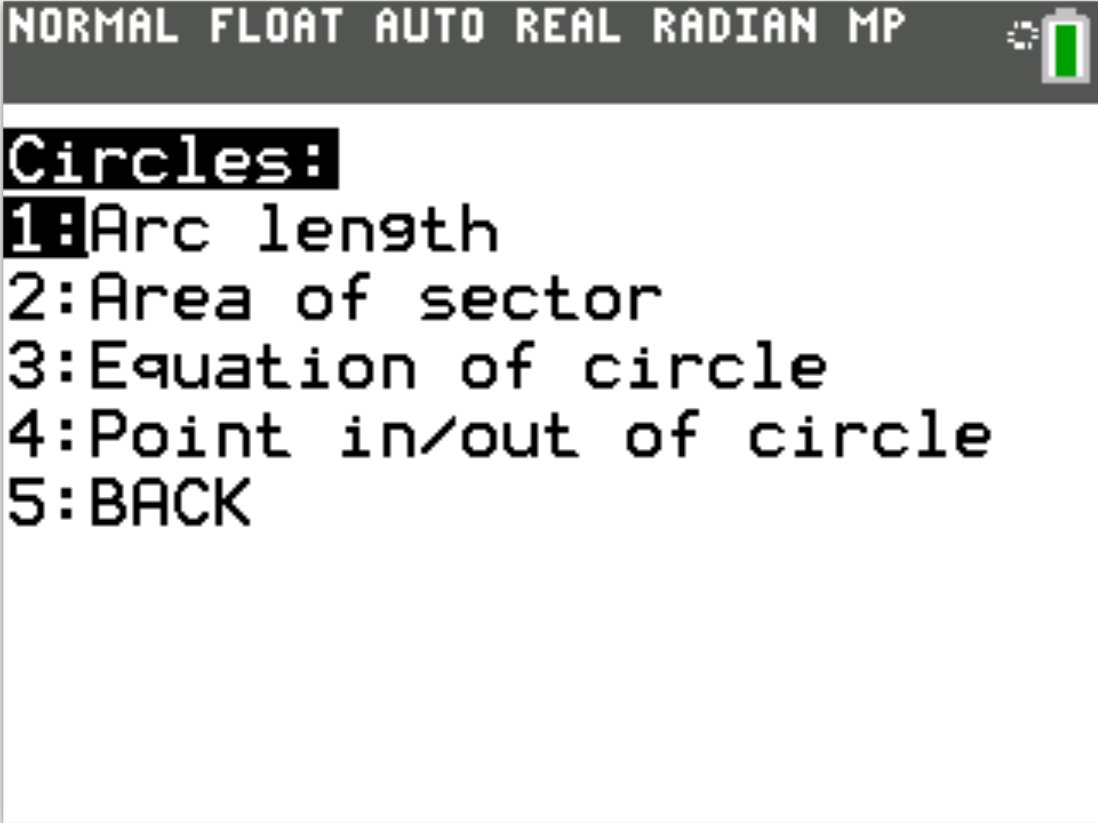
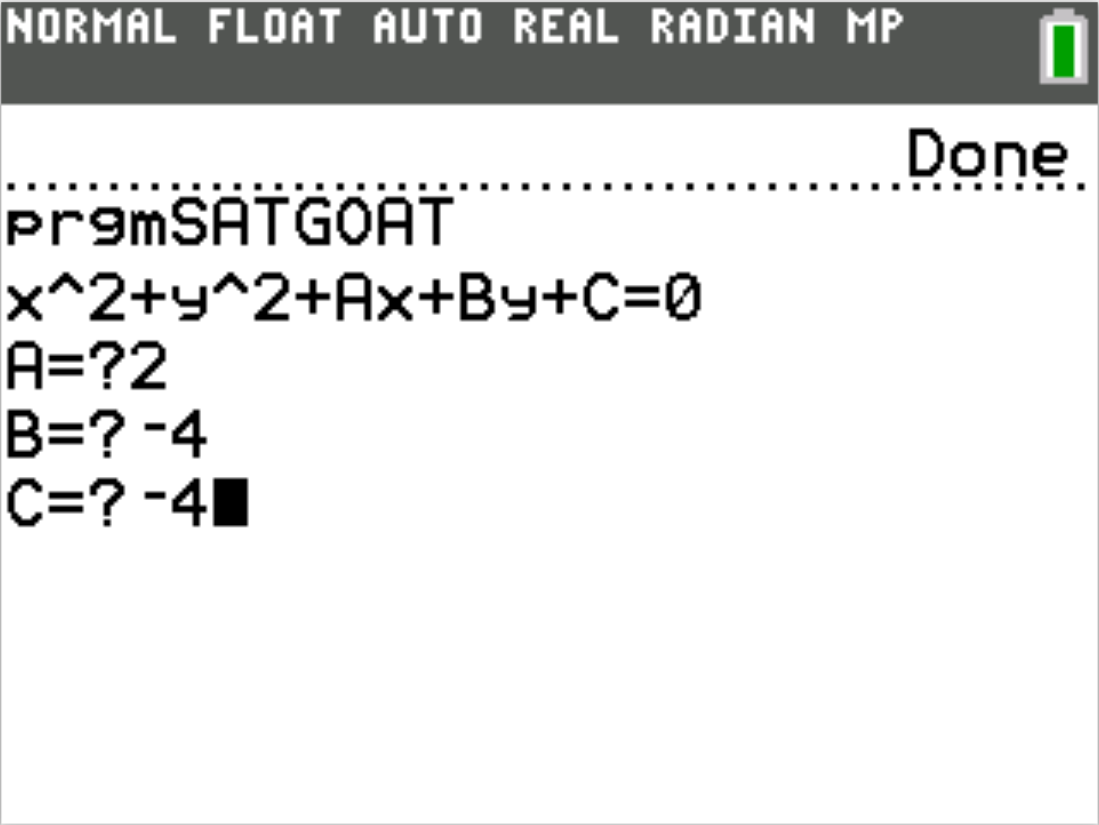
When you launch the app, you will be prompted with 6 different categories. Select whichever one applies to you, and it will redirect you to a new screen where you will be prompted for further information to be given an answer. Examples of each category can be found further below this section.

Here, you can do some basic, fundamental computations. Feel free to leave suggestions for other additions!

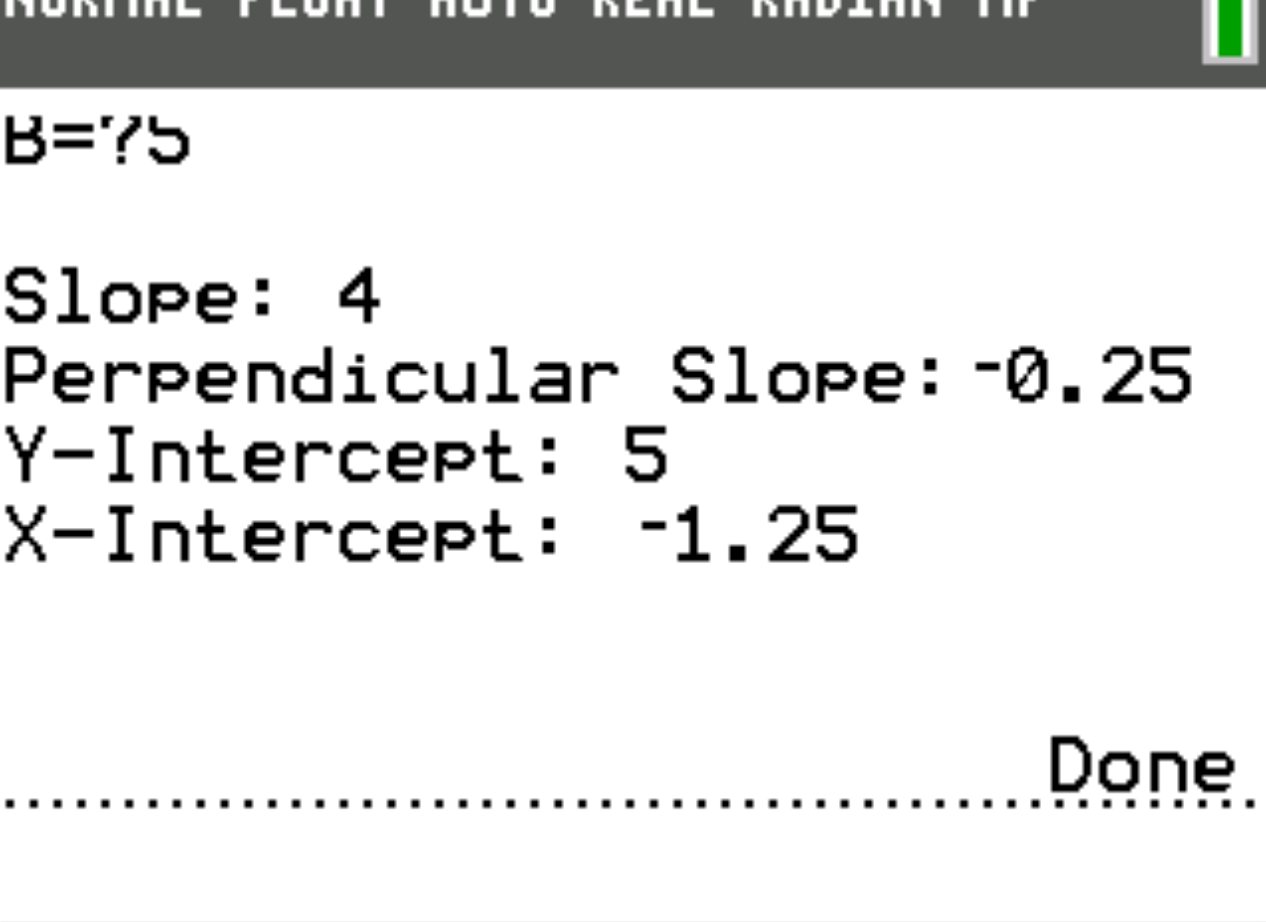
Here, you are able to find information about -- you guessed it -- lines! From the menu, select what information you are given about a particular line. Then, an output will be given with useful information about that line which can help you find the correct answer.
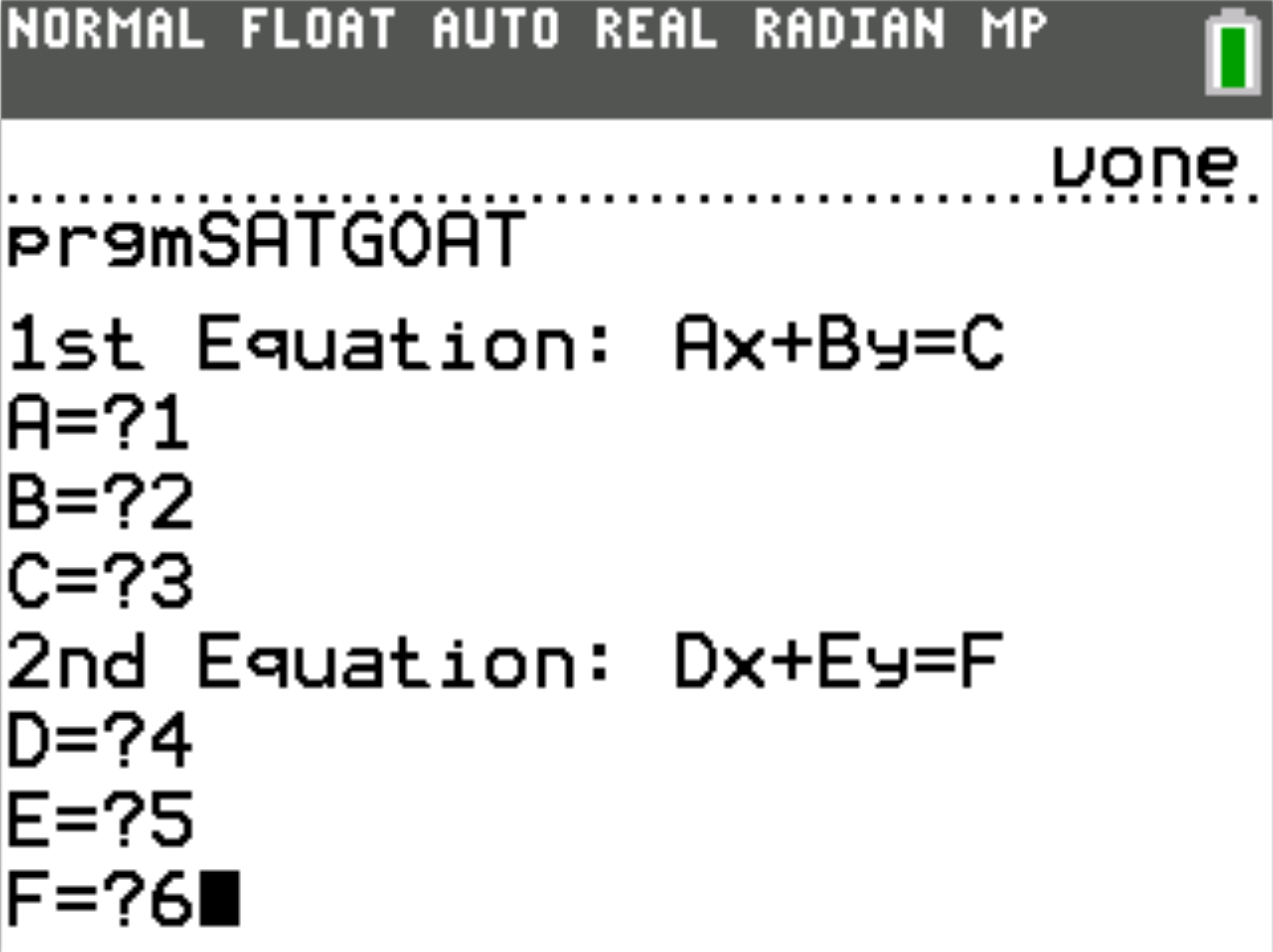
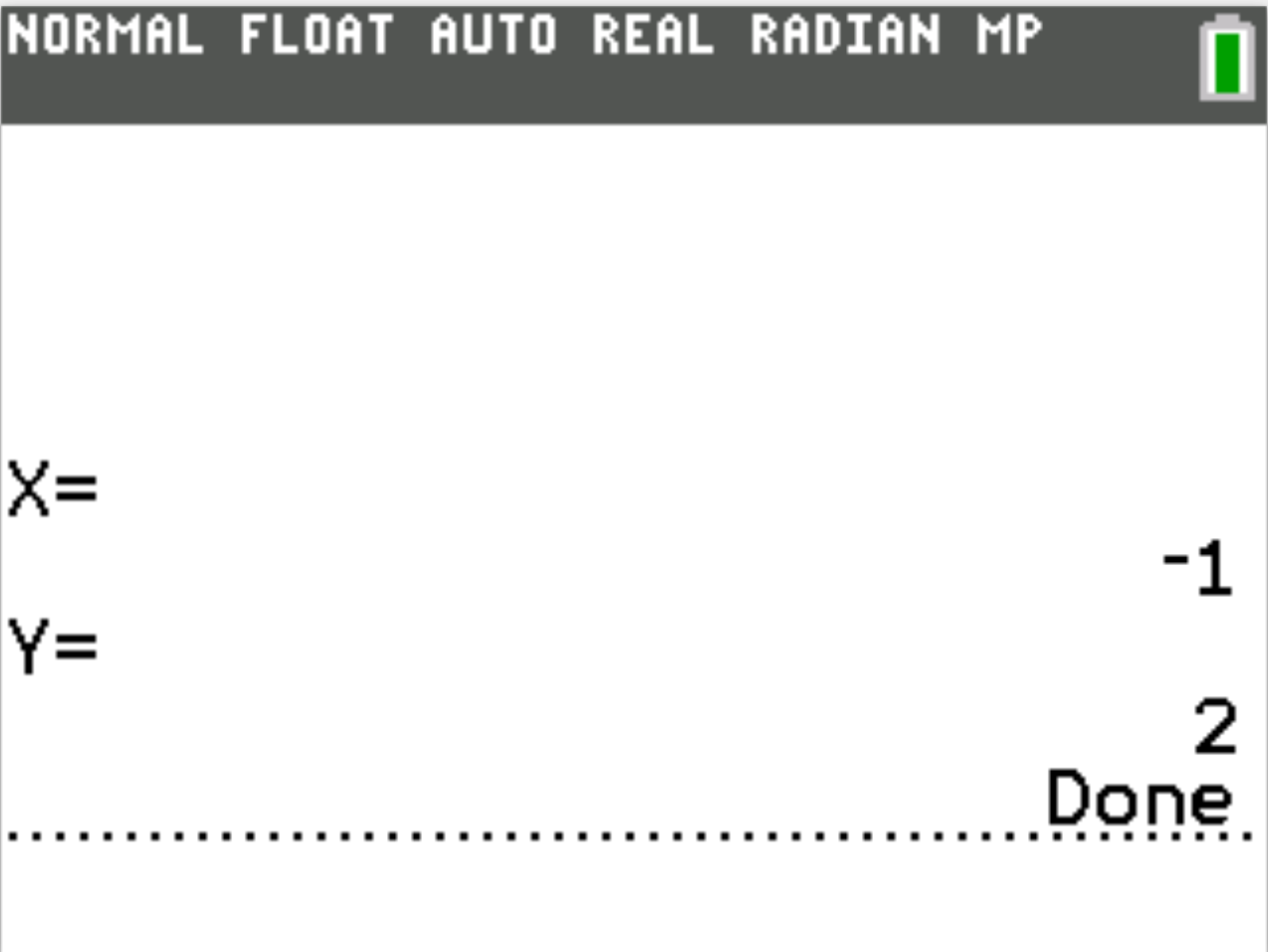
Literally any other equation (almost). Visit this link for more information.
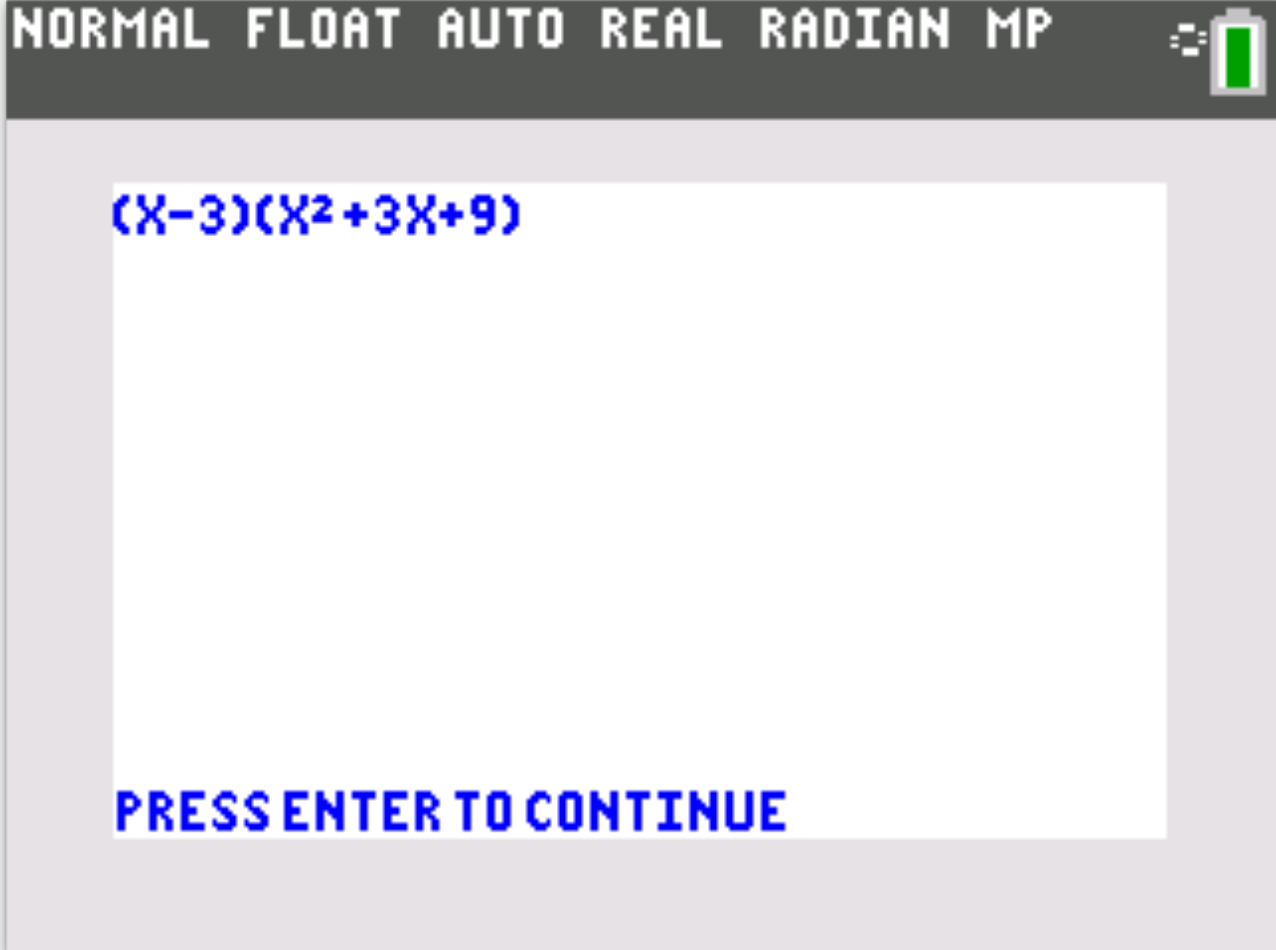
Here, you can factor polynomials. It will prompt you for some information about the polynomial such as the highest exponent (degree) and the coefficients.


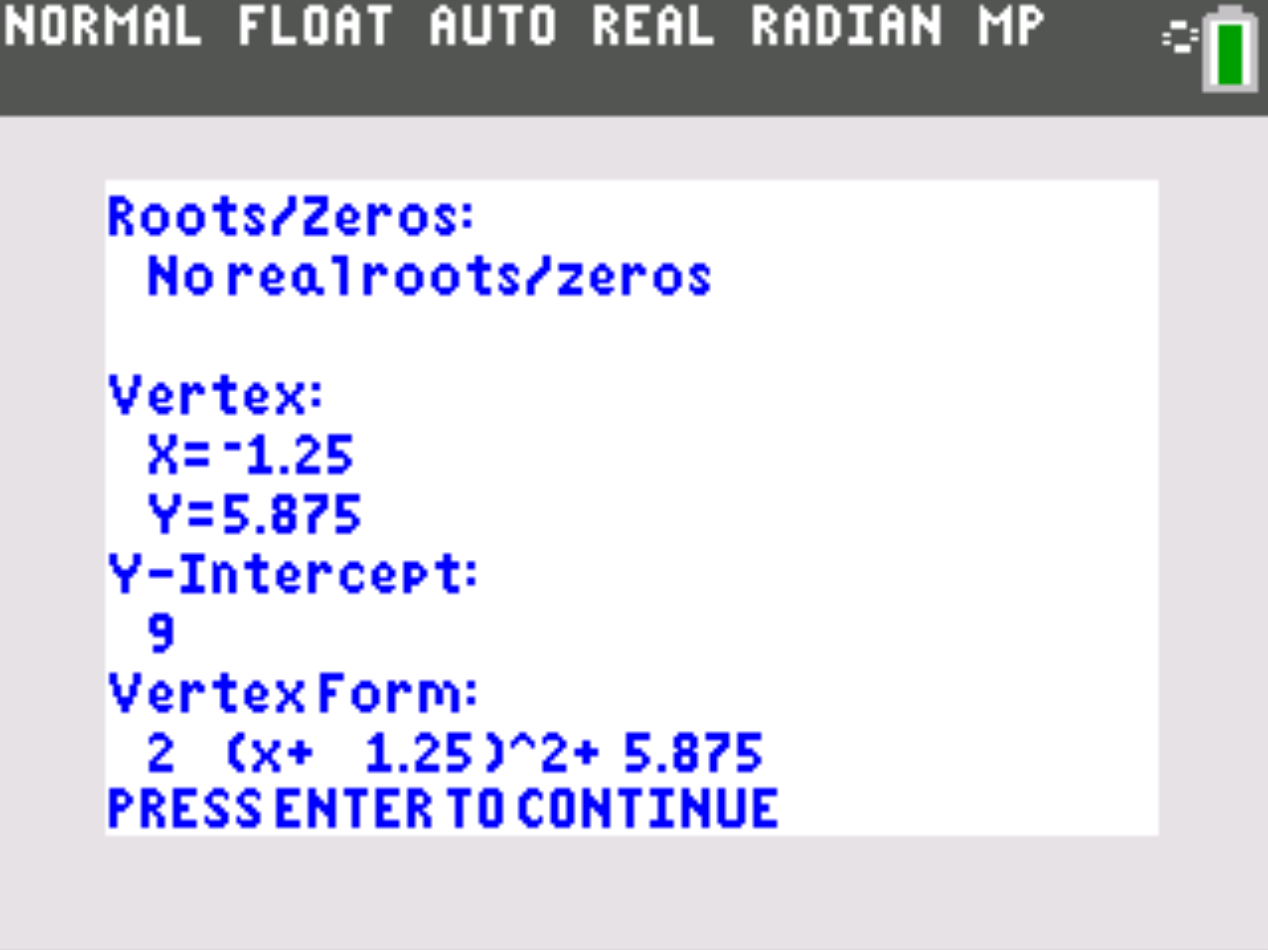
Here, you can find out a lot of information about quadratics, including converting to vertex form (which happens to randomly appear on the SAT and people, including me, forget how to do it) and to standard form from vertex form (even to both from factored form!). Choose which form of quadratic you are given and follow the prompts and, voila! You now know everything you need to know about that quadratic equation!


Used to reset the graph window. Useful if you are going into panic mode and the program has messed with your graph view.
You may run into an archive error. This is usually because the SAT Goat is attempting to use a variable that has been archived on your calculator.

You can fix this by un-archiving the variable that SAT Goat is trying to use. The simplest way to do this is by taking the following steps:
- On the error page, select the "Goto" option
- Once the calculator stops scrolling through the code, see what archived variable is being used. In this example image here, the variable would be E

- Press 2ND -> MEM
- Select the "UnArchive" option
- Enter the variable to be unarchived (the variable we saw in the code) and hit ENTER


