EndUser
What Is SparkleDotNET? | The End User Experience | Using SparkleDotNET | Signing Your Updates | Info.plist Keys | Generating an Appcast | Anonymous User Profiles | Letting Your Users Customise SparkleDotNET | Localizing SparkleDotNET
Upon first launch of the application, the user will see nothing. This is to allow you to do your own initial setup without SparkleDotNET getting in the way.
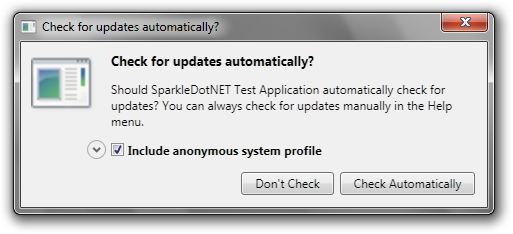
On the second launch, the user will be asked if they'd like your application to check for updates automatically:
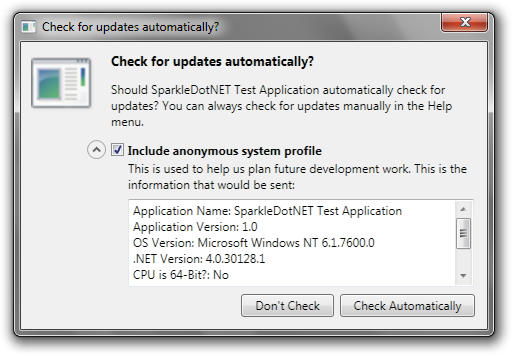
If the user expands the "Include anonymous system profile" area, the window expands to show more details:
Until there's an update, there is no further UI. If the user wishes to manually check for updates and there are none available, an alert will let them know that. Automatic checks don't show any UI if there's no update available.
When an update is available, the following window will show up:

The release notes are rendered using the .NET web control, so you can do any layout you like, but do pay attention to the small default width of the update window.
At this point, the user can choose from three options:
- Install Update, which begins the update process.
- Remind Me Later, which simply closes the update window - it will be shown again on the next manual or scheduled update check.
- Skip This Version, which will add the update's version number to the "black list". From this point on, all updates up to the one shown will be ignored be SparkleDotNET.
If the user chooses to install the update, the update is downloaded in the update window, allowing the user to continue reading the release notes.

When the download completes, the user will be given a button to press to actually start the downloaded updater. This allows them to finish anything else they're doing before the update begins.