Skip to content

fix(common/core/web): OSK state-key management 🍒#5494

Merged
jahorton merged 7 commits intostable-14.0from
fix/web/cherry/state-key-management
Jul 30, 2021
Merged

fix(common/core/web): OSK state-key management 🍒#5494
jahorton merged 7 commits intostable-14.0from
fix/web/cherry/state-key-management

Conversation

@jahorton
Copy link
Contributor

@jahorton jahorton commented Jul 27, 2021

A 🍒-pick of #5456.

This fixes issues with the caps and numlock state management, mostly for the desktop OSK. There are some core-internal effects though, especially in regard to complications with layer management for mnemonic keyboards' touch OSKs.

The 🍒-pick process was a bit complicated this time because some of the affected code blocks were in different files in 14.0 than they currently are in 15.0. Made sure to inspect the resulting changeset and compare the results directly.

User Testing

IF we want them, we can just use the same set of tests that was used for #5456.

And, well, knowing the way things usually go... yeah, @keymanapp/testers. (But prioritize #5491 first!)

Test suite 1: desktop

  • Platform: macOS / Safari
Instructions & Tests

Using the "Test unminified KeymanWeb" test page:

  • TEST.STD.HARDWARE:

    Test sequence
    1. Ensure that your hardware keyboard's CAPS LOCK state is "off".
    2. Select the "English - English" entry if not already selected.
      • The OSK's CAPS LOCK key should not be highlighted.
    3. Press and release your hardware keyboard's CAPS LOCK key.
      • The OSK's copy of the key should become highlighted here.
    4. Press and release your hardware keyboard's A key.
      • A lowercase a should result with no other effects.
    5. Press and release your hardware keyboard's SHIFT.
      • The OSK's CAPS key should remain highlighted, while SHIFT highlights only while the physical SHIFT is pressed.
    6. Press and release your hardware keyboard's CAPS LOCK key.
      • The OSK's CAPS key should no longer be highlighted.
    7. Refresh the page.
    8. Before displaying the OSK or clicking anywhere within the page, activate your hardware keyboard's CAPS LOCK state.
    9. Display the OSK
      • The OSK's CAPS key should not be highlighted. (It's a system limitation.)
    10. Press and release your hardware keyboard's A key.
      • The OSK's CAPS key should become highlighted.
  • TEST.STD.MIXED

    Test sequence
    1. Ensure that your hardware keyboard's CAPS LOCK state is "off".
    2. Select the "English - English" entry if not already selected.
      • The OSK's CAPS LOCK key should not be highlighted.
    3. Click the OSK's CAPS LOCK key.
      • It should become highlighted here.
    4. Click your OSK's A key.
      • A lowercase a should result with no other effects.
    5. Press and release your hardware keyboard's A key.
      • A lowercase a should result and the OSK's CAPS LOCK key should lose its highlighting.
    6. Press and release your hardware keyboard's CAPS LOCK key.
      • The OSK's CAPS key should become highlighted.
    7. Click your OSK's CAPS key.
      • It should lose highlighting.
    8. Click your OSK's A key.
      • A lowercase a should result with no other effects.
    9. Press and release your hardware keyboard's A key.
      • A lowercase a should result and the OSK's CAPS LOCK key should regain its highlighting.
  • TEST.MNEMONIC.HARDWARE:

    Test sequence
    1. Ensure that your hardware keyboard's CAPS LOCK state is "off".
    2. Add the sil_philippines keyboard and select it.
      • The OSK's CAPS LOCK key should not be highlighted.
    3. Press and release your hardware keyboard's CAPS LOCK key.
      • The OSK's copy of the key should become highlighted here.
    4. Press and release your hardware keyboard's A key.
      • A capitalized A should result with no other effects.
    5. Press and release your hardware keyboard's SHIFT.
      • The OSK's CAPS key should remain highlighted, while SHIFT highlights only while the physical SHIFT is pressed.
    6. Press, but do not release your hardware keyboard's SHIFT.
      • The OSK's CAPS key should remain highlighted, while SHIFT also becomes highlighted.
    7. Press and release your hardware keyboard's A key.
      • A lowercased a should result with no other effects.
    8. Release your hardware keyboard's SHIFT key.
      • The OSK's CAPS key should remain highlighted.
  • TEST.MNEMONIC.MIXED

    Test sequence
    1. Ensure that your hardware keyboard's CAPS LOCK state is "off".
    2. Add the sil_philippines keyboard and select it.
      • The OSK's CAPS LOCK key should not be highlighted.
    3. Click the OSK's CAPS LOCK key.
      • It should become highlighted here.
    4. Click your OSK's A key.
      • A capitalized A should result with no other effects.
    5. Press and release your hardware keyboard's A key.
      • A lowercase a should result and the OSK's CAPS LOCK key should lose its highlighting.
    6. Press and release your hardware keyboard's CAPS LOCK key.
      • The OSK's CAPS key should become highlighted.
    7. Click your OSK's CAPS key.
      • It should lose highlighting.
    8. Click your OSK's A key.
      • A lowercase a should result with no other effects.
    9. Press and release your hardware keyboard's A key.
      • A capitalized A should result and the OSK's CAPS LOCK key should regain its highlighting.

Test suite 2: mobile

  • Platform: Chrome emulation / iOS
Instructions & Tests

Using the "Test unminified KeymanWeb" test page:

  • TEST.MOBILE.NUM_LOCK: Using the khmer_angkor keyboard, swap back and forth between the 'default' and the 'numeric' layers.
    • Expected result: there should be no "stuck highlighting" effect on the default layer's numeric key.

@jahorton jahorton added this to the A15S10 milestone Jul 27, 2021
@jahorton
Copy link
Contributor Author

I have built this on my dev machine and confirmed that the changes were 🍒'd safely.

@MakaraSok
Copy link

User Testing

Test suite 1: desktop

  • Platform: macOS 14.5.1 / Safari 14.1.2
Instructions & Tests

Using the "Test unminified KeymanWeb" test page:

  • TEST.STD.HARDWARE: ALL PASSED

    Test sequence
    1. The hardware keyboard's CAPS LOCK state is "off".
    2. Select the "English - English" entry if not already selected.
      • The OSK's CAPS LOCK key is not highlighted.
    3. Press and release your hardware keyboard's CAPS LOCK key.
      • PASSED - The OSK's copy of the key does become highlighted here.
    4. Press and release your hardware keyboard's A key.
      • PASSED - A lowercase a does result with no other effects.
    5. Press and release your hardware keyboard's SHIFT.
      • PASSED - The OSK's CAPS key does remain highlighted, while SHIFT highlights only while the physical SHIFT is pressed.
    6. Press and release your hardware keyboard's CAPS LOCK key.
      • PASSED - The OSK's CAPS key is indeed no longer highlighted.
    7. Refresh the page.
    8. Before displaying the OSK or clicking anywhere within the page, activate your hardware keyboard's CAPS LOCK state.
    9. Display the OSK
      • PASSED - The OSK's CAPS key is indeed not highlighted. (It's a system limitation.)
    10. Press and release your hardware keyboard's A key.
      • PASSED - The OSK's CAPS key does become highlighted.
  • TEST.STD.MIXED: ALL PASSED

    Test sequence
    1. The hardware keyboard's CAPS LOCK state is "off".
    2. Select the "English - English" entry if not already selected.
      • The OSK's CAPS LOCK key is not highlighted.
    3. Click the OSK's CAPS LOCK key.
      • PASSED - It does become highlighted here.
    4. Click your OSK's A key.
      • PASSED - A lowercase a does result with no other effects.
    5. Press and release your hardware keyboard's A key.
      • PASSED - A lowercase a does result and the OSK's CAPS LOCK key does lose its highlighting.
    6. Press and release your hardware keyboard's CAPS LOCK key.
      • PASSED - The OSK's CAPS key does become highlighted.
    7. Click your OSK's CAPS key.
      • PASSED - It does lose highlighting.
    8. Click your OSK's A key.
      • PASSED - A lowercase a does result with no other effects.
    9. Press and release your hardware keyboard's A key.
      • PASSED - A lowercase a does result and the OSK's CAPS LOCK key does regain its highlighting.
  • TEST.MNEMONIC.HARDWARE: ALL PASSED but there is a note on the last test

    Test sequence
    1. The hardware keyboard's CAPS LOCK state is "off".
    2. Add the sil_philippines keyboard and select it.
      • The OSK's CAPS LOCK key is not highlighted.
    3. Press and release your hardware keyboard's CAPS LOCK key.
      • PASSED - The OSK's copy of the key does become highlighted here.
    4. Press and release your hardware keyboard's A key.
      • PASSED - A capitalized A does result with no other effects.
    5. Press and release your hardware keyboard's SHIFT.
      • PASSED - The OSK's CAPS key does remain highlighted, while SHIFT highlights only while the physical SHIFT is pressed.
    6. Press, but do not release your hardware keyboard's SHIFT.
      • PASSED - The OSK's CAPS key does remain highlighted, while SHIFT also becomes highlighted.
    7. Press and release your hardware keyboard's A key.
      • PASSED - A lowercased a does result with no other effects.
    8. Release your hardware keyboard's SHIFT key.
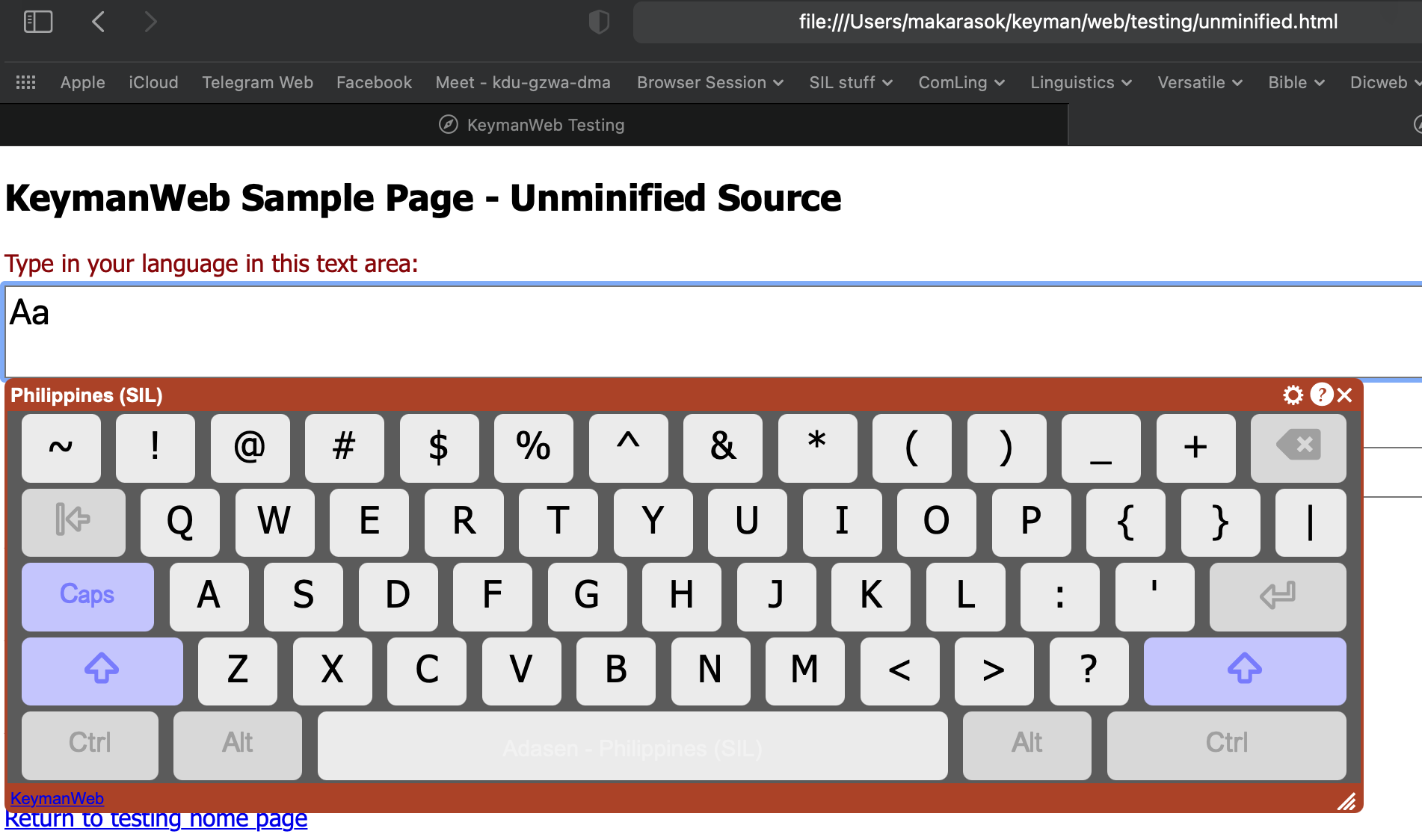
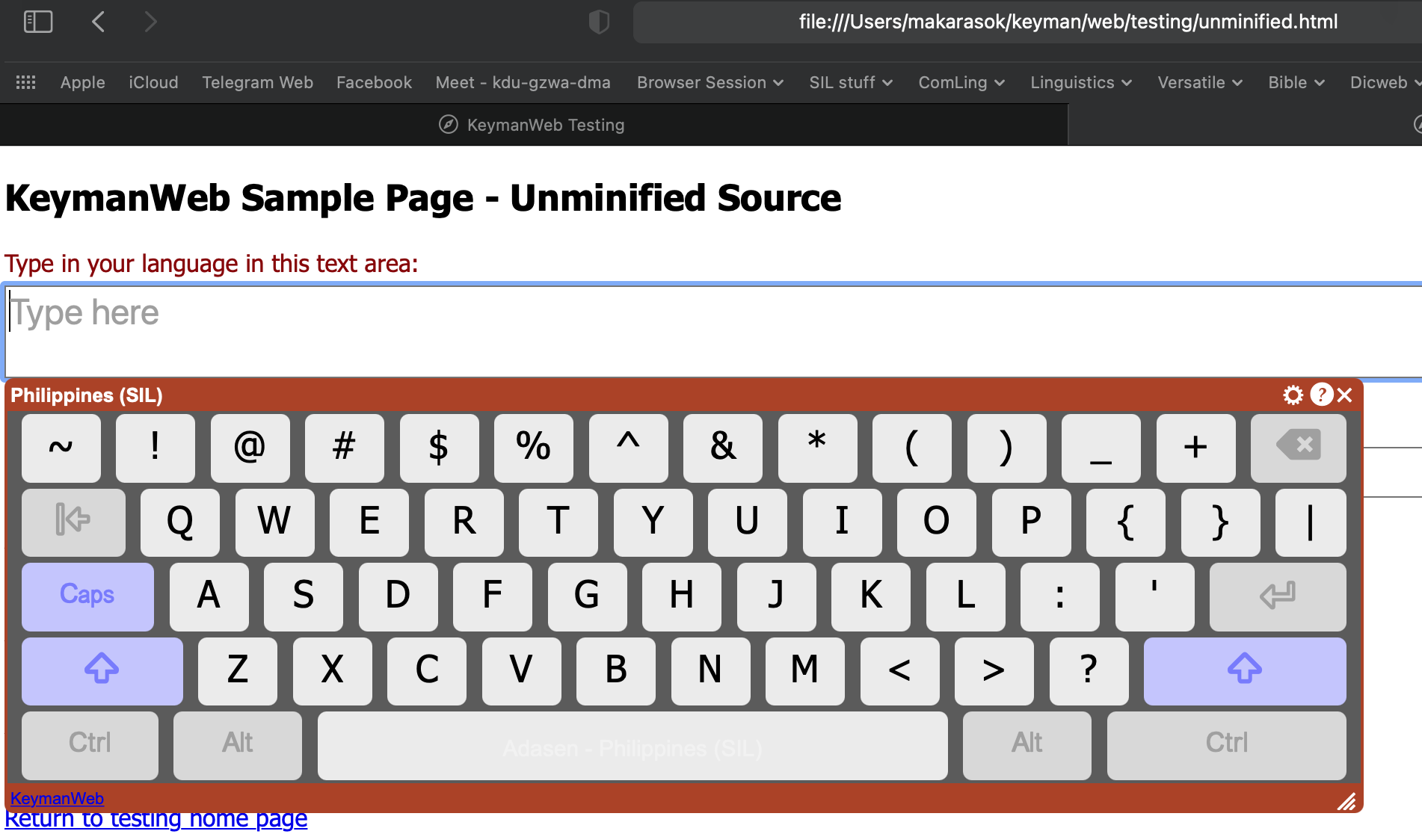
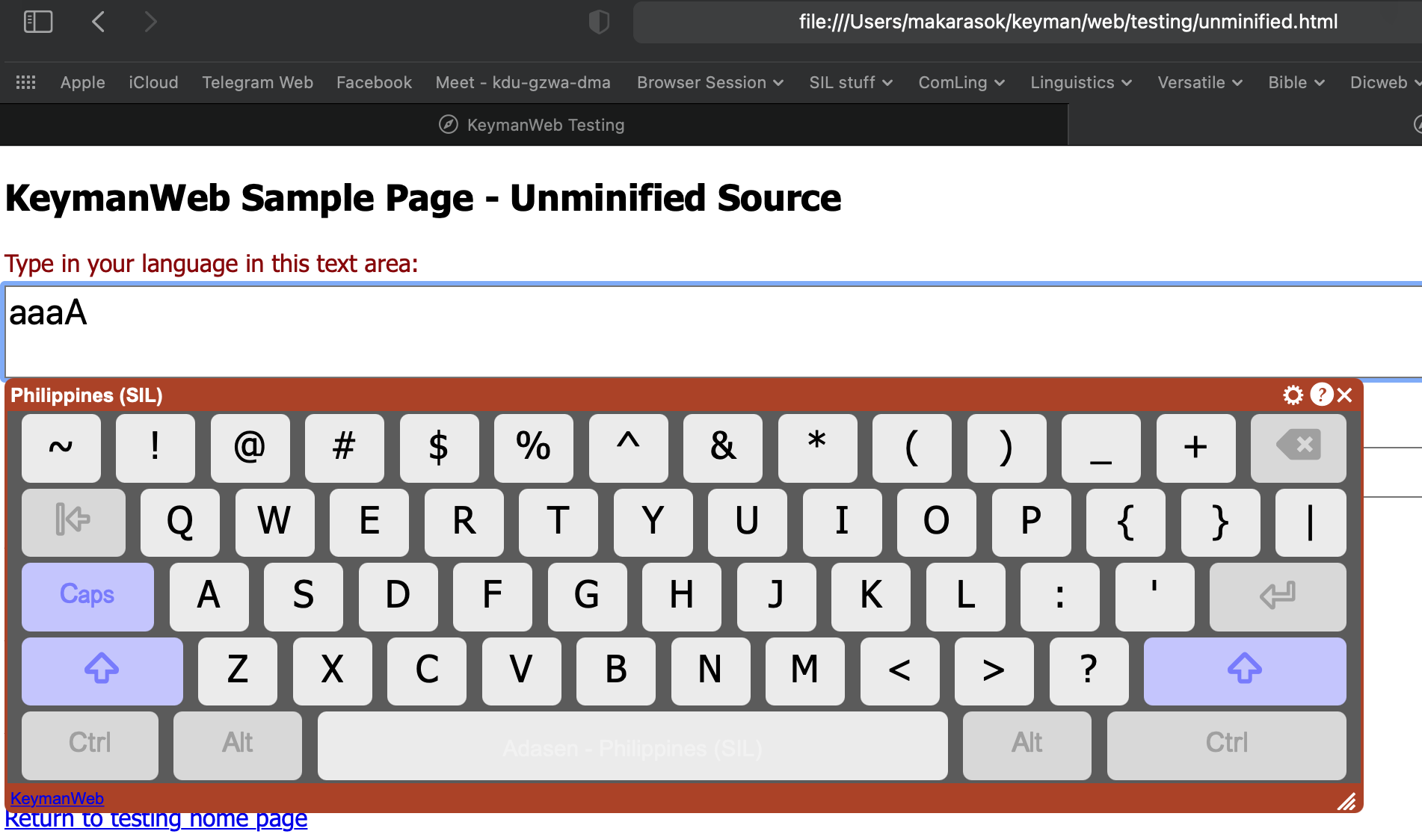
      • PASSED - The OSK's CAPS key does remain highlighted. but if clicking away from the OSK (i.e. to type in this comment) and then coming back to click in the text input area, the SHIFT is highlighted just like the CAPS key (see the image below)
      image
  • TEST.MNEMONIC.MIXED: ONE FAILED three notes of similar behavior were observed

    Test sequence
    1. The hardware keyboard's CAPS LOCK state is "off".
    2. Add the sil_philippines keyboard and select it.
      • The OSK's CAPS LOCK key is indeed not highlighted.
    3. Click the OSK's CAPS LOCK key.
      • PASSED - It does become highlighted here. but if clicking away from the OSK (i.e. to type in this comment) and then coming back to click in the text input area, the SHIFT is highlighted just like the CAPS key (see the image below)
      image
    4. Click your OSK's A key.
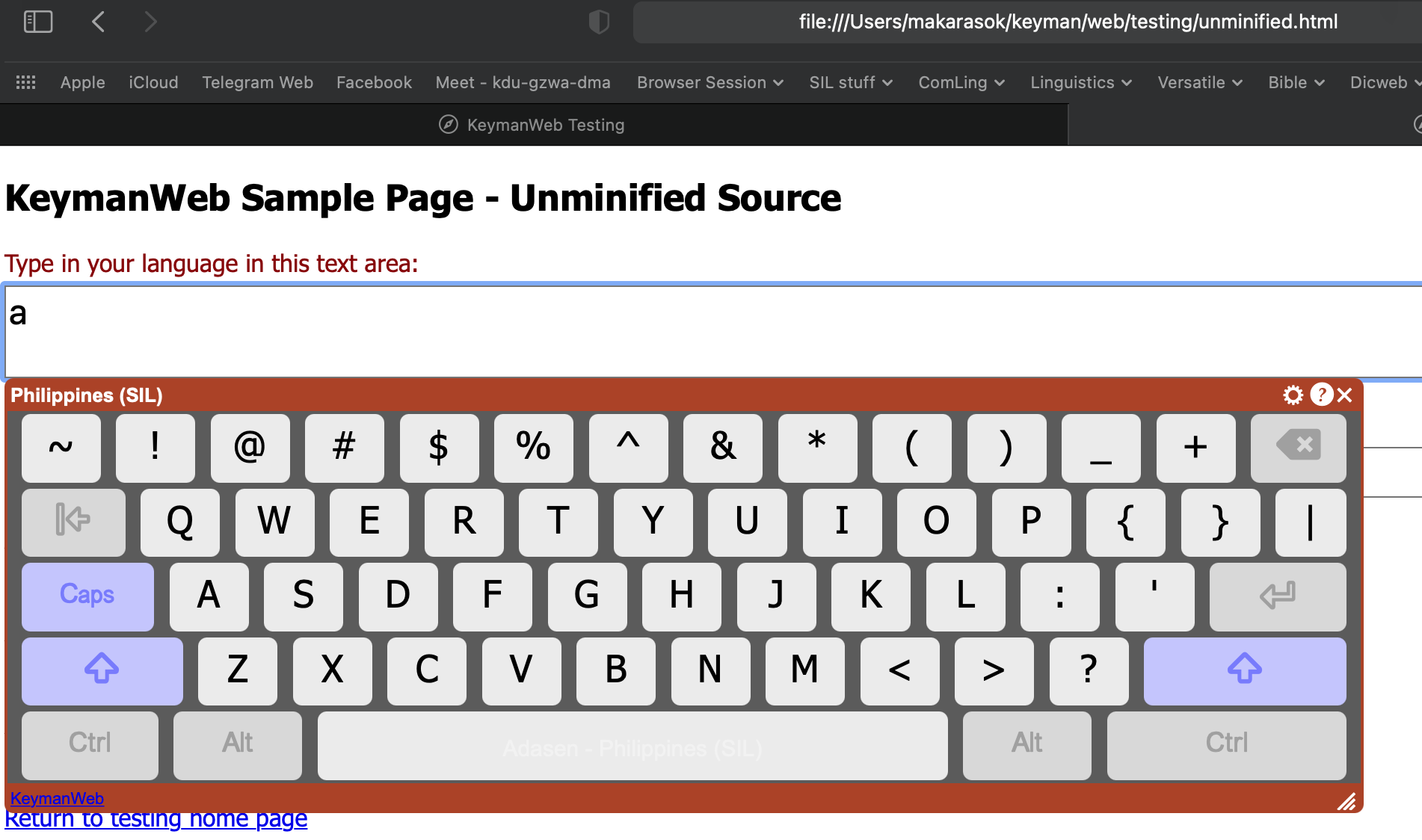
      • FAILED - A capitalized A does not result with no other effects. a lowercase a is output instead (see the image below)
      image
    5. Press and release your hardware keyboard's A key.
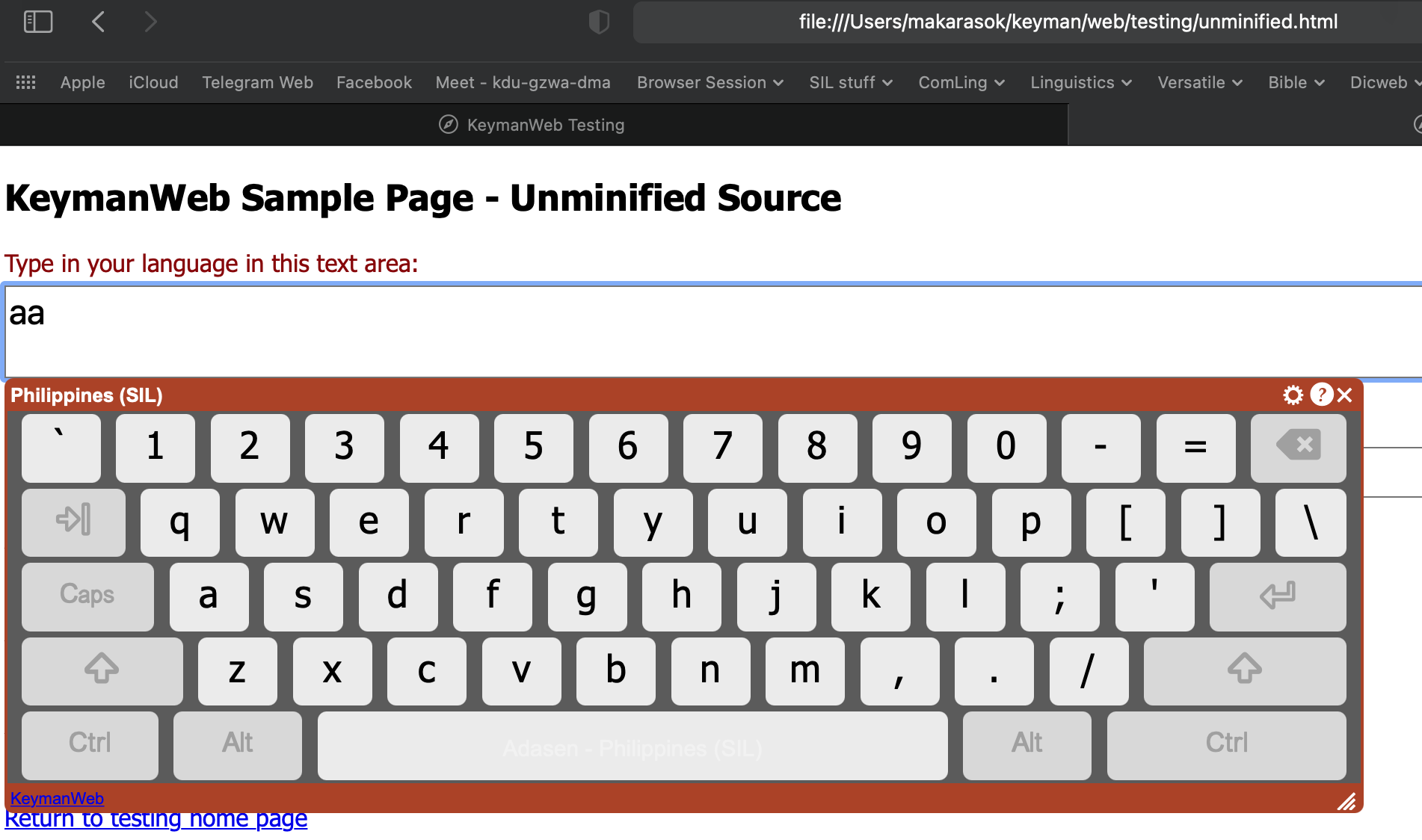
      • PASSED - A lowercase a does result and the OSK's CAPS LOCK key does lose its highlighting. - but so does the unintended highlighting on OSK's SHIFT key. (see the image below)
      image
    6. Press and release your hardware keyboard's CAPS LOCK key.
      • PASSED - The OSK's CAPS key does become highlighted.
    7. Click your OSK's CAPS key.
      • PASSED - It does lose highlighting.
    8. Click your OSK's A key.
      • PASSED - A lowercase a does result with no other effects.
    9. Press and release your hardware keyboard's A key.
      • PASSED - A capitalized A does result and the OSK's CAPS LOCK key does regain its highlighting.
        but if clicking away from the OSK (i.e. to type in this comment) and then coming back to click in the text input area, the SHIFT is highlighted just like the CAPS key (see the image below)
      image

Test suite 2: mobile

  • Platform: Chrome emulation / iOS
    Chrome 92.0.4515.107 (x64) on macOS 14.5.1
Instructions & Tests

Using the "Test unminified KeymanWeb" test page:

  • PASSED - TEST.MOBILE.NUM_LOCK: Using the khmer_angkor keyboard, swap back and forth between the 'default' and the 'numeric' layers. There is no "stuck highlighting" effect on the default layer's numeric key.

@jahorton
Copy link
Contributor Author

jahorton commented Jul 29, 2021

TEST.MNEMONIC.HARDWARE

Yep, that caveat is noted in the original PR's description. Known issue, but really tricky to perfect.

TEST.MNEMONIC.MIXED

Could you clear your cache and rebuild, then do a retest on this point? SHIFT is active in your screenshots for iii and iv, and it shouldn't be. (The cause of that is causing the error you did report.) I just did a local build against this branch and tested myself in macOS/Safari; I do not experience the same behavior.

but if clicking away from the OSK (i.e. to type in this comment) and then coming back to click in the text input area

Oh. Yeah, that'd do it. If you could refrain from that... or simply click SHIFT off when it's activated from that exact behavior before continuing, that would be great. That was the source of the problem; it's a known limitation.

So... while this particular test wasn't carried out exactly as expected... it did behave as expected given the usage pattern you described in your comments. So... we're probably fine, unless someone wants a more precise retest of this specific test sequence.

@MakaraSok
Copy link

TEST.MNEMONIC.MIXED

Could you clear your cache and rebuild, then do a retest on this point? SHIFT is active in your screenshots for iii and iv, and it shouldn't be. (The cause of that is causing the error you did report.) I just did a local build against this branch and tested myself in macOS/Safari; I do not experience the same behavior.

The same behavior is experienced on iii and iv when testing after emptying the cache.

@jahorton
Copy link
Contributor Author

The same behavior is experienced on iii and iv when testing after emptying the cache.

Well...

but if clicking away from the OSK (i.e. to type in this comment) and then coming back to click in the text input area

If you did that (the "clicking away") again, of course you experienced the same behavior. That "clicking away" is why the problem's arising.

@jahorton jahorton merged commit e51f48e into stable-14.0 Jul 30, 2021
@jahorton jahorton deleted the fix/web/cherry/state-key-management branch July 30, 2021 06:37
Sign up for free to join this conversation on GitHub. Already have an account? Sign in to comment

Labels

Projects

None yet

Development

Successfully merging this pull request may close these issues.

3 participants