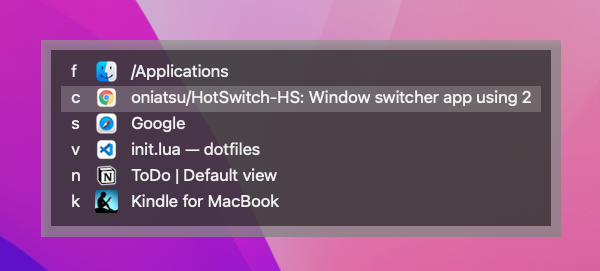
HotSwitch-HS is a window switcher using 2 stroke hotkey for macOS.
It provides fastest window switching, no matter how many windows there are. HotSwitch-HS uses Hammerspoon, and is rewritten for a substitution of HotSwitch.
You can switch any windows by like command + . + x (this key is always fixed).
HotSwitch-HS's window switching steps is these.
- Register a fixed key to windows on list. (Press
Space. It's easy and fast.) - Switch any windows by using the key you registered. (You can switch in a flash without thinking time.)
In addition, HotSwitch-HS provides auto generated keys before your key registration. However, I highly recommend that you register keys, because it enable you to switch windows faster than ever.
Try it. It's easy and fast to understand.
| Key | Action |
|---|---|
| The key you set | Open or close the HotSwitch-HS panel |
Space |
Toggle registration mode |
Tab or Down |
Select a next window |
Shift+Tab or Up |
Select a previous window |
Delete |
Delete the key on the selected window |
Return |
Focus the selected window |
Escape |
Close the panal |
[a-zA-Z0-9] |
Focus the window or register the key |
- or [ or ] or . or / |
Focus the window or register the key |
Concretely, HotSwitch-HS's window switching steps is these.
- Register a fixed key to windows on list.
- Switch any windows by using the key you registered.
- Open HotSwitch-HS panel. (Press
command + .that you registered) - Select a window on lists. (Press
Tabor cursor keys.) - Chanege the panel to registeration mode. (Press
Space) - Register a fixed key to the window. (Press any character keys.
a,b,c, etc.)
The registered key become a reserversion key, so the key doesn't appear as auto generated keys.
If you want to delete a registered key combined with the window, select the window on lists and press Delete.
- Open HotSwitch-HS panel. (Press
command + .that you registered) - Switch the target window by using a fixed key. (Press the key you registered.)
It looks like that 2 stroke hotkey is working to focus any windows. The important thing is that the 2 stroke key bind is fixed anytime.
That is why window switching by HotSwitch-HS is always fastest.
1. Install Hammerspoon
In terminal, execute a command. You need to place a directory to hotswitch-hs.
git clone https://github.com/oniatsu/HotSwitch-HS.git ~/.hammerspoon/hotswitch-hsDirectory tree is like this:
~/.hammerspoon/
├── init.lua
└── hotswitch-hs/
  ├── lib/
  ├── LICENSE
  ├── README.md
  └── hotswitch-hs.lua
If you have installed Hammerspoon just right now, ~/.hammerspoon/init.lua doesn't exist yet.
If the file does not exist, create it and add the codes.
local hotswitchHs = require("hotswitch-hs/hotswitch-hs")
hotswitchHs.enableAutoUpdate() -- If you don't want to update automatically, remove this line.
hs.hotkey.bind({"command"}, ".", hotswitchHs.openOrClose) -- Set a keybind you like to open HotSwitch-HS panel.
For example, you can set the keybind to open HotSwitch-HS like these.
-- These are valid.
hs.hotkey.bind({"command"}, ".", hotswitchHs.openOrClose) -- command + .
hs.hotkey.bind({"command"}, ";", hotswitchHs.openOrClose) -- command + ;
hs.hotkey.bind({"option"}, "tab", hotswitchHs.openOrClose) -- option + tab
hs.hotkey.bind({"control"}, 'space', hotswitchHs.openOrClose) -- control + space
hs.hotkey.bind({"command", "shift"}, "a", hotswitchHs.openOrClose) -- command + shift + a

-- These are NOT valid normally. Hammerspoon cannot override the keys, because the keys may be registered and used by macOS.
hs.hotkey.bind({"command"}, "tab", hotswitchHs.openOrClose) -- command + tab
hs.hotkey.bind({"command"}, "space", hotswitchHs.openOrClose) -- command + space
Here is how to set hs.hotkey.bind().
If you want to replace the macOS's app switcher command + tab with HotSwitch-HS, you can do forcibly by using Karabiner-Elements.
{
    "from": {
        "key_code": "tab",
        "modifiers": { "mandatory": [ "command" ] }
    },
    "to": [ {
        "key_code": "f13"
    } ],
    "type": "basic"
}hs.hotkey.bind({}, "f13", hotswitchHs.openOrClose)And open HotSwitch-HS panel by using the keybind you set. If you have some probrems, check these.
If you want to set some preferences, you can use some option by adding codes at ~/.hammerspoon/init.lua.
For example:
local hotswitchHs = require("hotswitch-hs/hotswitch-hs")
hotswitchHs.enableAutoUpdate()
hotswitchHs.setAutoGeneratedKeys({"1", "2", "3", "4", "5", "6", "7", "8", "9", "0"})
hotswitchHs.enableAllSpaceWindows()
hs.hotkey.bind({"command"}, ".", hotswitchHs.openOrClose)
See below to know what these means.
Add this. It will update HotSwitch-HS by git pull automatically when needed.
hotswitchHs.enableAutoUpdate()You can define auto generated keys. The order you specified will be used to generate keys.
hotswitchHs.setAutoGeneratedKeys({"1", "2", "3", "4", "5", "6", "7", "8", "9", "0"})Default auto generated keys are these.
If you want to see all space windows on the lists, add this.
hotswitchHs.enableAllSpaceWindows()Default: the current space windows are only shown.
You can add symbol keys to register windows. (Only the Japanese keyboard layout symbols are available now.)
hotswitchHs.addJapaneseKeyboardLayoutSymbolKeys()To show the panel not on main screen but on primary screen. Main screen is the one containing the currently focused window.
hotswitchHs.setPanelToAlwaysShowOnPrimaryScreen()If you are on macOS Ventura 13.x, Hammerspoon works too slow when many logs are printed on the Hammerspoon console.
So I recommend that you set the module log level to nothing not to print many logs.
This is a Hammerspoon's bug.
-- Default: nothing
hotswitchHs.setLogLevel("debug") -- can be 'nothing', 'error', 'warning', 'info', 'debug', or 'verbose'Check these.
- If the keybind you set is not enabled, open Hammerspoon console and check some error messages. First, click Hammerspoon's menubar icon. Second, click
Console.... - Update HotSwtich-HS.
cd ~/.hammerspoon/hotswitch-hs && git pull
Sometimes, getting windows is failed after the macOS has woken up from sleep.
It would be fixed by reloading Hammerspoon config. It's possibly Hammerspoon's bug. I recommend that you add a keybind to reload Hammerpoon config quickly.
-- For example: you can reload by "command + option + control + r".
hs.hotkey.bind({"command", "option", "control"}, "r", hs.reload)
hs.hotkey.bind({"command"}, ".", hotswitchHs.openOrClose)
-- It's message showing the completion of reloading.
hs.alert.show("Hammerspoon is reloaded")cd ~/.hammerspoon/hotswitch-hs
git pull
rm -rf ~/.hammerspoon/hotswitch-hs
- Hammerspoon
- Edit codes.
- Reload Hammerspoon config and check that it's working correctly.
- Check latest git tag. (
git describe --tags --abbrev=0) - Add a new git tag.
- Push the tag. Then, the release on GitHub is automatically created.
If you would update the class diagram,
- Install PlantUML. (
brew install graphviz && brew install plantuml) - Edit
doc/uml/class_diagram.pu. - Execute
plantuml doc/uml -o ../imgat your terminal.
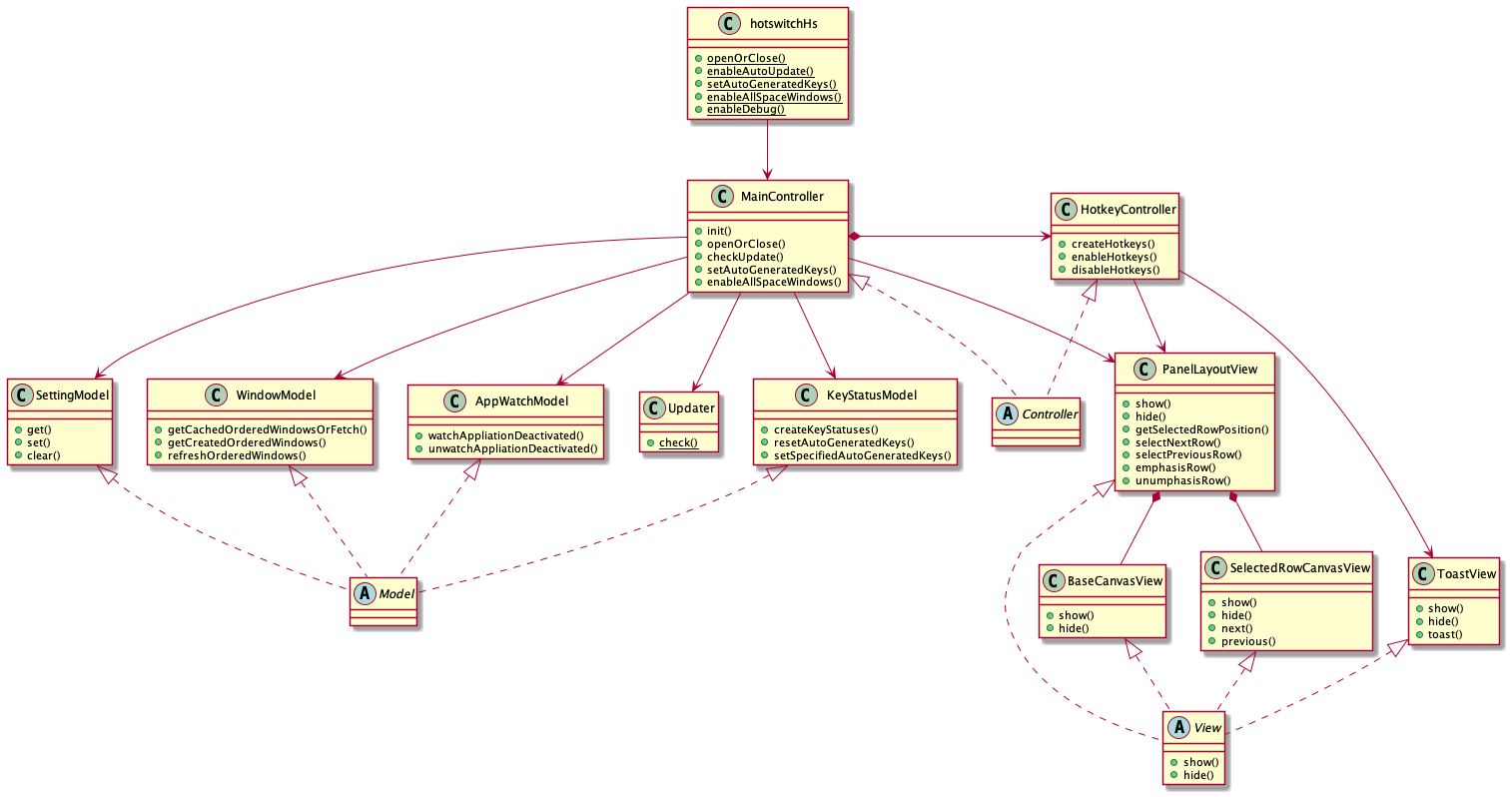
The class diagram is roughly like this.
- Pay attention to Lua's garvage collection.
- v2.3.4: Modify focusing a Finder window
- v2.2.6: Add a utility method
hotswitchHs:switchToNextWindow()
- v2.2.5: Add option to always show the panel on primary screen
hotswitchHs.setPanelToAlwaysShowOnPrimaryScreen()
- v2.1.5: Change saving keys to use bundleID instead of app name
- If you used this app before this version, you need register keys again.
- v2.1.0: Add auto updater
hotswitchHs.enableAutoUpdate()
- v2.0.0: Connect Git tag with GitHub Release
- v1.17: Add auto generated keys
- v1.4: Change app info text to app icon on panel
- v1.0: First release