A Simple and flexible digital signage and OPAC greeter built for public terminals using Kirby
Originally forked from catsoup11789/LibraryDigitalSignage
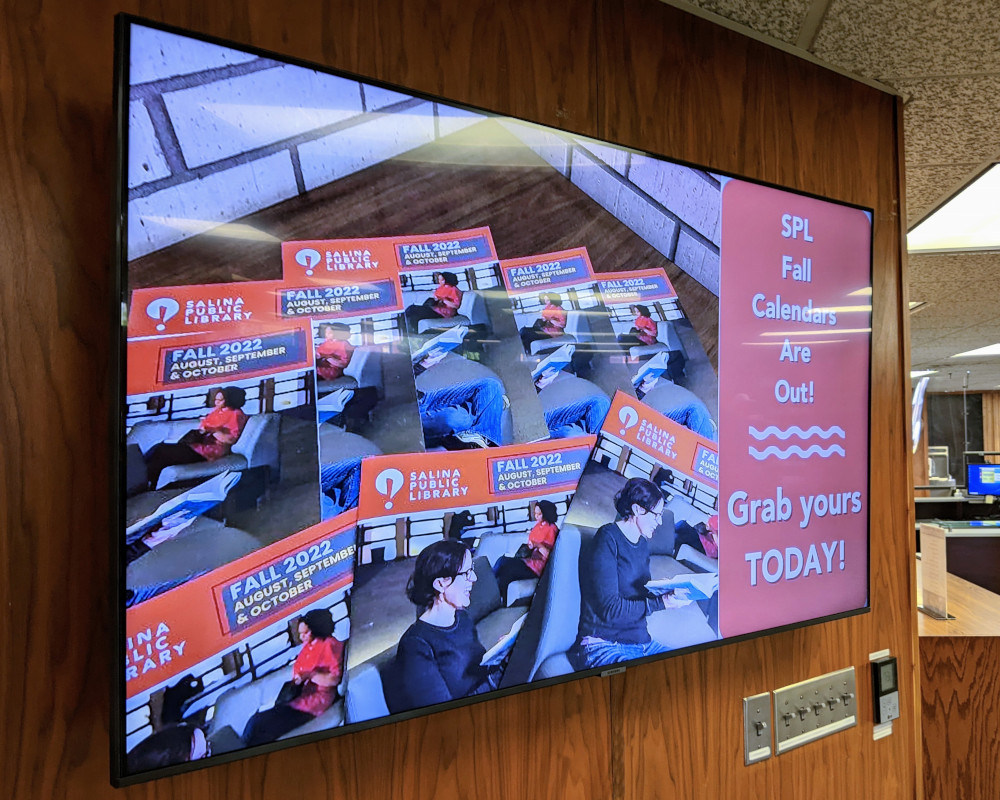
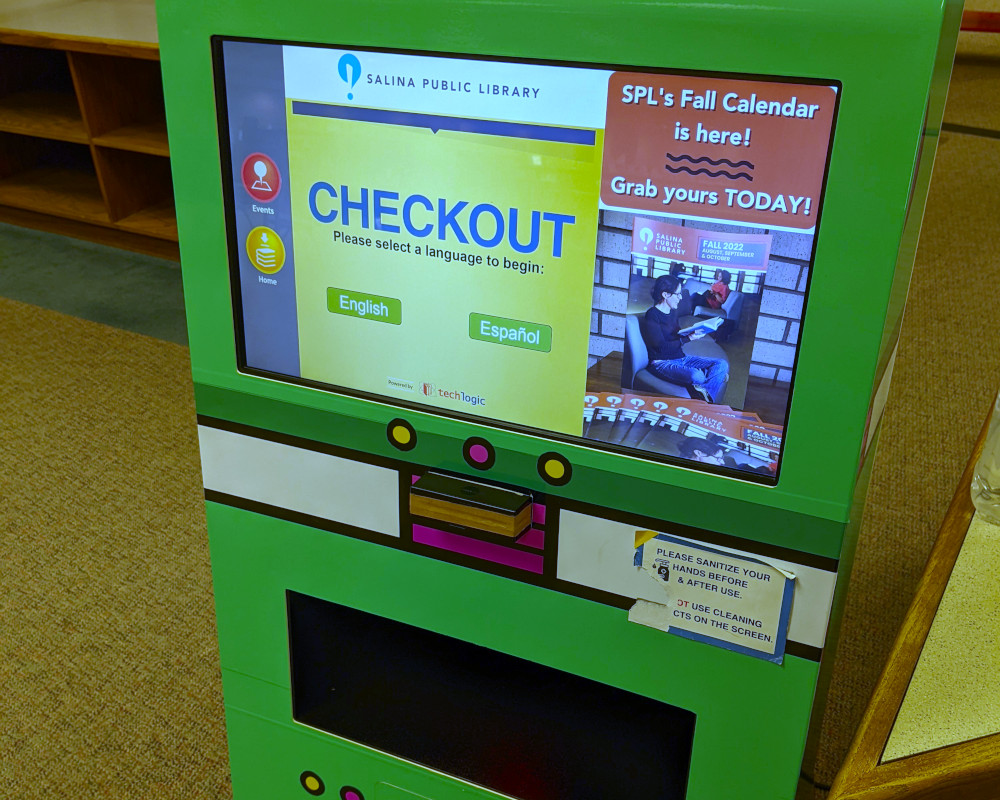
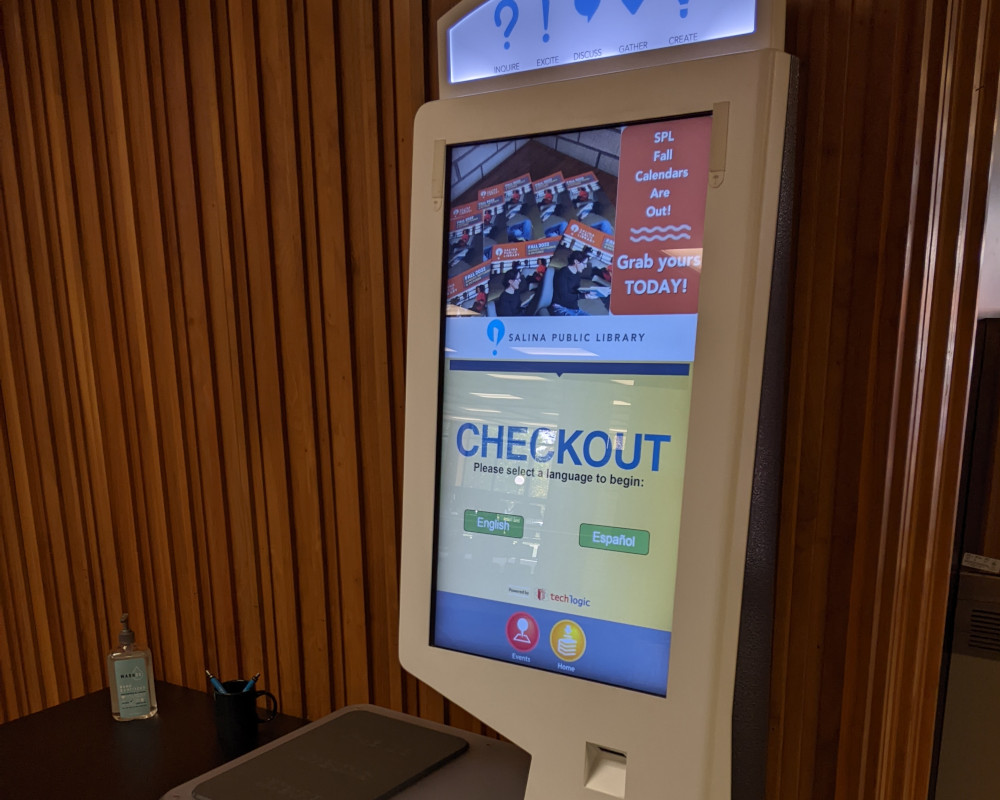

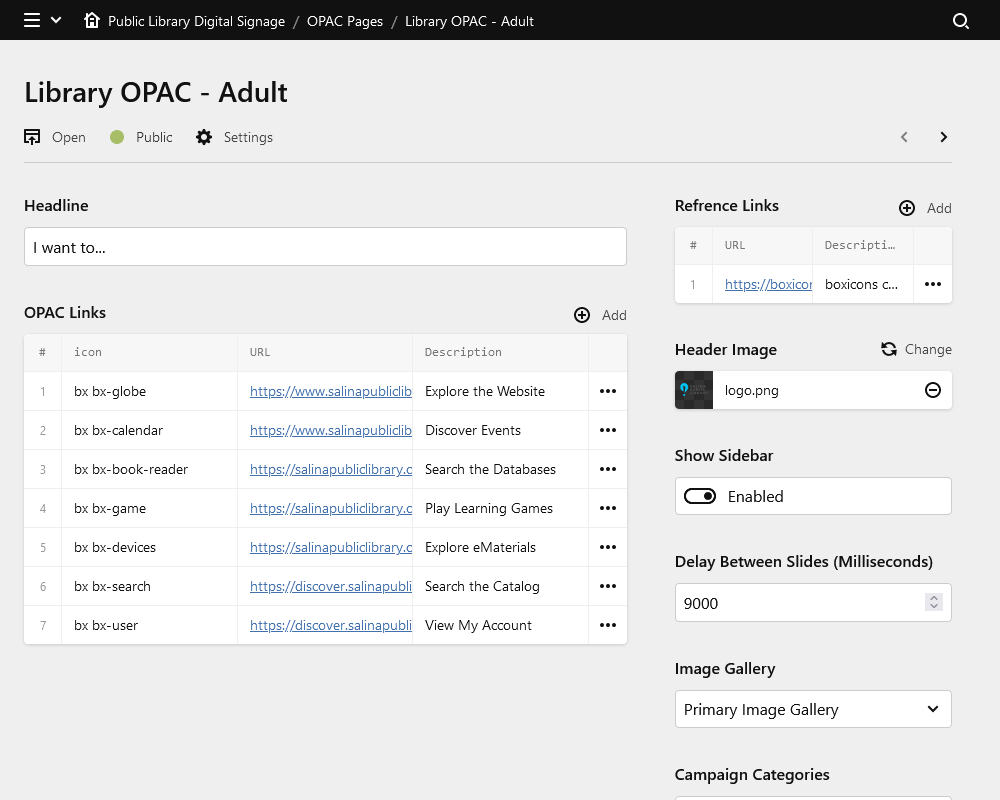
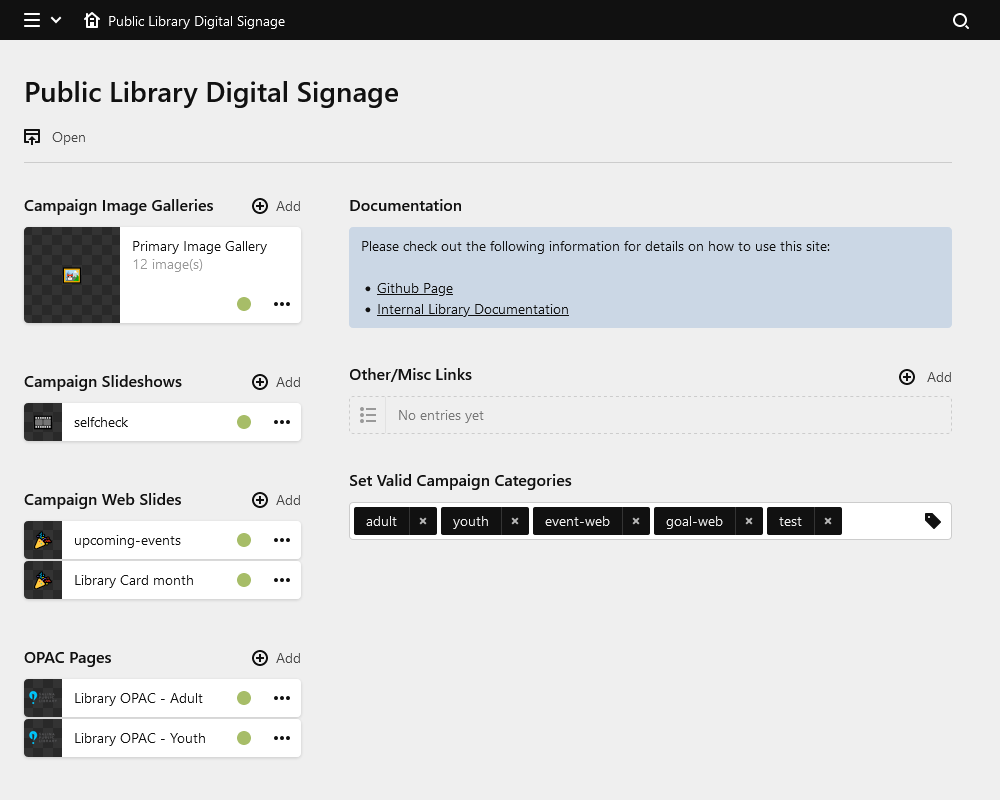
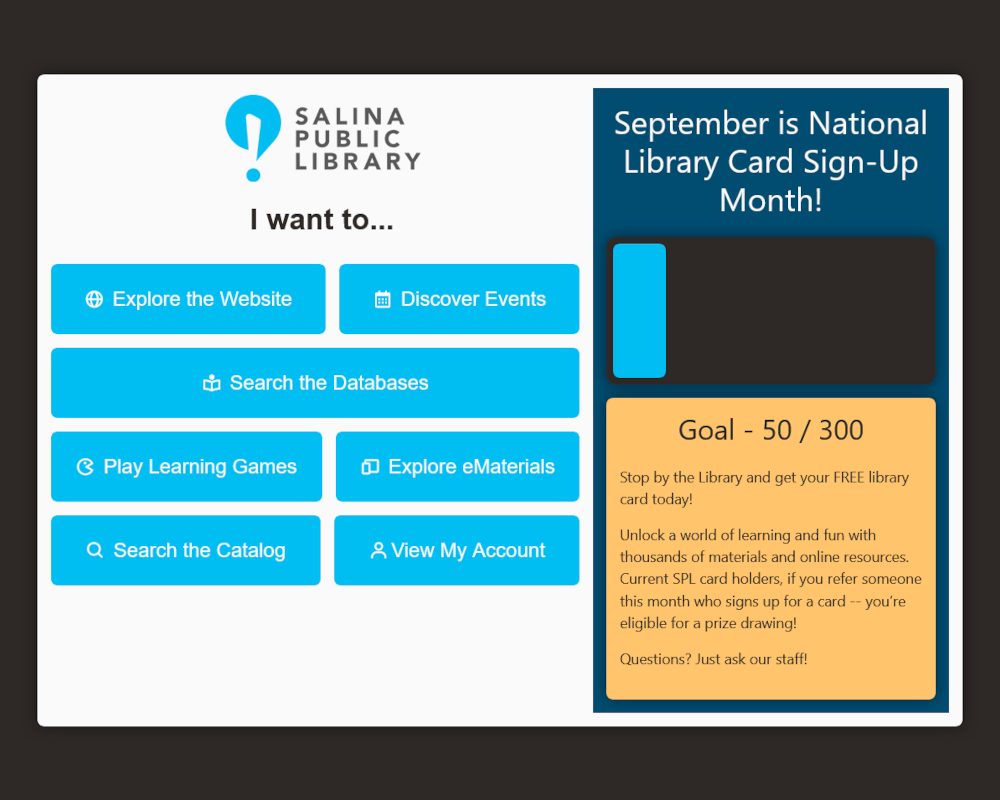
- Auto Detection of Landscape or Portrait Display for default campaign (Image Slides Only)
- Smart asset management: resizes uploaded images to proper size before loading
- Manually Choose orientation via URL Path
- Capability for multiple slideshow campaigns organized by a tagging system
- Web-based live slides for tasks such as calendar events or event goals
- Video slides
- Capability for multiple source image galleries
- Built-in Greeter (OPAC) page with easily customizable Link Buttons
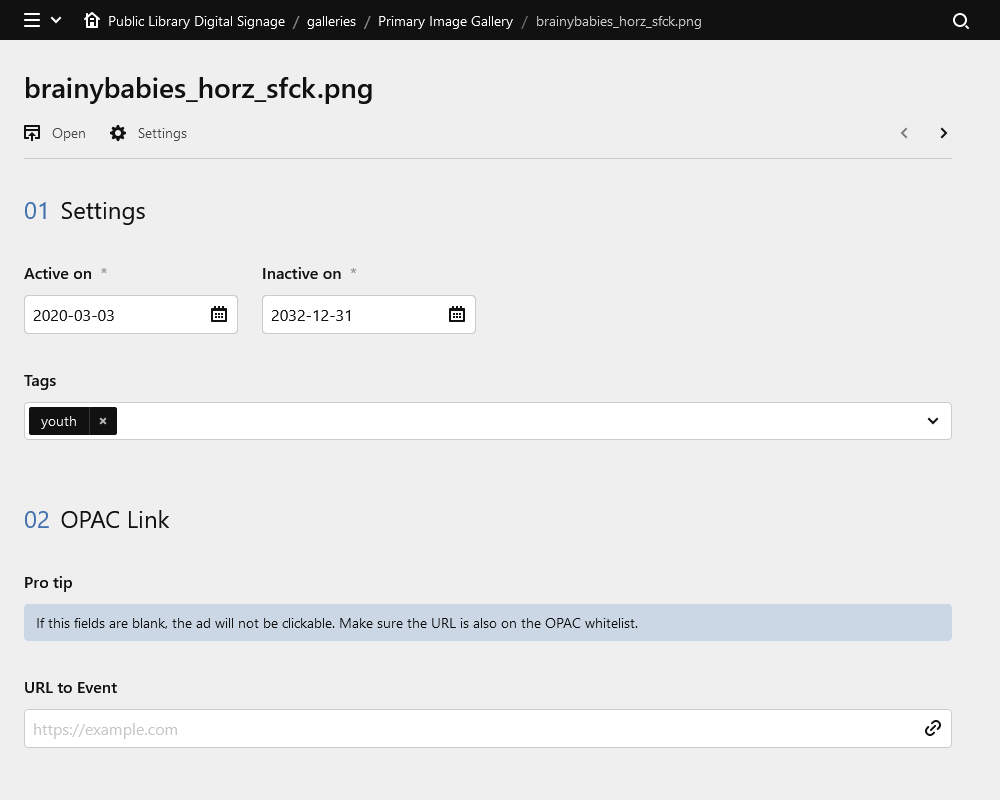
- Start and stop date and time system for pre-planning when Campaigns should start and end
- Recurring slides that only activate one day a week
- Event period that can append or replace slides during an event period
This repository only contains the content pages of the site, you will need to download the latest Kirby plainkit seprately.
- Before Starting, please check that your webserver meets Kirbys minimum requirements listed here and read the provided getting started documentation.
- Download the latest release of Kirby Plainkit
- Extract the plainkit to your Website Folder
- Download the latest release of LibSignTool from the releases page
- Extract LibSignTool into the plainkit-main folder
- Some files may ask to be overwritten, approve all overwrites.
- Make sure hidden files such as .htaccess copied over, as these are required for the site to operate correctly.
- Start your webserver and navigate to yourdomain.example.com/location-of-kirbycms-install/panel and you will be asked to create an account.
- After creating the account, you will be able to log in and start adding images to create a campaign. The download includes example pages to get started, but you can edit or remove these pages as long as you replace them with ones using the same or similar templates. Doing more than that will require knowledge of how Kirby works. Examples of what templates do what will be provided later in this document.
Kirby is a Flat-file CMS and does not require a database, which makes it very easy to install and backup. Just copy the folder you installed Kirby and LibSignTool to into your backup location to back it up.
To upgrade Kirby, simply download the newest version of the plainkit, Delete the "kirby" and "media" folders from your install folder, and copy the new versions from the plainkit into the folder. Always refer to the offical Kirby documentation for upgrade instructions as these are subject to change between releases.
LibSignTool is built on Kirby. Pay attention to the version when downloading the 3 starting numbers denote the version of Kirby the plugin is built for, -p# is the build number. Staying within the same generation of releases should be fine, but wait for a new version with the appropriate release number for major release updates.
- Manual Install: Download the release .zip file and extract to your site/plugins folder (should be a folder titled libsigntool-5.0.3-p6)
- Composer Install:
composer require salinapl/libsigntool - Git Submodule install:
git submodule add https://github.com/salinapl/libsigntool.git site/plugins/libsigntool
After installation, be sure to set your default timezone on the server in the php.ini file or at the top of Kirby's index.php like the following: date_default_timezone_set('America/Chicago');
-
Backup your whole site, move a copy of the content folder to somewhere to reference it later.
-
Delete the following files in the site folder:
- assets/ (excluding files not created by LibSignTool you have added, assets now handled separately within plugin)
- site/blueprints/ (excluding files not created by LibSignTool you have added)
- site/config/config.php (if you have edited the config.php yourself, refer to the last released version to see which lines to remove, mostly to do with landscape/portrait routing, as it's in the plugin now)
- site/controllers/ (excluding files not created by LibSignTool you have added)
- site/snippets/ (excluding files not created by LibSignTool you have added)
- site/templates/ (excluding files not created by LibSignTool you have added)
- media/ (This folder renders images as needed by Kirby creating thumbnails and such, it's good practice to delete this between Kirby versions, since so much is changing here, we delete it too)
- You can also delete the .gitignore and LICENSE files, as these are moved to the plugin and mostly for reference.
-
Delete the content folder, then install the plugin using one of the methods above, on it's first run it will create a slideshows folder.
-
Before you can load the panel, you will need to create a site.yaml or modify the old one and place it in site/blueprints/. I recommend using the Kirby default site.yml in the KirbyCMS plainkit until you create your own preferred layout. I recommend spinning up a local install of Kirby and installing this plugin there to create your site.yml before the transition.
-
once in the panel, You can either manually reconfigure the slide content files and re-integrate them, but there's enough changes from prior versions I recommend re-uploading the slide images and re-assigning their start/expire and tags by hand to prevent issues. Video and image content now live in the same folder, image orientation can still be determined automatically, but video content still needs the orientation tag set manually, but since they share a folder both types of content share the field.
-
OPAC pages are not created on installation, you should be able to move over your existing pages from the content folder, however you will need to reconfigure them as OPAC pages now select a paired slideshow instead of acting as their own slideshow as they previously did.
- Backup your whole site as a general safety practice
- If installed using composer or git, update using those programs.
- If manually installed, delete the current plugin in site/plugins and extract the new version to that folder
- follow any directions on the release page for specific conversions needed from previous versions.
While LibSignTool is provided free under the GPLv3 License, Kirby is not.
You can try Kirby on your local machine or on a test server as long as you need to make sure it is the right tool for your next project.
However Production use requires a License Key.
You can purchase your Kirby license at https://getkirby.com/buy
A Kirby license is valid for a single domain. You can find Kirby's license agreement here: https://getkirby.com/license
You can learn more about Kirby at getkirby.com.
We do not develop for Kirby, for issues getting Kirby up and running, please contact that project. We only provide the website content files to host on Kirby to use as a Digital Signage Platform.
If you have a Github account, please report issues directly on Github: https://github.com/salinapl/LibSignTool/issues
Or you can email the maintainers directly at tech.lib@salinapublic.org