Troubleshooting
Table of Contents generated with DocToc
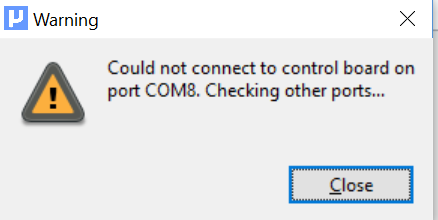
When launching MicroDrop, a warning dialog is displayed if a connection to the DropBot cannot be established.
For example:
Before launching MicroDrop:
- Verify USB cable is connected between host computer and DropBot.
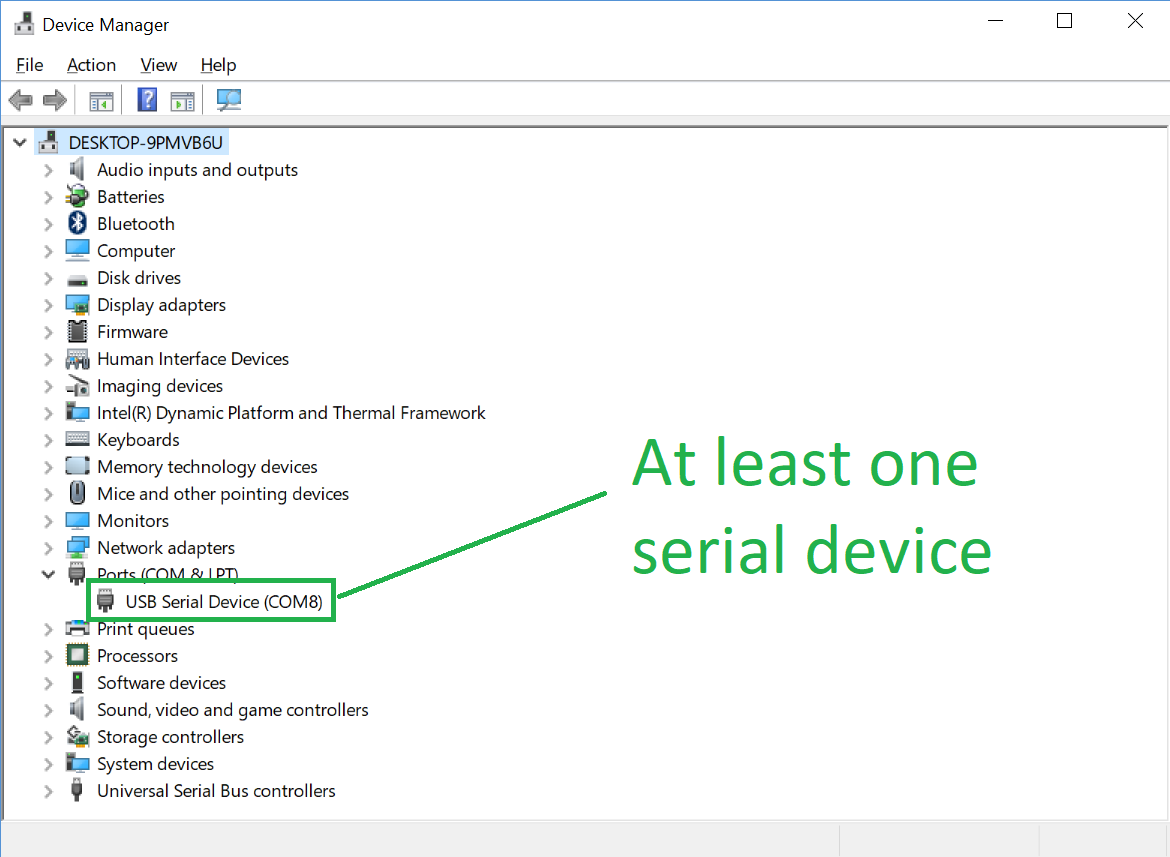
- Upon connection of USB cable, verify at least one serial device is listed in Windows Device Manager:
- Verify 12V power supply cable is connected to DropBot.
If difficulty connecting to the DropBot from MicroDrop persists after verifying all of the above items, see for potential issues.
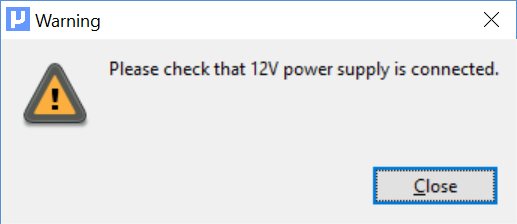
If the 12V power supply is not connected or not functioning, MicroDrop will encounter a NoPower exception and will display a "Warning" dialog with the message "Could not connect to control board on port ..." and a second warning dialog will display the following message (as of DropBot firmware version 1.34.1):
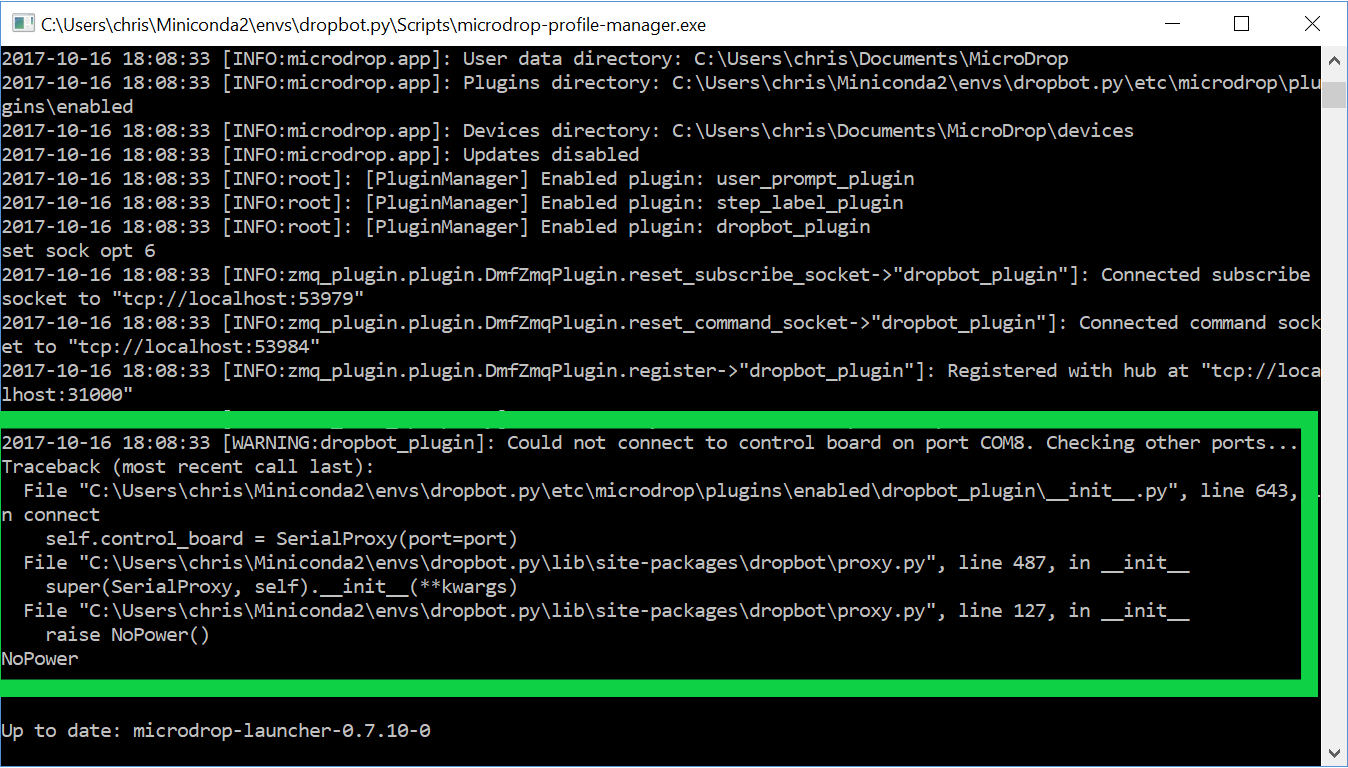
The NoPower exception is logged to the MicroDrop console window, e.g.:
Solution:
- Connect 12V power supply to DropBot.
- Ensure power "brick" LED is on.
MicroDrop may fail to connect to a DropBot if the dropbot_plugin version does not match the DropBot firmware version.
To correct this:
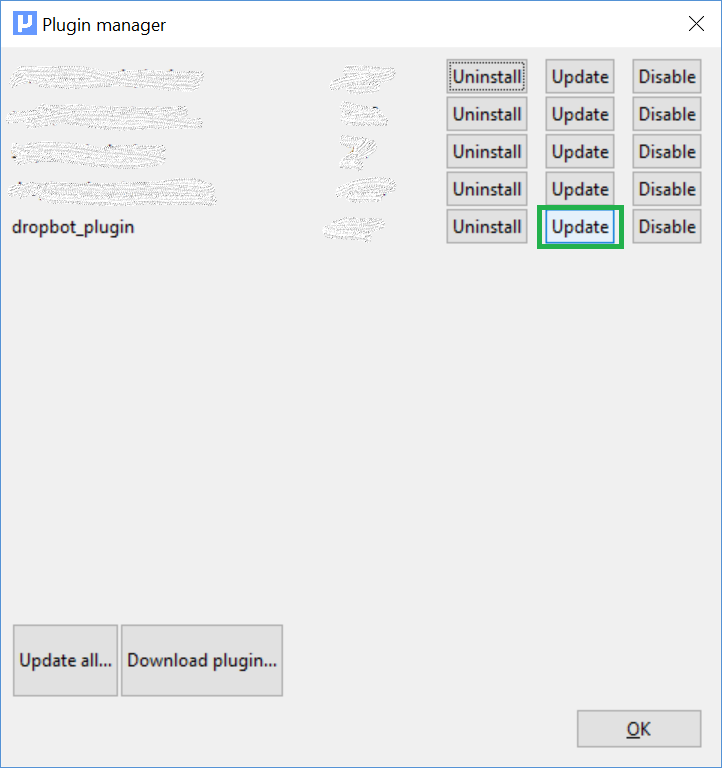
- Manually update the DropBot MicroDrop plugin to the latest version:
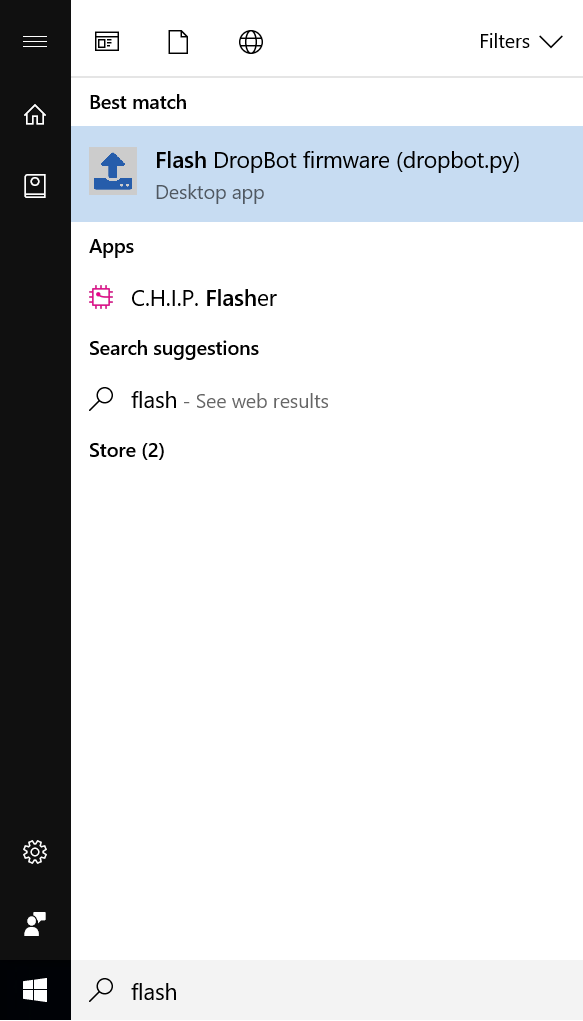
- Manually flash DropBot firmware from the Windows Start menu: