- ✨ Features
- 🧰 Prerequisites
- 🚀 Quick Start
- ⚙️ Customization
- 🎯 Hydra Keybindings
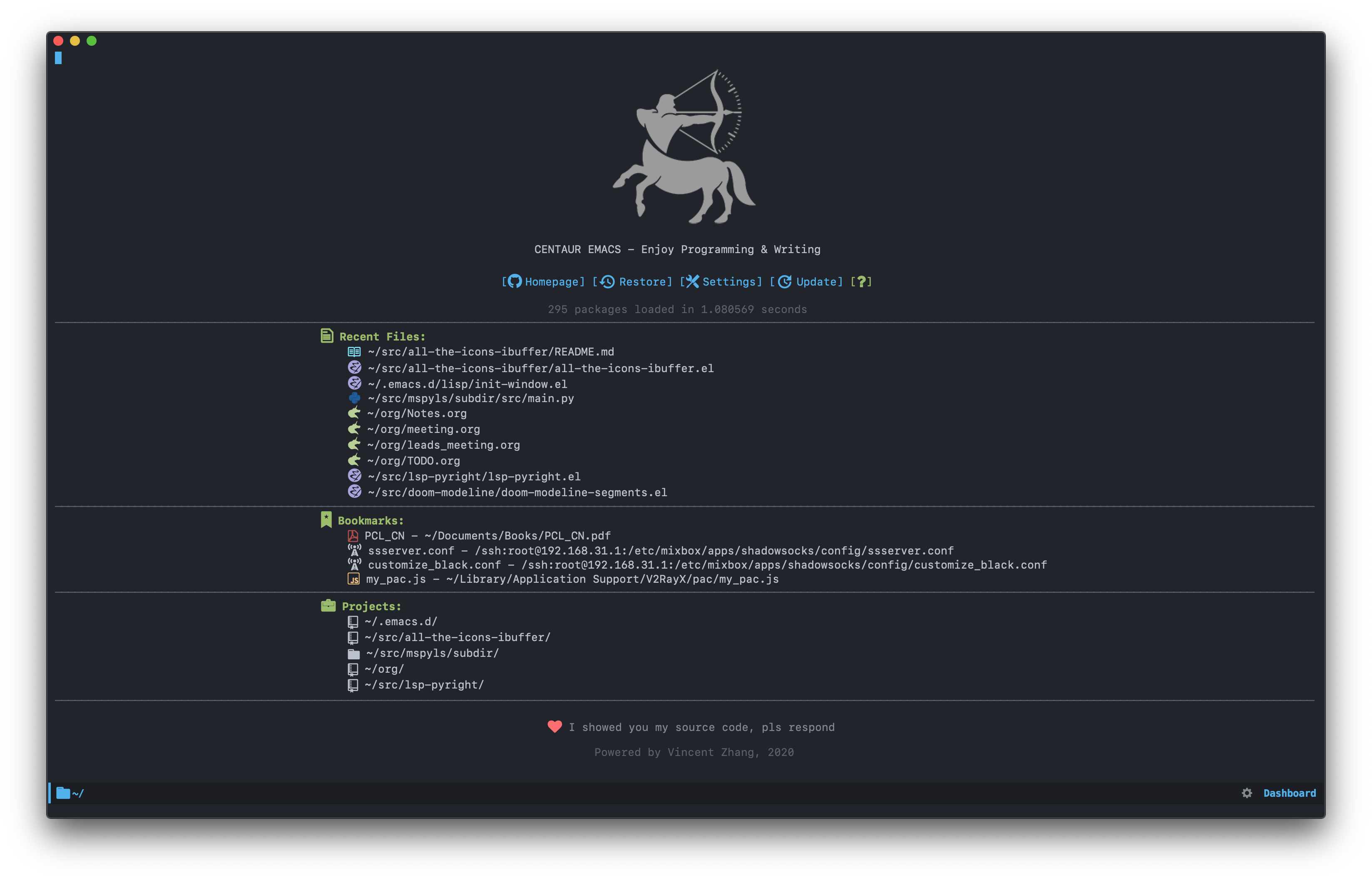
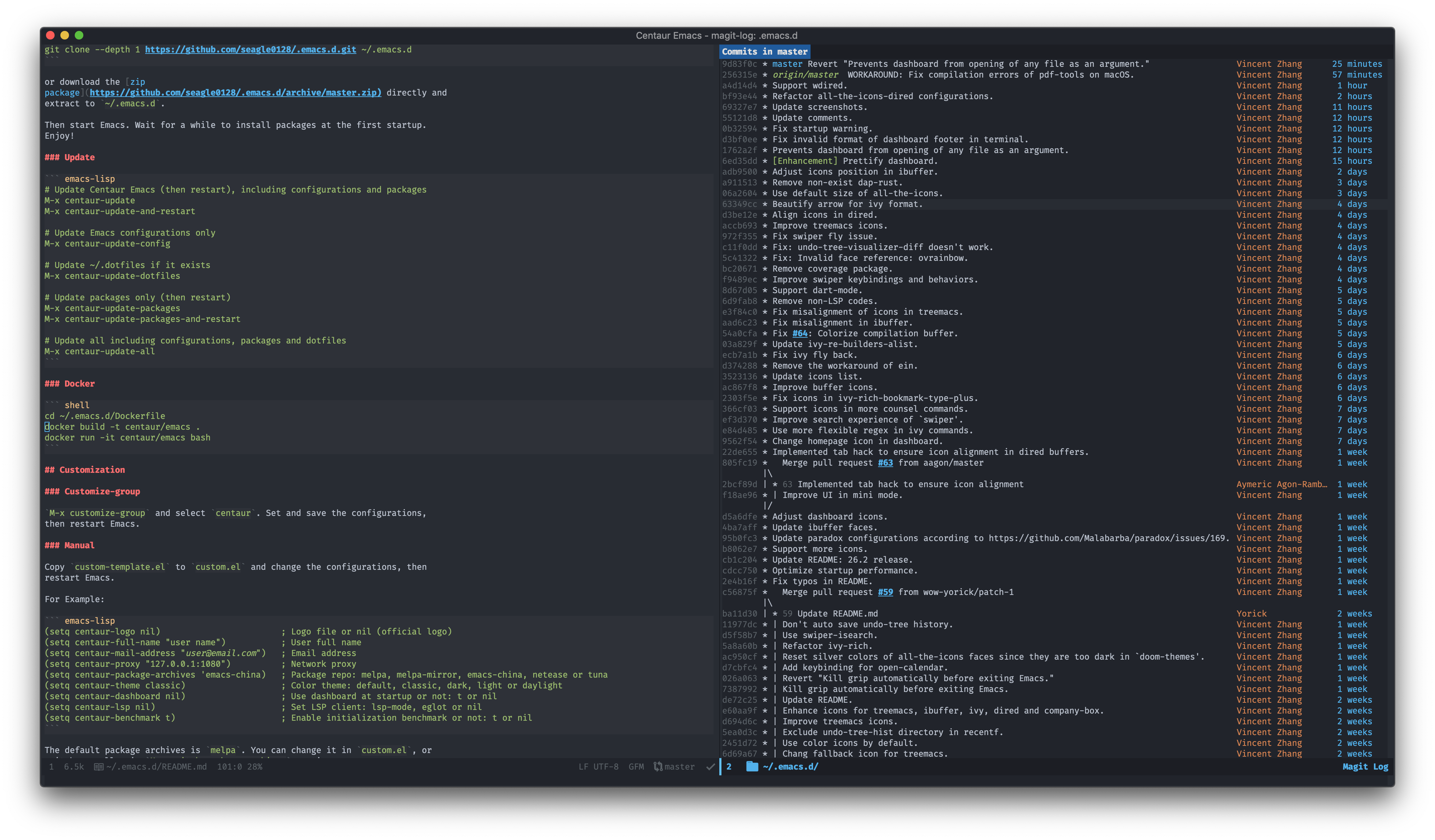
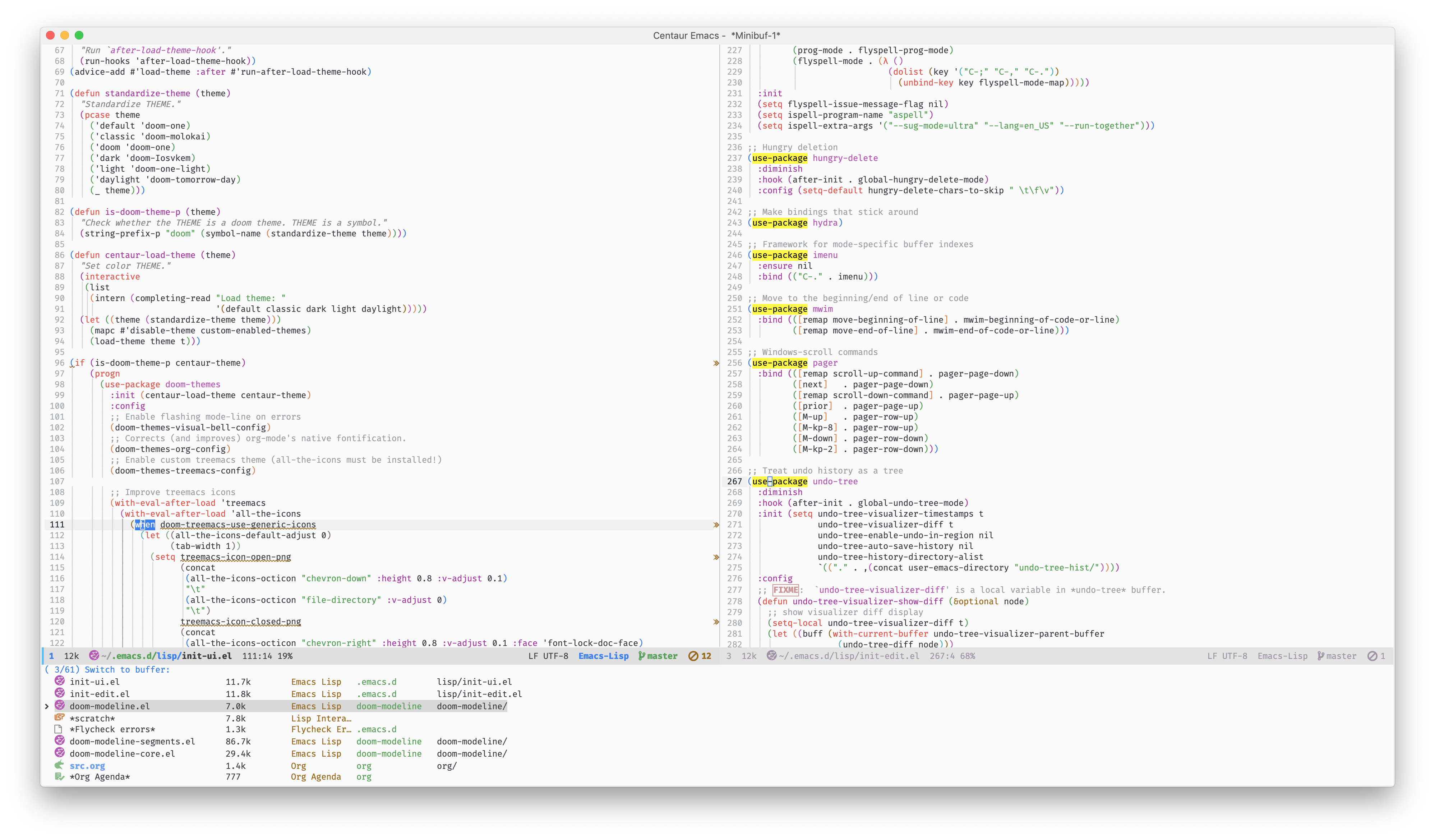
- 📸 Screenshots
- ❓ Frequently Asked Questions (FAQ)
- 💖 Support the Project
This is an Emacs distribution that aims to enhance the default Emacs experience. It alters a lot of the default settings, bundles a plethora of additional packages and adds its own core library to the mix. The final product offers an easy to use Emacs configuration for Emacs newcomers and lots of additional power for Emacs power users.
It is able to run on Windows, GNU Linux and macOS. It is compatible ONLY with GNU Emacs 28.1 and above. In general you're advised to always run with the latest stable release - currently 30.1.
- Out of the box: Ready to use immediately after installation
- Clean and Fast: Optimized for performance and clean interface
- Quick fuzzy search: Efficient file and text searching capabilities
- Better Org/Markdown support: Enhanced markup language editing
- Multi-language Programming Support:
- System Languages: C/C++/Object-C/C#/Java
- Scripting Languages: Python/Ruby/Perl/PHP/Shell/Powershell/Bat
- Web Technologies: JavaScript/Typescript/JSON/YAML
- Markup Languages: HTML/CSS/XML
- Modern Languages: Golang/Swift/Rust/Dart/Elixir
- And many more...
- Auto completion: Intelligent code completion
- Fly syntax check: Real-time syntax error detection
- Fly spell check: Live spelling correction
- Git integration: Seamless version control workflow
- Project/Workspace integration: Advanced project management
- Pomodoro integration: Built-in productivity timer
- MPD integration: Music player daemon support
- Docker support: Containerization tools integration
- Enhanced Chinese support:
- Chinese calendar integration
- Youdao dictionary lookup
- Google translation service
- Pinyin search functionality
- GNU Linux: Fully supported
- macOS: Fully supported
- Windows: Supported via Cygwin/MSYS
Compatible with GNU Emacs 28.1 and above. We recommend using the latest stable release (currently Emacs 30.1).
For installation instructions, please refer to Installing Emacs.
We recommend using Centaur Dotfiles for a complete system configuration.
To install Centaur Emacs, backup your existing configuration and clone the repository:
# Backup your existing configuration
mv ~/.emacs.d ~/.emacs.d.bak

# Clone the repository
git clone --depth 1 https://github.com/seagle0128/.emacs.d.git ~/.emacs.d
Alternatively, you can download the ZIP package directly and extract it to ~/.emacs.d.
ℹ️ Notes: XDG Configuration Directory (Linux)
If you're using Linux and prefer an XDG-compatible location, use:
# Ensure ~/.emacs.d, ~/.emacs and ~/.emacs.el don't exist
git clone --depth 1 https://github.com/seagle0128/.emacs.d.git $XDG_CONFIG_HOME/emacs
Or extract the ZIP package to the $XDG_CONFIG_HOME/emacs directory.
After installation, start Emacs and wait for packages to install during the first startup. This may take some time depending on your network speed.
- First startup may take a while as packages are downloaded and installed
- If installation stalls, check your network connection or consider using a proxy
- For troubleshooting, start with minimal configuration:
emacs -Q -l ~/.emacs.d/init-mini.el
🚀 Enjoy! 😄
Keep your Centaur Emacs installation up-to-date with these commands:
;; Update everything: configurations and packages
M-x centaur-update

;; Update only Emacs configurations
M-x centaur-update-config

;; Update ~/.dotfiles (if you have them installed)
M-x centaur-update-dotfiles

;; Update only packages
M-x centaur-update-packages

;; Update everything: configurations, packages, and dotfiles
M-x centaur-update-allRun Centaur Emacs in a containerized environment:
# Navigate to the Dockerfile directory
cd ~/.emacs.d

# Build the Docker image
docker build -t centaur/emacs -f Dockerfile.xx .

# Run the container interactively
docker run -it centaur/emacs bashThe easiest way to customize Centaur Emacs is through the built-in customization interface:
- Execute
M-x customize-group - Select the
centaurgroup - Modify the settings as needed
- Click Save to store the configurations
- Restart Emacs to apply changes
For advanced users, you can directly edit configuration settings in your custom.el file:
;; Disable startup logo
(setq centaur-logo nil)

;; Set user information
(setq centaur-full-name "Your Name")           ; Your full name
(setq centaur-mail-address "your@email.com")   ; Your email address

;; Proxy settings
(setq centaur-proxy "127.0.0.1:1087")          ; HTTP/HTTPS proxy
(setq centaur-socks-proxy "127.0.0.1:1086")    ; SOCKS proxy

;; System settings
(setq centaur-server t)                        ; Enable server-mode
(setq centaur-use-exec-path-from-shell t)      ; Use shell environment (set to nil for emacs-plus)

;; Visual settings
(setq centaur-icon t)                          ; Display icons (t to enable, nil to disable)
(setq centaur-package-archives 'melpa)         ; Package repository (melpa, bfsu, iscas, netease, sjtu, tencent, tuna, ustc)
(setq centaur-theme 'auto)                     ; Theme: auto, random, system, default, pro, dark, light, warm, cold, day, night

;; UI settings
(setq centaur-completion-style 'minibuffer)    ; Completion style: minibuffer or childframe
(setq centaur-frame-maximized-on-startup t)    ; Maximize frame on startup
(setq centaur-dashboard nil)                   ; Show dashboard on startup (t to show, nil to hide)

;; Development settings
(setq centaur-lsp 'lsp-mode)                   ; LSP client: lsp-mode, eglot, or nil
(setq centaur-lsp-format-on-save t)            ; Auto-format on save
(setq centaur-lsp-format-on-save-ignore-modes  ; Modes to skip formatting on save
     '(c-mode c++-mode python-mode markdown-mode))

;; Feature toggles
(setq centaur-tree-sitter nil)                 ; Enable tree-sitter (requires Emacs 29+)
(setq centaur-chinese-calendar nil)            ; Enable Chinese calendar support
(setq centaur-player t)                        ; Enable media player controls
(setq centaur-prettify-symbols-alist nil)      ; Symbol prettification (nil to use font ligatures)
ℹ️ Notes:
- The default package archive is
melpa. You can change this incustom.elor viaM-x set-package-archives - Personal configurations can be placed in
~/.emacs.d/custom-post.orgor~/.emacs.d/custom-post.el
Centaur Emacs comes with several Hydra interfaces for efficient workflows. Here are the available hydras and their keybindings:
| Hydra Name | Scope | Keybinding(s) | Description |
|---|---|---|---|
dape-hydra |
Global | M-<f5> |
Debug adapter protocol actions |
dashboard-hydra |
Dashboard Mode | h / ? |
Dashboard navigation and actions |
doom-modeline-hydra |
Modeline Mode | C-<f6> |
Modeline customization options |
elfeed-hydra |
Elfeed Search Mode | ? |
RSS feed reader commands |
git-messenger-hydra |
Global | C-x v p |
Git commit message inspection |
hideshow-hydra |
Programming Modes | C-~ |
Code folding/unfolding actions |
hydra-dired-quick-sort |
Dired Mode | S |
File sorting options |
lsp-ui-hydra |
LSP UI Mode | M-<f6> |
LSP UI interface commands |
org-hydra |
Org Mode | < |
Org template insertion |
rect-hydra |
Org Mode | S-<return> |
Rectangle selection operations |
rect-hydra |
Text/Programming | C-<return> |
Rectangle selection operations |
smerge-mode-hydra |
Smerge Mode | C-c m |
Merge conflict resolution |
toggles-hydra |
Global | <f6> |
Global option toggles |
window-hydra |
Global | C-c w / C-x o w |
Window management |
xwidget-hydra |
XWidget Webkit Mode | ? |
Embedded browser controls |
ztreediff-hydra |
Ztree Diff Mode | C-<f5> |
Directory comparison operations |


To properly display icons in Centaur Emacs:
- Run
M-x centaur-install-fontsto install all necessary fonts automatically - Alternatively, install fonts manually:
- Install nerd-icons package
- Run
M-x nerd-icons-install-fontsto install the required icon fonts - On Windows, fonts need to be installed manually
- Note:
nerd-iconssupports both GUI and TUI modes
ℹ️ Tip: To disable color icons, add (setq nerd-icons-color-icons nil) to your configuration.
For more details, visit nerd-icons.el.
Most package installation issues stem from network connectivity problems. Try these solutions:
- Refresh the package contents:
M-x package-refresh-contents, then retry installation - Adjust TLS settings:
(setq gnutls-algorithm-priority "NORMAL:-VERS-TLS1.3") - Switch to a different ELPA mirror
- Change your network connection or use a proxy
For more information, see issue #98.
To search Chinese text via pinyin in Emacs, use: C-s !
! character, use: C-s \!
The Centaur Dashboard enhances your Emacs startup experience:
- If
centaur-dashboardis enabled, it opens automatically at startup - Use
F2to reopen the dashboard anytime after startup - Press
?orhin the dashboard for help - Navigate with keybindings:
- Homepage:
Hg - Session:
R(resume),L(load last session) - Settings:
S - Update:
U - Recent Files:
r - Bookmarks:
m - Projects:
p
- Homepage:
Yes, LSP is supported and enabled by default in Centaur Emacs:
- Default Client:
lsp-mode - Alternative Client:
eglot - To disable LSP:
(setq centaur-lsp nil)
To enable PlantUML in Org mode:
- Download the PlantUML JAR file
- Add this configuration to your
custom.el:(setq org-plantuml-jar-path "/path/to/plantuml-x.x.x.jar")
This is a common issue where GUI Emacs doesn't inherit the same environment as your shell:
💡 Solution: Set environment variables in system startup files like .profile, .bash_profile, or .zshenv.
Centaur Emacs will then recognize and import these environment variables properly.
See issue #33 for more details.
The zoom-window feature allows you to temporarily maximize/minimize windows:
📝 Reference: See issue #169 for usage instructions.
If you find Centaur Emacs helpful, consider supporting its development:
☕ Buy Me a Coffee:
Your support helps maintain and improve this project! ❤️
| Alipay | WeChat Pay |
|---|---|
 |
 |
International Donations: