




Work tracking from your shell.
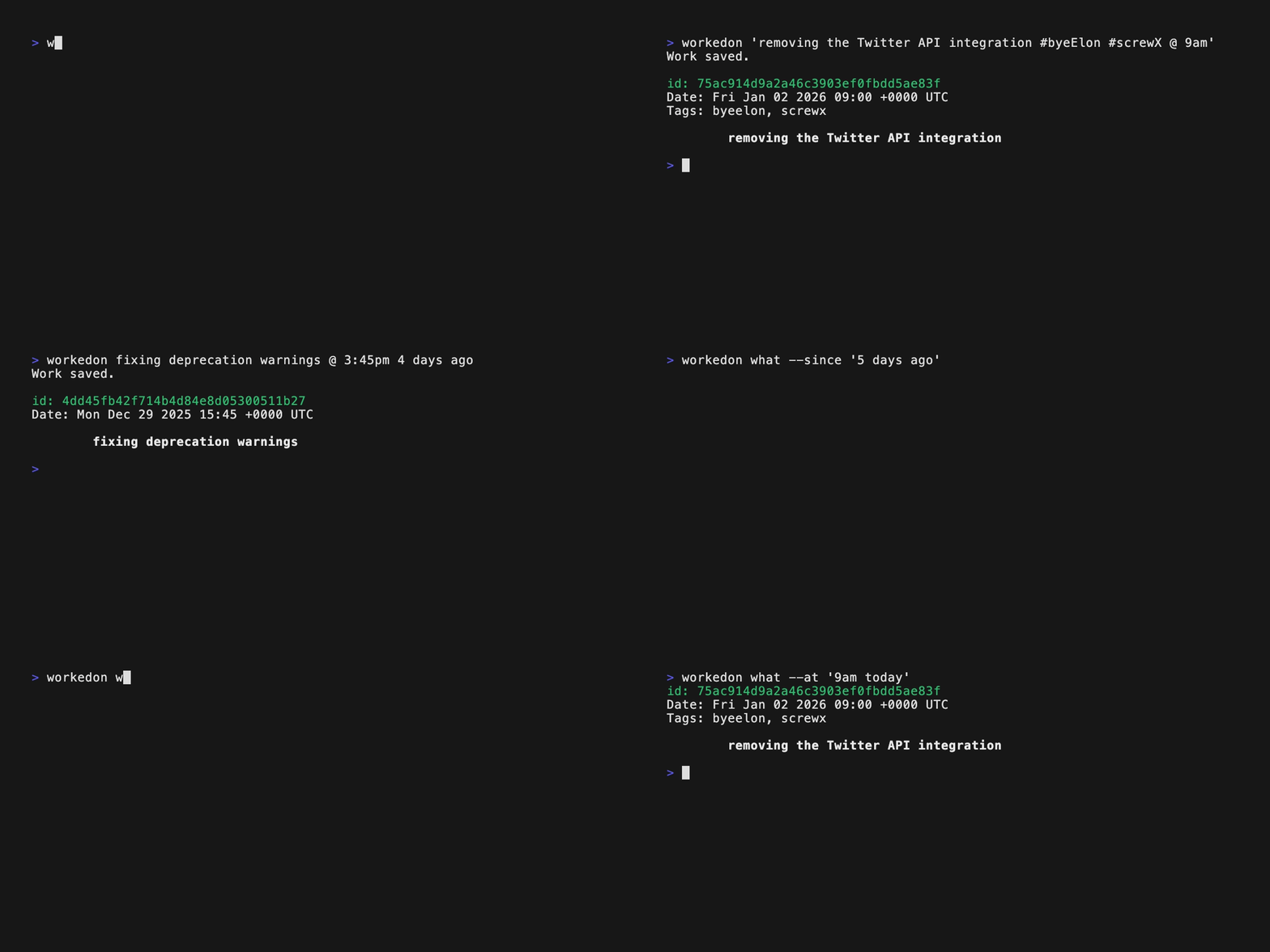
I believe tracking your work is an important way of measuring productivity and is a habit that is very helpful to develop. But the thing about habits is - if they aren’t easy and accessible, you will eventually stop doing them - just like going to a gym that is 40 minutes away :) I tried different methods to log my work and failed. Google Docs, iCloud Notes, Notepad++, Sticky Notes, etc. I really wanted a way of tracking with very little effort so I could make this a habit. It's pretty obvious that we all spend most of our day on the terminal. Wouldn’t it be nice if I wrote a feature, committed it and then logged what I did right then and there without a second thought? What if I could also search this based on date so I could look at, for example, how productive I was in the past week?
workedon is another attempt of mine to make work logging a habit and
improve my productivity.
This tool is useful in two ways - for logging work and fetching logged work.
The implementation is very simple. Work is logged in the form of
workedon <text> @ <date>or just workedon <text>
(which uses the current date/time). There is a custom parser that reads the
content, splits it at the @ to a work and a date component and then uses
the awesome dateparser library to parse human-readable dates into datetime
objects. This is then saved in a SQLite database
(File location varies based
on OS). Logged work can be fetched using multiple options that accept similar
human-readable date/times. The same parser is used again to parse into datetime
objects which are used to query the database. The output uses the current
shell's pager to display a paged list similar to git log
(your output may slightly vary based on your shell).
- Python >= 3.9
pip install workedon$ workedon --help
Usage: workedon [OPTIONS] COMMAND [ARGS]...
Work tracking from your shell.
Example usages:
1. Logging work:
workedon painting the garage
workedon studying for the SAT @ June 23 2010
workedon pissing my wife off @ 2pm yesterday
2. Fetching work:
workedon what
workedon what --from "2pm yesterday" --to "9am today"
workedon what --today
workedon what --past-month
Options:
-v, --version Show the version and exit.
--print-settings-path Print the location of the settings file.
--print-settings Print all the current settings, including defaults.
--list-tags Print all saved tags.
-T, --tag TEXT Tag to add to your work log.
-D, --duration TEXT Duration to add to your work log.
--date-format TEXT Set the date format of the output. Must be a valid
Python strftime string. [env var:
WORKEDON_DATE_FORMAT]
--time-format TEXT Set the time format of the output. Must be a valid
Python strftime string. [env var:
WORKEDON_TIME_FORMAT]
--datetime-format TEXT Set the datetime format of the output. Must be a valid
Python strftime string. [env var:
WORKEDON_DATETIME_FORMAT]
--time-zone TEXT Set the timezone of the output. Must be a valid
timezone string. [env var: WORKEDON_TIME_ZONE]
--duration-unit TEXT Set the unit of the duration output. Must be one of:
m/min/mins/minutes or h/hr/hrs/hours. Default is
minutes. [env var: WORKEDON_DURATION_UNIT]
-h, --help Show this message and exit.
Commands:
what Fetch and display logged work.
$ workedon what --help
Usage: what [OPTIONS]
Fetch and display logged work.
If no options are provided, work
from the past week is returned.
Options:
-r, --reverse Reverse order while sorting.
-n, --count INTEGER Number of entries to return.
-s, --last Fetch the last thing you worked on
-i, --id TEXT id to fetch with.
-f, --from TEXT Start date-time to filter with.
-t, --to TEXT End date-time to filter with.
--since TEXT Fetch work done since a specified date-time in the
past.
-d, --past-day Fetch work done in the past 24 hours.
-w, --past-week Fetch work done in the past week.
-m, --past-month Fetch work done in the past month.
-y, --past-year Fetch work done in the past year.
-e, --yesterday Fetch work done yesterday.
-o, --today Fetch work done today.
--on TEXT Fetch work done on a particular date/day.
--at TEXT Fetch work done at a particular time on a particular
date/day.
--delete Delete fetched work.
-g, --no-page Don't page the output.
-l, --text-only Output the work log text only.
-T, --tag TEXT Tag to filter by. Can be used multiple times to filter
by multiple tags.
-D, --duration TEXT Duration to filter by. [default: ""]
--date-format TEXT Set the date format of the output. Must be a valid
Python strftime string. [env var:
WORKEDON_DATE_FORMAT]
--time-format TEXT Set the time format of the output. Must be a valid
Python strftime string. [env var:
WORKEDON_TIME_FORMAT]
--datetime-format TEXT Set the datetime format of the output. Must be a valid
Python strftime string. [env var:
WORKEDON_DATETIME_FORMAT]
--time-zone TEXT Set the timezone of the output. Must be a valid
timezone string. [env var: WORKEDON_TIME_ZONE]
--duration-unit TEXT Set the unit of the duration output. Must be one of:
m/min/mins/minutes or h/hr/hrs/hours. Default is
minutes. [env var: WORKEDON_DURATION_UNIT]
--help Show this message and exit.
- Log work from your shell in plain text with human-readable dates/times.
- The date/time is optional. The default is the current date/time.
- The
@character is used to separate the text from the date/time.
- Fetch logged work with human-readable dates/times using multiple options.
- Familiar Git-like interface.
- Filter, sort, delete, format, and display logged work on your shell.
- Set date/time format of the output through settings.
- Specify tags while adding work. Tags can be specified in two ways:
- The
--tag/-Toption, one or more times for multiple tags. E.g.--tag tag1 --tag tag2. - The
#symbol in the description, one or more times. E.g.#tag1 #tag2. The description must be quoted in this case. - Tags are case-insensitive and are saved in lowercase.
- Tags can contain alphanumeric characters, underscores, and hyphens only.
- The
- Query logged work by tags using the
--tag/-Toption. Using it multiple times will match any of the specified tags. - Specify duration while adding work.
- Duration can be specified in two ways:
- The
--duration/-Doption, e.g.--duration 1h30mor--duration 90m. - The
[]symbol in the description, e.g.[1.5h]or[90m].
- The
- Duration can be specified in hours or minutes.
- For example,
1h30mis 1 hour and 30 minutes, and90mis also 1 hour and 30 minutes.
- For example,
- Duration is case-insensitive and supports
h|hr|hrs|hours|m|min|mins|minutes. - The duration is optional and defaults to an empty string.
- Only one duration can be specified per log entry.
- Duration can be specified in two ways:
- Query logged work by duration using the
--duration/-Doption, which supports comparisons (e.g.,--duration ">=1h",--duration "<30m"). - and much more!
Whenever workedon is run for the first time, a settings file named
wonfile.py is generated at the user's configuration directory, which
varies based on OS. To find out, run:
workedon --print-settings-path
Settings are strings used to configure the behavior of workedon.
The currently available settings are:
DATE_FORMAT: Sets the date format of the output.- Must be a valid Python strftime string.
- Option:
--date-format <value> - Environment variable:
WORKEDON_DATE_FORMAT
TIME_FORMAT: Sets the time format of the output.- Must be a valid Python strftime string.
- Option:
--time-format <value> - Environment variable:
WORKEDON_TIME_FORMAT
DATETIME_FORMAT: Sets the date and time format of the output.- Must be a valid Python strftime string.
- Setting this overrides
DATE_FORMATandTIME_FORMAT. - Option:
--datetime-format <value> - Environment variable:
WORKEDON_DATETIME_FORMAT
TIME_ZONE: Sets the time zone of the output.- Must be a valid timezone string.
- Default is the auto-detected timezone using the tzlocal library.
- Option:
--time-zone <value> - Environment variable:
WORKEDON_TIME_ZONE
Order of priority is Option > Environment variable > Setting.
To find your current settings, run:
workedon --print-settings
Check the default settings here.
See CHANGELOG.md
-
Your input is limited by your shell. Certain characters like the single quote
'and the hash symbol#may be interpreted specially by your shell. Put your content within double quotes to get around special characters.For example:
workedon "repairing my wife's phone" -
The date parser which is used may misinterpret some irregular phrases of date/time, but mostly does great.
-
For partial dates (e.g., "August 1947"), dateparser fills missing parts using your current date, which can change results over time based on the date. Prefer explicit dates or ranges (e.g., "Aug 1 1947" or "--from/--to or --on").
-
#and[]are reserved characters in the description.#is used to specify tags. You can use it multiple times to specify multiple tags.[]is used to specify duration. You can use it only once per log entry.- If you want to use these characters in your description, put your description within double quotes.
For example:
workedon "fixing my wife's phone [1h30m] #phone #wife" -
There are some reserved keywords that are used as subcommands and cannot be used as the first word of your log's content:
workedonwhat
You can use double quotes here as well to get around this.
For example, this will not work:
workedon what my wife asked me to do @ 3pm 3 days agoThis is fine:
workedon "what my wife asked me to do" @ 3pm 3 days ago
- dateparser, for an amazing date parser. This project would not be possible without it.
- peewee, for a nice and tiny ORM to interact with SQLite.
- Click, for making writing CLI tools a complete pleasure.
- jrnl, fck and Simon Willison for some inspiration.
MIT © Visesh Prasad

![@dependabot[bot]](https://avatars.githubusercontent.com/in/29110?s=64&v=4)
