Workstation Setup
To collaborate on a MSSL project you need to set-up Github, Dropbox, R (and RStudio), and Latex. This guide walks through installing and setting up these tools. If you are setting up on Linux (Ubuntu specifically), use the Ubuntu Installation guide.
Git is a version control system for managing projects and Github is an online hosting service for Git repositories.
If you do not already have a github profile, sign up for a free account. When you are logged in, go to cPASS's account and select "Follow" under profile picture. Rex will add you to the repository for a project; you can remind him to by selecting the appropriate repository, selecting the "Issues" tab (between "Code" and "Pull requests") and creating a "New Issue".
You also have to download and install the git software. Once you have R and RStudio installed, there are additional steps below to enable Git within RStudio.
If you are using a mac, especially the Sierra or High Sierra OS, you may have to run the following from terminal for Git to work: xcode-select --install
R is a language and environment for statistical computing and graphics. It is freely available, very flexible, and make pretty plots. Download R from one of the mirrors for your operating system and install it.
RStudio is a workspace that sits on top of R and makes it easier to edit code, plot data, and share your work. When working in R you will actually open RStudio application instead of the R application. Download the installer of the free open source version for your operating system and install it.
To set up Git with RStudio:
- Open RStudio
- Go to Global Options (from the Tools menu)
- Click Git/SVN
- Click Enable version control interface for RStudio projects
Rtools is a resource for building packages. You can install Rtools through R with the following:
install.packages("installr")
installr::install.Rtools()
MSSL uses Dropbox to share large and proprietary datasets; dropbox also helps users move between different workstations and keep them synced.
In the Dropbox folder, create a folder titled "github_private". This folder is where you will keep projects to make edits and then push to the cloud.
MSSL has a shared dropbox folder called "MSSL". This folder is mainly for data files that are proprietary or too big for github. Since this can get big, MSSL has business account named "rex". You can connect your personal dropbox account to "rex"; the two accounts will remain separate but you will be able to access both of them on all your devices.
For undergrads, MSSL will create a project specific folder in the team folder ("MSSL_team") and only share that.
If you need access to "rex" and "MSSL" and haven't been invited yet, create a MSSLStyleGuide issue with the label "MSSL".
When ready Dropbox should look like below with "github_private" and (probably) "MSSL" located in "Dropbox (rex)".
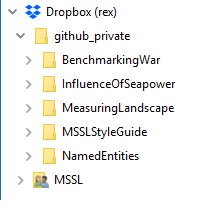
Note that "github_private" will initially be empty until you join specific projects.
To be added.
MSSL writes with TeX, but prefers the document processor LyX, a sort of Word for Latex. Why Lyx?. If you use LyX for editing, you should still save/export as a .tex file to push to the Github repo.
LyX 2.3.0 is out and easy to install on Linux, but doesn't have an official easy-install version for Windows, but you can use the unofficial LyXWinInstaller, which will also update MikTex. This link will download the updater.
The Paper Writing page discusses workflow, templates, and best practices.
Now that your workstation is ready, you can move on to project setup.